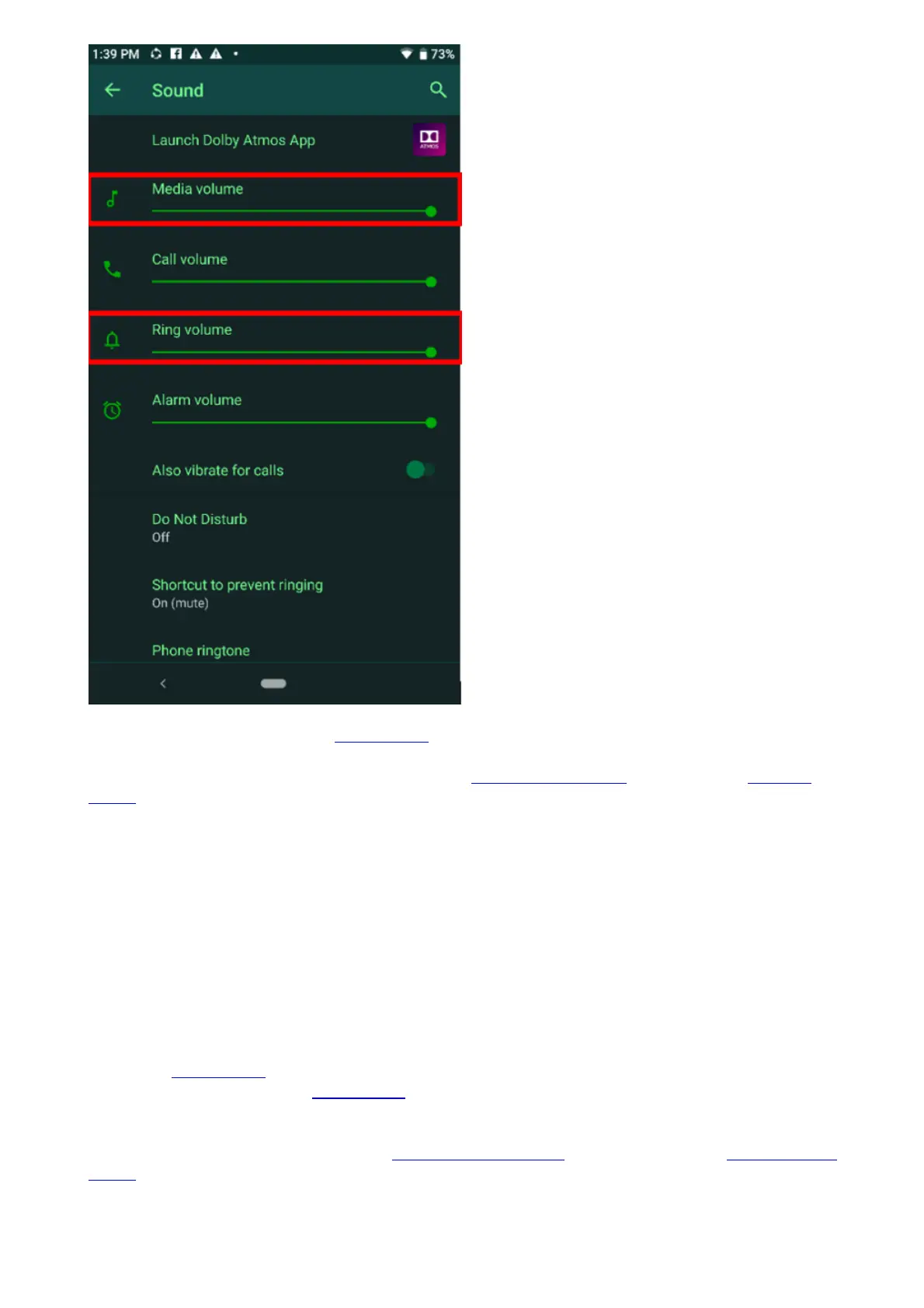
3. If the issue persists, perform a hard reset.
4. After rebooting, test the device by playing any music or video.
5. If the above steps are unable to solve the issue, backup your files and perform a factory
reset on your Razer Phone.
How to fix microphone issues on the Razer Phone
efore proceeding to the troubleshooting steps, be sure that the Razer Phone is up to date. Navigate to
Settings > System > Advanced > System update > Check for update.
Note: There is more than one microphone on Razer Phones. The top microphone on the Razer Phone
and Phone 2 is only used for noise canceling during voice calls.
Follow the steps outlined below to help fix the issue:
1. Ensure that you are not connected to any external audio device (either via 3.5mm adapter DAC,
USB-C connector or Bluetooth).
2. Perform a hard reset to clear the phone of any glitches and errors.
3. If the issue persists, boot to safe mode to isolate the possibility of 3rd-party apps causing the
issue.
4. Test the phone by making a call or recording an audio clip.
5. If the mic is still not working properly, backup your phone data and perform a factory data
reset.
When using the speakerphone on my Razer Phone, the caller hears their own
voice or an echo


 To Next Page