Using the Side Jacks
Connecting the Device
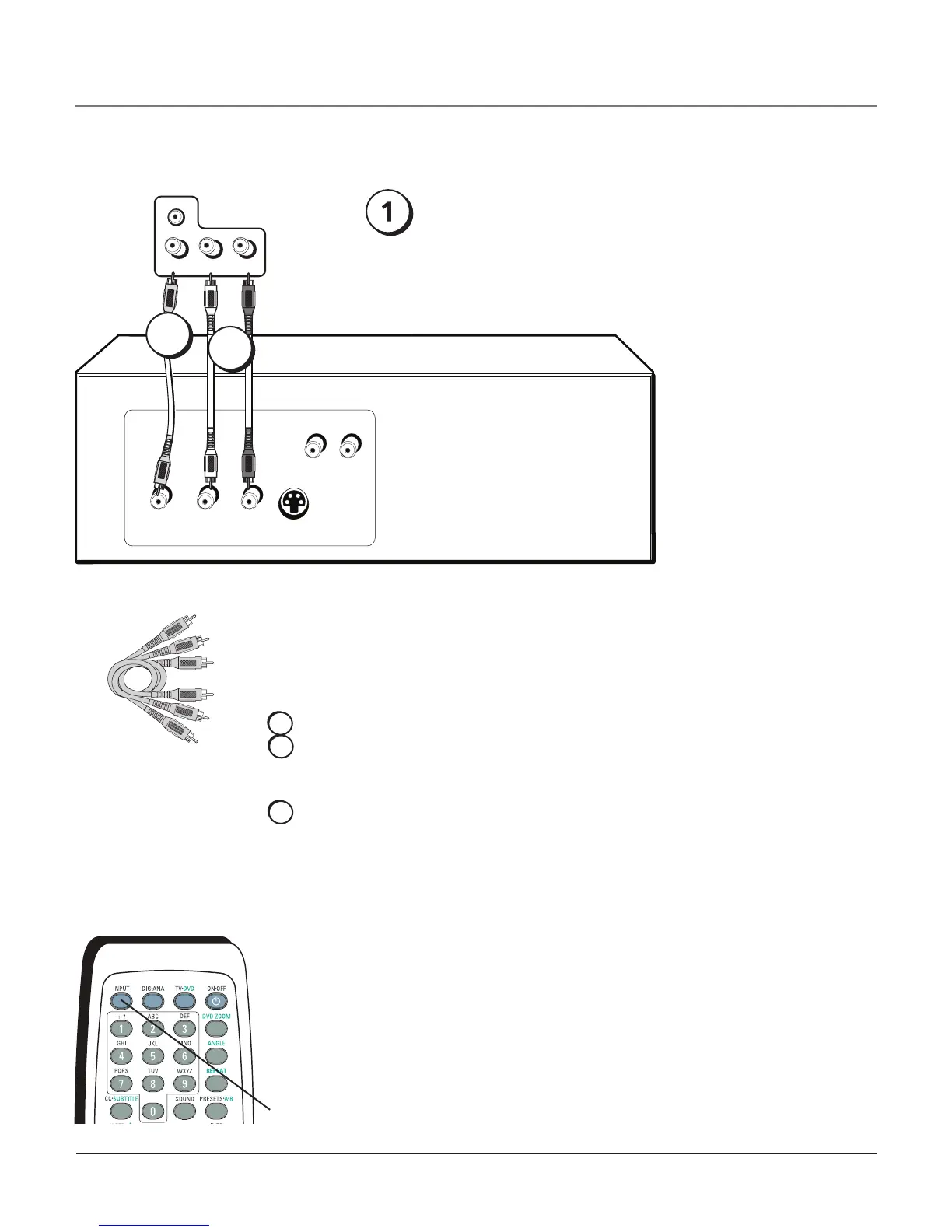
Thisconnectionallowsyoutoconnectadevice,suchasavideogameconsole,thathas
Audio/Videooutputjacks.Refertotheillustrationwhichusesaudioandvideocables.
Using the example of a video game console:
1. If necessary, connect your cable and/or antenna as described on page 5.
2. Connect your video cable.
Videocablesareusuallyyellow.ConnecttheVideocabletotheVIDEOjackonthe
sideof yourproductandtheVIDEOjackonthevideogameconsole.
3. Connect your audio cables.
Connecttheaudio(redandwhite)cablestotheRandLAUDIOjacksonthesideof
yourproductandtotheaudiooutputjacksonthevideogameconsole.Justmatch
thecolors.
Audio/Video cables
Viewing the Picture from the Connected Device
Thedeviceinthisexample,avideogameconsole,isconnectedtotheTV/DVD’svideo
andaudiojackslocatedonthesideofyourproduct.Toviewthevideogameconsole:
1. TurnonyourTV/DVDplayerandthevideogameconsole.
2. PresstheINPUTbuttonontheremotecontroltotogglethroughtheVideoInput
ChannelsuntilyouseeFRNT displayedinthechannelbanner(on-screendisplay).
VIDEO
OUTPUT
S-VIDEO
OUT
L R
AUDIO
L R
AUDIO
VIDEO
AUDIOR L
HEADPHONE
2
3
INPUT
button
Video Game Console
Note: This side
panel graphic is for
representation only.
If necessary,
connect an antenna
or cable to get a
picture. Go to page
5 for instructions.
Connections & Setup
10 Chapter 1


 To Next Page