RED DSMC OPERATION GUIDE: WEAPON
COPYRIGHT © 2015 RED.COM, INC 955-0116_V6.1, REV-H | 63
OVERLAYS
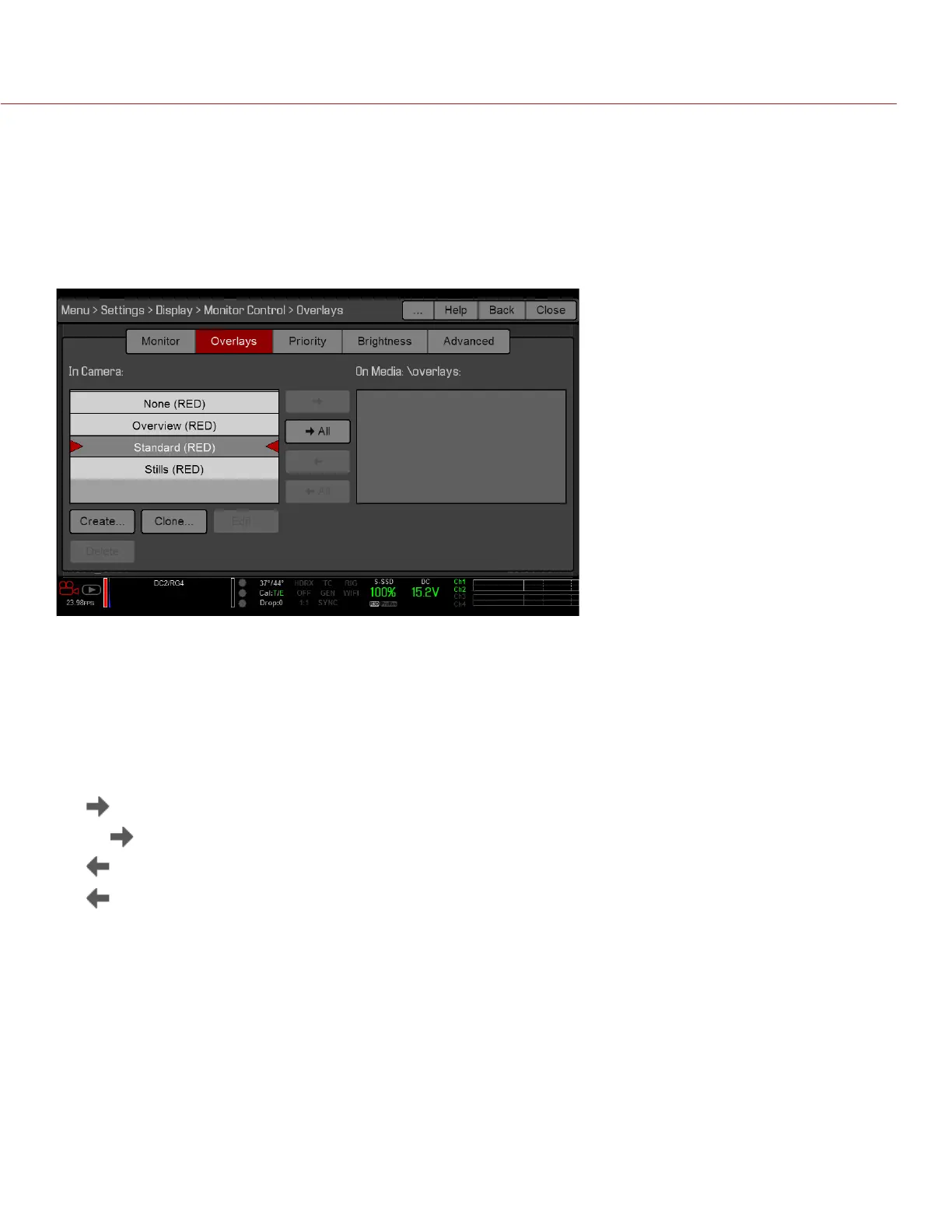
Create custom overlays that include specific items. Overlays can be stored on the camera or transferred to SSD
to be shared with other cameras.
Camera: Overlays saved internally on the camera display in the Overlay drop-down menu on the Monitor
Control > Monitor tab.
Media: Overlays saved to an SSD can be found at On Media: \overlays:.
NOTE: Overlays that end with (RED) are provided by default and cannot be edited, deleted, or exported.
OVERLAY ACTIONS
Create...: Create a new custom overlay using a blank overlay template in the Overlay Editor.
Clone...: Create a new custom overlay using the selected camera overlay as a template in the Overlay Editor.
Edit...: Edit the selected camera overlay in the Overlay Editor.
Delete: Delete the selected camera overlay.
EXPORT AND IMPORT OVERLAYS
: Export selected overlay from camera to SSD.
All : Export all overlays from camera to SSD.
: Import selected overlay from SSD to camera.
All: Import all overlays from SSD to camera.
CREATE AND EDIT OVERLAYS
1. Go to Menu > Settings > Display > Monitor Control > Overlay.
2. Select Create, or select an existing overlay and select Clone or Edit.
3. If creating a new overlay, enter a name for the overlay and select OK.
4. Select any of the following check boxes to add the corresponding guides to the overlay:
‒ Frame Guide
‒ Action Guide
‒ Title Guide


 To Next Page