RED DSMC OPERATION GUIDE: WEAPON/SCARLET-W
COPYRIGHT © 2016 RED.COM, INC 955-0116_V6.1, REV-U | 55
NAVIGATION CONTROLS
This section describes basic controls for navigating the camera menus.
TOUCHSCREEN NAVIGATION
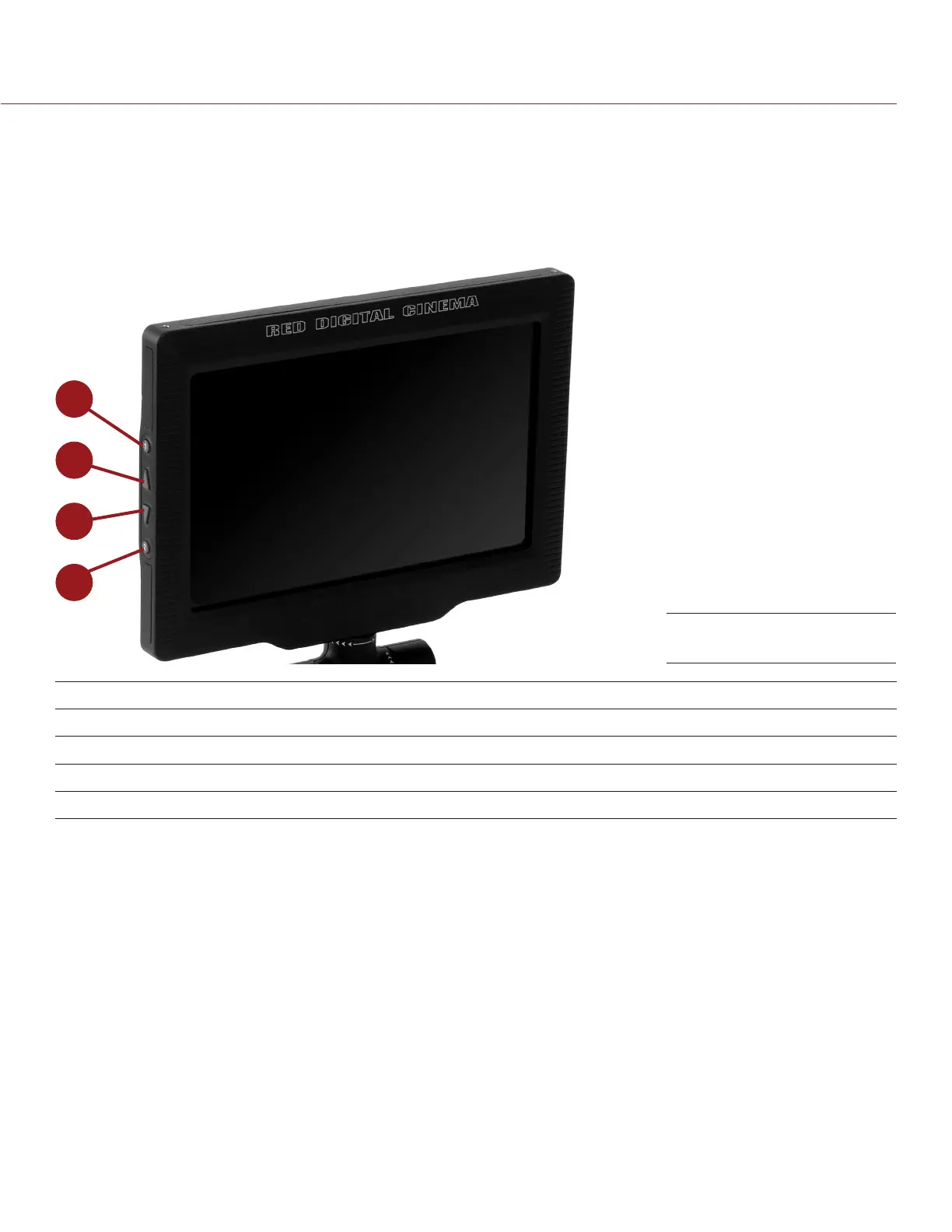
RED Touch displays offer intuitive menu control and four (4) programmable buttons.
1
2
3
4
# RED TOUCH BUTTON DESCRIPTION
1 User Key 1 Toggle 1:1 Magnify on/off
2 Up Button Increase display brightness
3 Down Button Decrease display brightness
4 User Key 2 Toggle Exposure Mode on/off
NOTE: RED Touch display keys are programmable. For more information, go to “Key Mapping” on page 103.
Navigate the menus using a touchscreen by using the following gestures:
Tap: Tap has many functions:
‒ Tap to select a Basic Menu, submenu, or button.
‒ If a menu is open, tap anywhere outside the menu to save any changes and close the menu.
‒ Tap the right or left regions of the touchscreen to access the programmable soft keys.
Swipe: Swipe to select different values in spinners or drop-down menus. For more information, go to
“Swipe-Up Menu” on page 56.
Double-Tap: If the monitor is in Clean mode, changes to Overlay mode.
Hold: Tap and hold an icon to bring up an advanced interface display.
Pinch: Move two (2) fingers apart/together to increase/decrease the size of the image. By default, this
gesture is disabled.
For more information, go to “Gestures” on page 75.
RED Touch 7.0" LCD


 To Next Page