4. From the Home tab in WebTools, select Create Backup under Fiery System Restore.
5. If you are prompted to login, enter "admin" in the first line and then the password.
(Default password is "Fiery.1".)
6. Select the backup destination (USB or Internal hard drive).
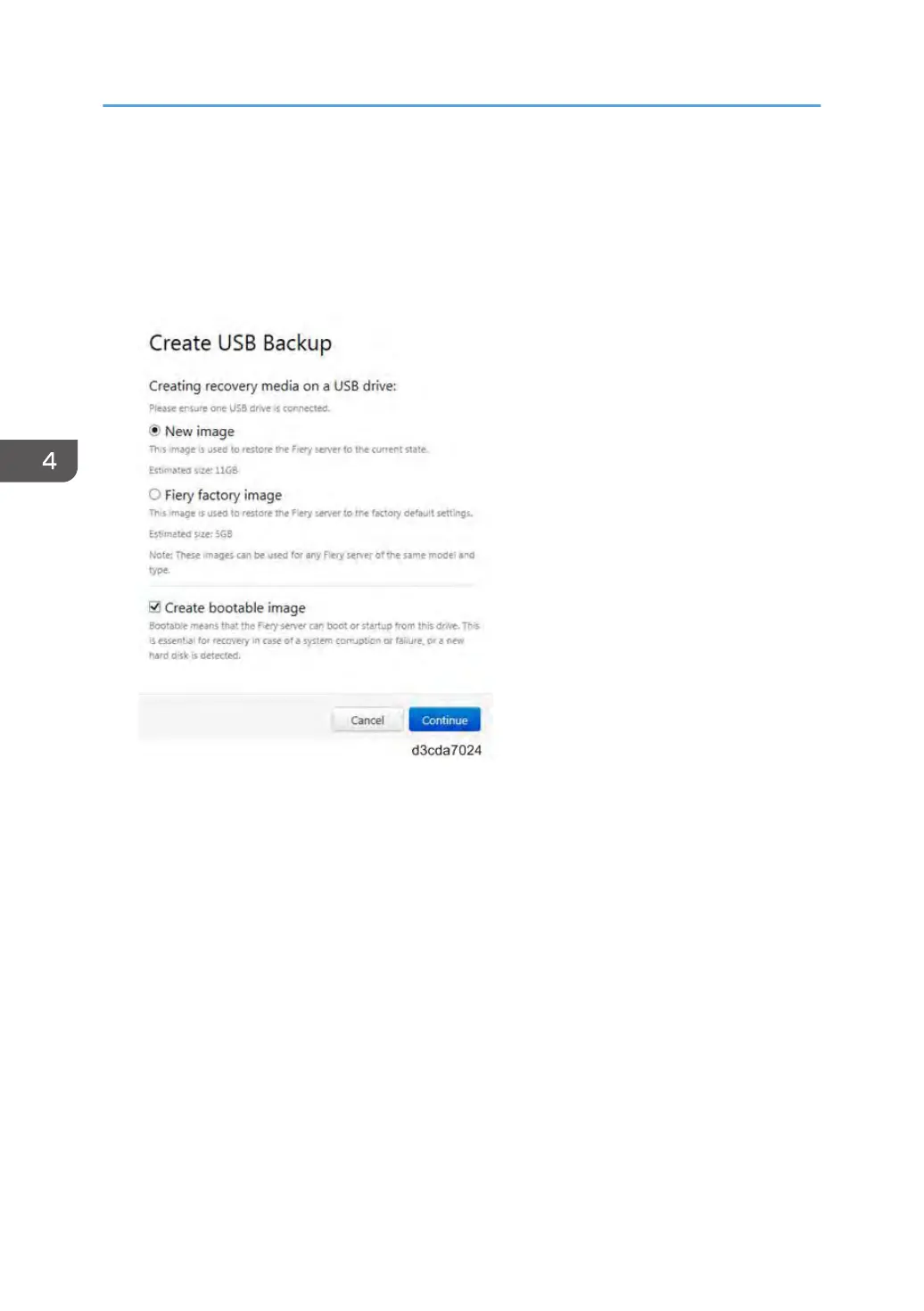
7. For backup on the USB device, select the desired options and click Continue.
• To create a bootable image with all the factory default versions of software and settings,
select Fiery factory image. Fiery System Restore automatically creates the factory image as
bootable image. (Non-bootable factory image cannot be created with the Fiery System
Restore feature.)
•
To create a bootable customized image, select New image with the "create bootable image"
option checked. This creates a bootable image that contains the current software updates and
settings, including any customizations made to the E-24B configuration.
• To create a non-bootable customized image, select New image. This creates a non-bootable
image that contains the current software updates and settings, including any customizations
made to the E-24B configuration.
8. Follow the on-screen prompts to complete the backup.
For a backup using USB 3.0, it will take 10-20 minutes to complete the backup. When the backup
is complete, the E-24B will automatically reboot and enter Idle.
4. System Maintenance
138


 To Next Page