13. Enter an administrator password. (The default is "Fiery .1")
14. Ask the site administrator to configure the Setup options.
• It is the site administrator's responsibility to configure the correct setup options for the network
and user environment. The default settings in the setup may be adequate, but they may not be
optimal for the user's environment. Refer the site administrator to the "Configuration and
Setup" manual for setup information.
•
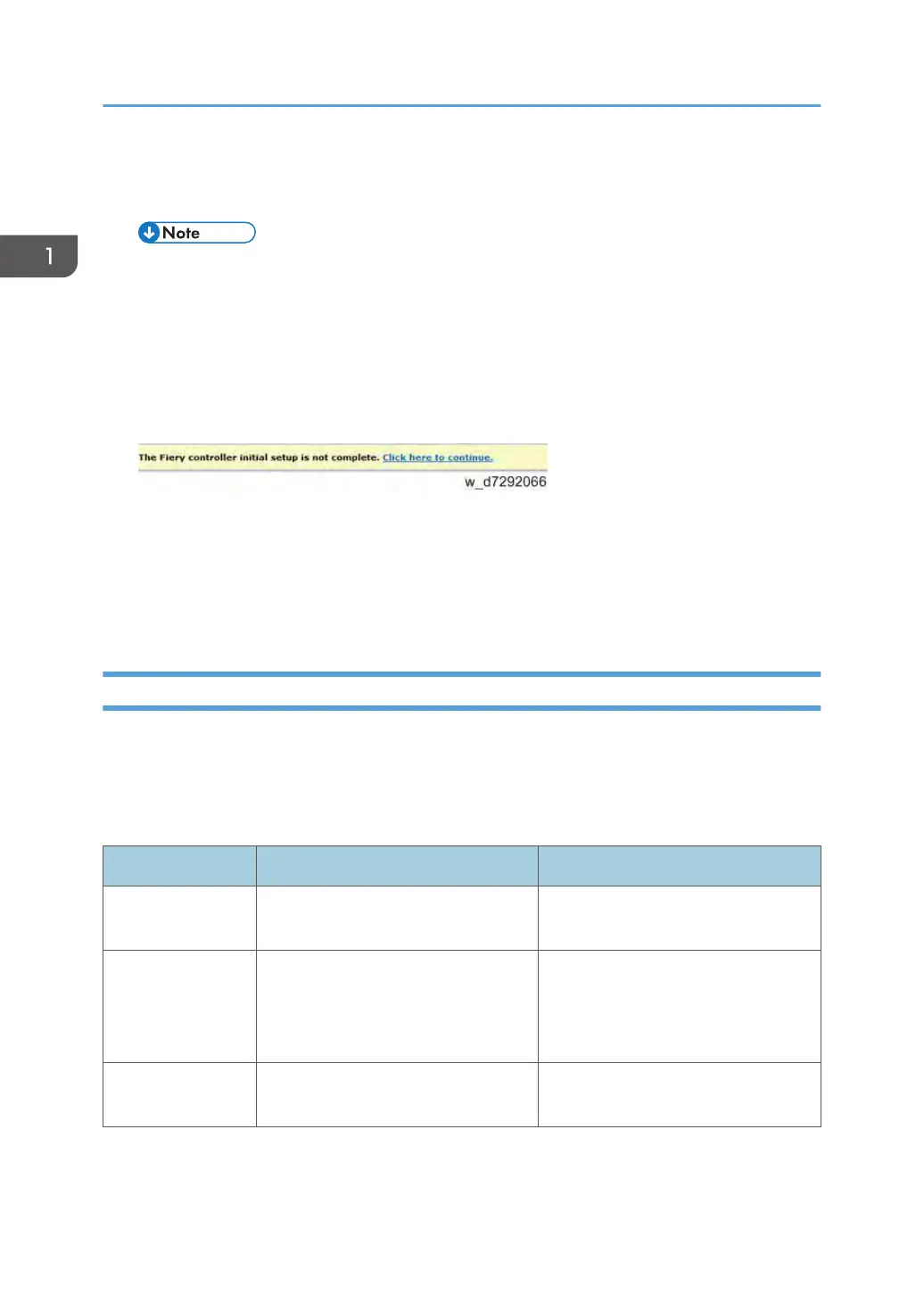
If initial setup (with the exclusion of changing the IP Address/DNS/WINS) is not yet done,
Fiery Setup Wizard menu is selectable from WebTools and CommandWorkStation. For
details of Fiery Setup Wizard, refer to the Configuration and Setup Guide.
15. After configuring the Setup options, verify the network connection.
16. Make sure that the system date and time, and the time zone have been adjusted before
leaving the customer site. [Link to page 72 "Adjusting the System Date and Time"]
17. Ask the site administrator to install the printer driver on a client PC, and to make a test
print from that PC.
Enabling System Updates and Automatic Backup
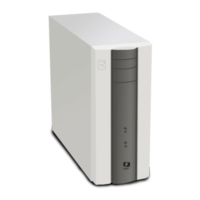
At the end of the E-24B installation, it is highly recommended to set up System Updates and Automatic
Backup as a set.
Make sure to obtain agreement from your customer in advance, as the E-24B must not be rebooted or
powered off while these functions operate.
Feature Name System Updates Automatic Backup
Detailed
Information
[Link to page 120] [Link to page 136]
Description
Patches are downloaded and applied
to the controller automatically at the
scheduled date and time.
System Software on the E-24B with
patches are backed up to the HDD
automatically at the scheduled date
and time.
Recommended
Setting
Enabled - Once a Week, date and
time when the E-24B is not in use.
Enabled - Once a Week, date and
time when the E-24B is not in use.
1. Installation
24


 To Next Page