EasyManua.ls Logo

Ricoh MP C2003 Series - User Manual

Ricoh MP C2003 Series
662 pages
Print Icon
To Next Page IconTo Next Page
Loading...
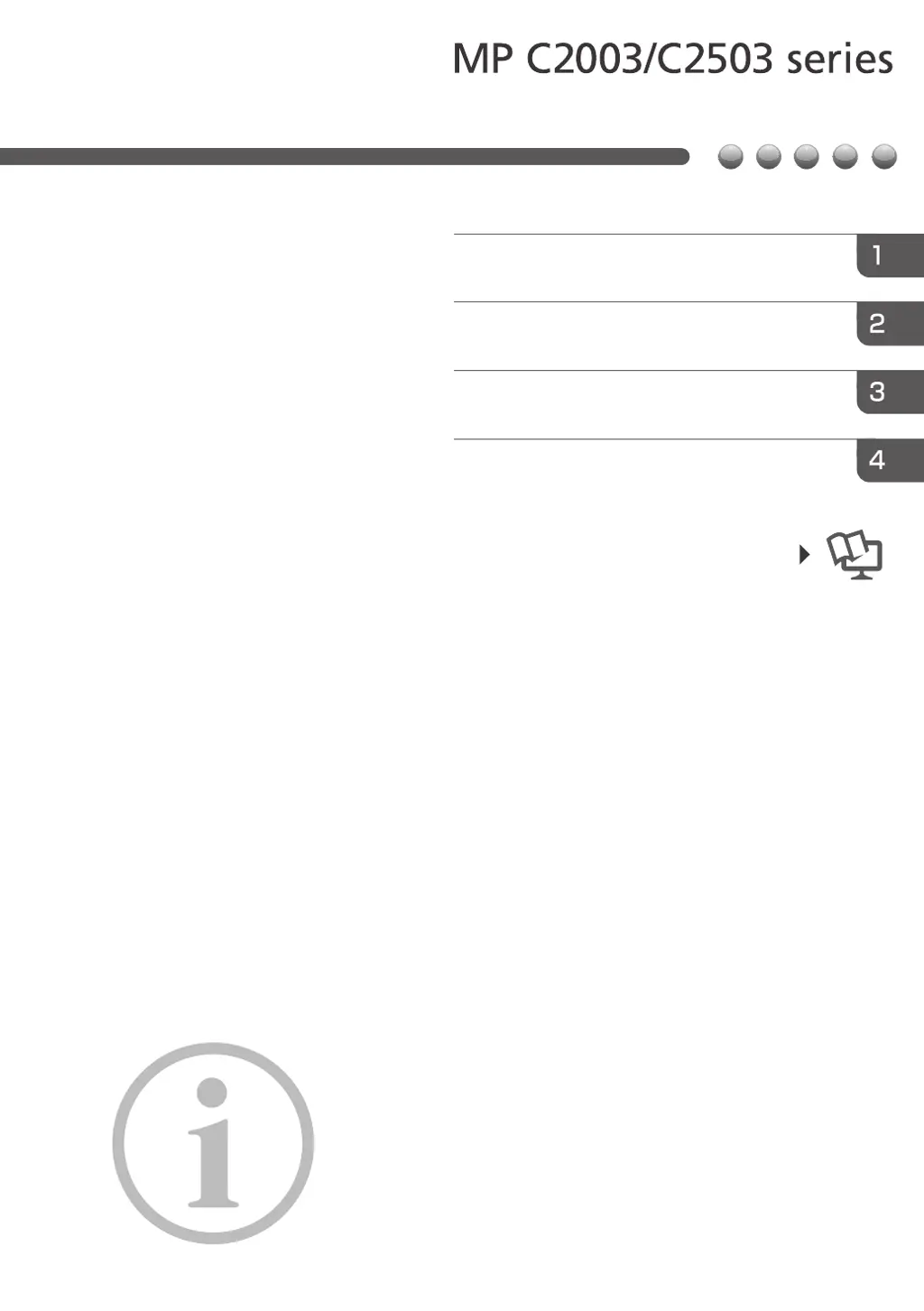
Read this manual carefully before you use this machine and keep
it handy for future reference. For safe and correct use, be sure to
read the Safety Information in this manual before using the
machine.
Please look at the on-screen instruction manual (included in the
attached CD-ROM), the manual provided on this company's
website, or the manual viewable via the Smart Operation Panel
for information not included in the paper instruction manual.
Appendix
Other Information for This Machine
Safety Information for This Machine
Manuals Provided with This Machine
Read This First

Table of Contents

Other manuals for Ricoh MP C2003 Series

Questions and Answers

  • M
    markmckinneySep 12, 2025
    Why can't I print in duplex mode on my Ricoh All in One Printer?
    • M
      Melinda BallSep 12, 2025
      You cannot print in duplex mode on your Ricoh All in One Printer because you have selected a paper tray that is not set for duplex printing. Change the setting for "Apply Duplex" in [System Settings] to enable duplex printing for the paper tray. Alternatively, you have selected a paper type that cannot be used for duplex printing. In [System Settings], select a paper type that can be used for duplex printing.
  • J
    Joel GrantAug 25, 2025
    What to do if an error occurred in the Ethernet interface of Ricoh MP C2003 All in One Printer?
    • A
      Alyssa NewmanAug 25, 2025
      If an error has occurred in the Ethernet, USB interface, or hard disk of your Ricoh All in One Printer, turn off the power and then turn it back on. If the message appears again, contact your service representative.
  • R
    rosechristopherAug 25, 2025
    What to do if an error has occurred on Ricoh MP C2003 All in One Printer?
    • F
      frothAug 26, 2025
      If an error has occurred on your Ricoh All in One Printer, press [Check] in the function where the error occurred. Then check the displayed message, and take appropriate action.
  • J
    john17Sep 23, 2025
    What to do if Ricoh All in One Printer cannot print because the main and designation sheets are set to the same paper tray?
    • J
      Jennifer KennedySep 23, 2025
      If your Ricoh All in One Printer cannot print because both the main and designation (chapter) sheets are set to the same paper tray, the tray selected for other pages is the same as the one for slip sheets. Reset the job and be sure the tray you select for slip sheets is not providing paper for other pages.
  • S
    Stacy SinghSep 12, 2025
    What to do if nothing happens when pressing [Check Status] or [Energy Saver] key on Ricoh All in One Printer?
    • C
      Courtney MarshallSep 12, 2025
      If nothing happens when you press the [Check Status] key or the [Energy Saver] key on your Ricoh All in One Printer, the power is likely turned off. Make sure the main power indicator is off, and then turn on the power.
  • C
    Cynthia SolomonSep 16, 2025
    What causes error when changing Address Book on Ricoh All in One Printer?
    • R
      rhonda78Sep 17, 2025
      An error occurs when the Address Book is changed from the display panel or Web Image Monitor on your Ricoh All in One Printer because the Address Book cannot be changed while deleting the multiple stored documents. Wait a while, and then retry the operation.
  • D
    douglas68Sep 5, 2025
    Why the Address Book cannot be changed from the display panel on Ricoh MP C2003?
    • R
      Ronald SmithSep 5, 2025
      If the Address Book cannot be changed from the display panel on your Ricoh All in One Printer, it might be because the Address Book is being backed up from Web Image Monitor or other tools running on the computer. Wait until the Address Book backup is complete, and then try to change the Address Book again. If an SC997 error occurs, press [Exit].
  • O
    ocoleSep 6, 2025
    Why are items missing from the User Tools menu on Ricoh MP C2003 after turning it on?
    • L
      Laura BrownSep 6, 2025
      If the machine has just been turned on and the User Tools screen is displayed, but the User Tools menu has items missing on your Ricoh All in One Printer, it means that functions other than the copier function are not yet ready. The time required varies by function. Functions appear in the User Tools menu when they become ready for use. Wait a little longer.
  • S
    Sonya HernandezSep 18, 2025
    Why Address Book cannot be changed from the display panel on Ricoh All in One Printer?
    • M
      Michelle CurtisSep 18, 2025
      The Address Book cannot be changed from the display panel on your Ricoh All in One Printer because the Address Book cannot be changed while it is being backed up from Web Image Monitor or other tools running on the computer. Wait until the Address Book backup is complete, and then try to change the Address Book again. If an SC997 error occurs, press [Exit].
  • L
    lisa76Aug 30, 2025
    What to do if error message remains on Ricoh All in One Printer after removing misfed paper?
    • J
      Jason RitterAug 30, 2025
      If an error message remains on your Ricoh All in One Printer even after removing misfed paper, it means paper is still jammed in the tray. Remove the jammed paper by following the procedures displayed on the control panel.

Ricoh MP C2003 Series Specifications

General IconGeneral
Print Resolution1200 x 1200 dpi
Maximum Paper SizeA3
Copy Resolution600 x 600 dpi
Duplex PrintingYes
Print TechnologyLaser
Print Speed20 ppm (A4)
Scanner Resolution600 dpi
Network ConnectivityEthernet
FunctionsPrint, Copy, Scan
Operating System CompatibilityWindows, Mac, Linux
Scan Speed54 images per minute
Control Panel9-inch color touchscreen

Related product manuals