2-4
ComColor GD Series Troubleshooting Guide
Paper Jams
If a paper jam occurs in the machine or optional equipment, printing stops, the error lamp on the operation panel flashes in
red, and the paper jam location is displayed on the touch panel. Follow the procedure displayed on the touch panel to
remove the jammed paper and resume printing.
CAUTION
Be careful of protruding parts and metal terminals when inserting your hand in the machine, such as when
removing jammed paper. Otherwise, an injury might occur.
1
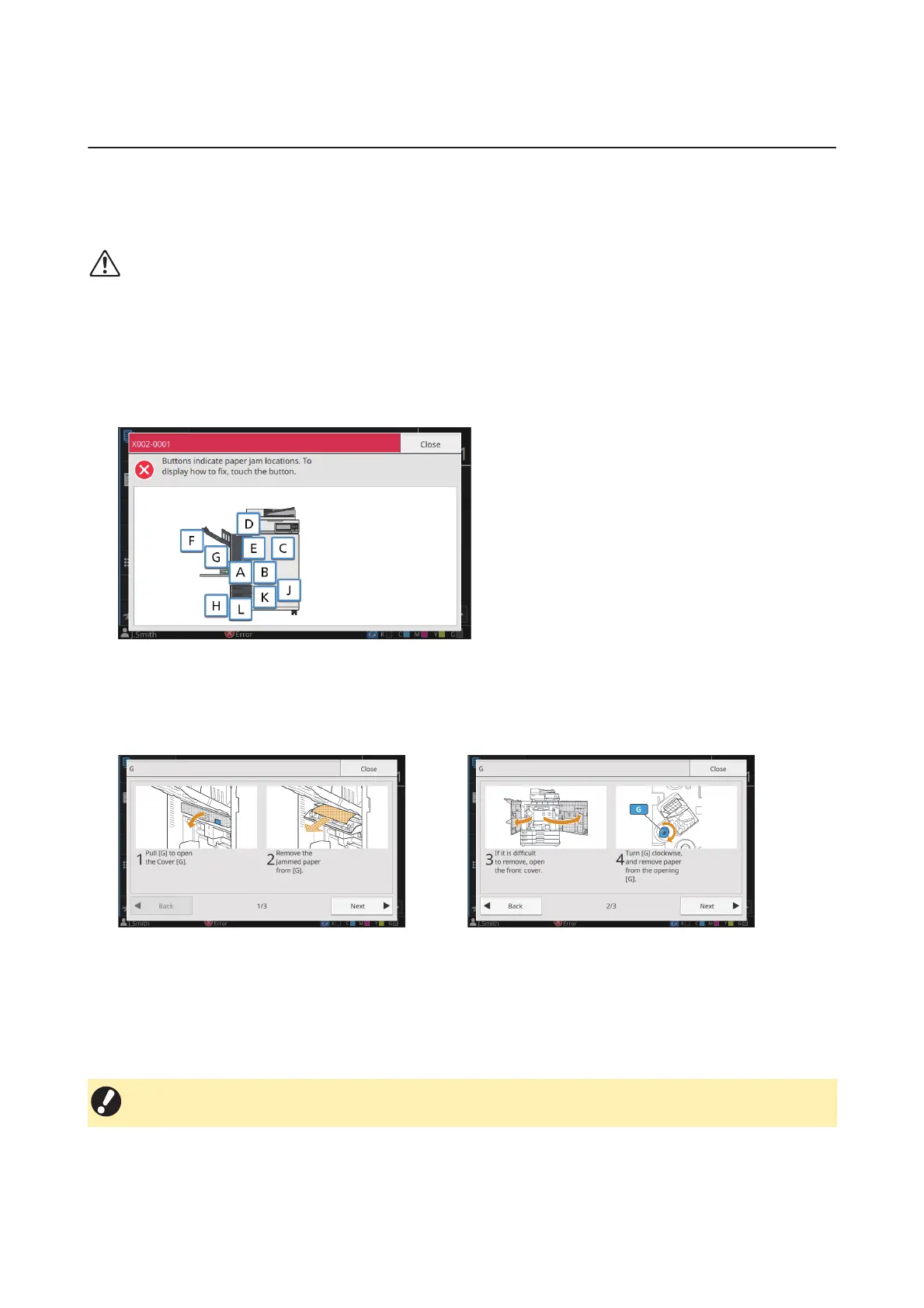
Touch the button indicating the location of the paper jam to display how to
remove the jammed paper.
2
Follow the procedure displayed on the touch panel to remove the paper.
Touch [Back] or [Next] to display the previous or next page.
(The screenshots below are examples of the display when there is a paper jam.)
3
Touch [Close].
Return to the screen in Step 1. Check that the button indicating the location where the paper was removed has
disappeared.
When all of the jammed paper is removed and the cover is closed, the error screen closes and the previous screen is
displayed.
• As long as alphabet buttons are displayed on the screen, paper still remains in the indicated locations. Repeat
Steps 1 to 3 to remove the jammed paper.



 To Next Page