5
ComColor GD Series Troubleshooting Guide
The touch panel allows you to perform operations and
check the current status of the machine. Use the
information described in this section to help with
troubleshooting.
[Home1] Screen
On the [Home1] screen, press a mode button to access the settings and functions for that mode. You can check the
information described below on each mode button or on the [System Info] screen.
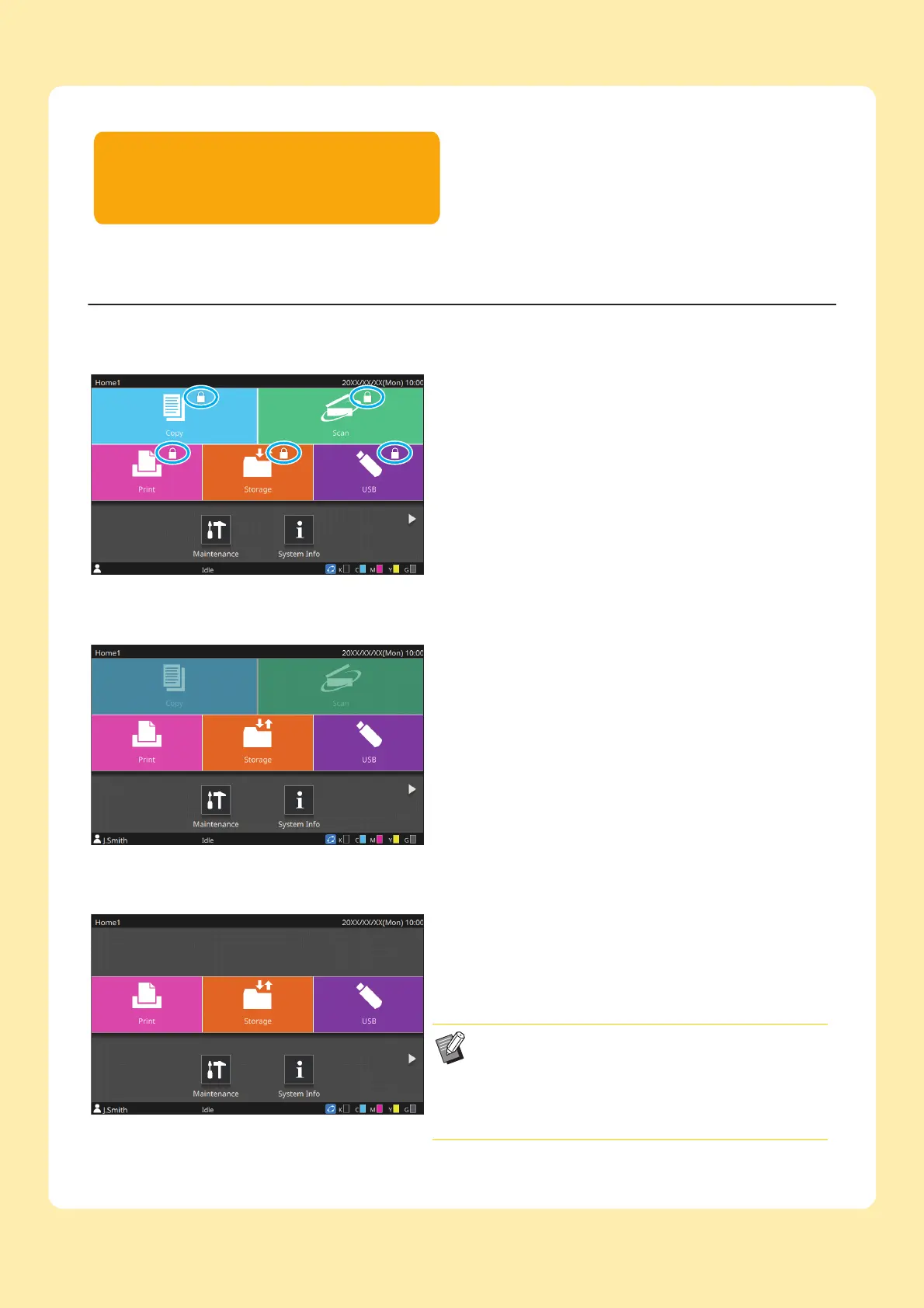
When the lock icon is displayed in the top right corner of
the mode button
The lock icon displayed on a mode button indicates that you
must log in to access that mode.
• The administrator configures whether user login is required for
each mode.
When a mode button is grayed out
Buttons for modes that the current user is not authorized to use
are grayed out.
• The administrator configures the mode access rights for each
user.
When a mode button is not displayed
If the administrator sets a mode button to [OFF] in [Home
Screen Customization], that mode button is not displayed.
• [Admin Menu] is displayed only when the user is
logged in as an administrator.
• Depending on the connection status or settings of
equipment, the buttons for each mode may not be
displayed.
[Copy] button and [Scan] button are hidden.



 To Next Page