12
Steering Wheel Interface
a. First to click “Start”
b. Click the buttons as you want.
c. Press the corresponding button on the wheel. If the study
displays successful, there will be a change on the
corresponding color on the main screen.
d. Repeat step 1 and 2 till you complete all the buttons’ setting
on the steering wheel.
e. Click “
END
” to ensure that the steering wheel setting is
completed.
If you want the steering wheel button to re-learn, press the
[CLEAR] and repeat a, b, c, three steps.
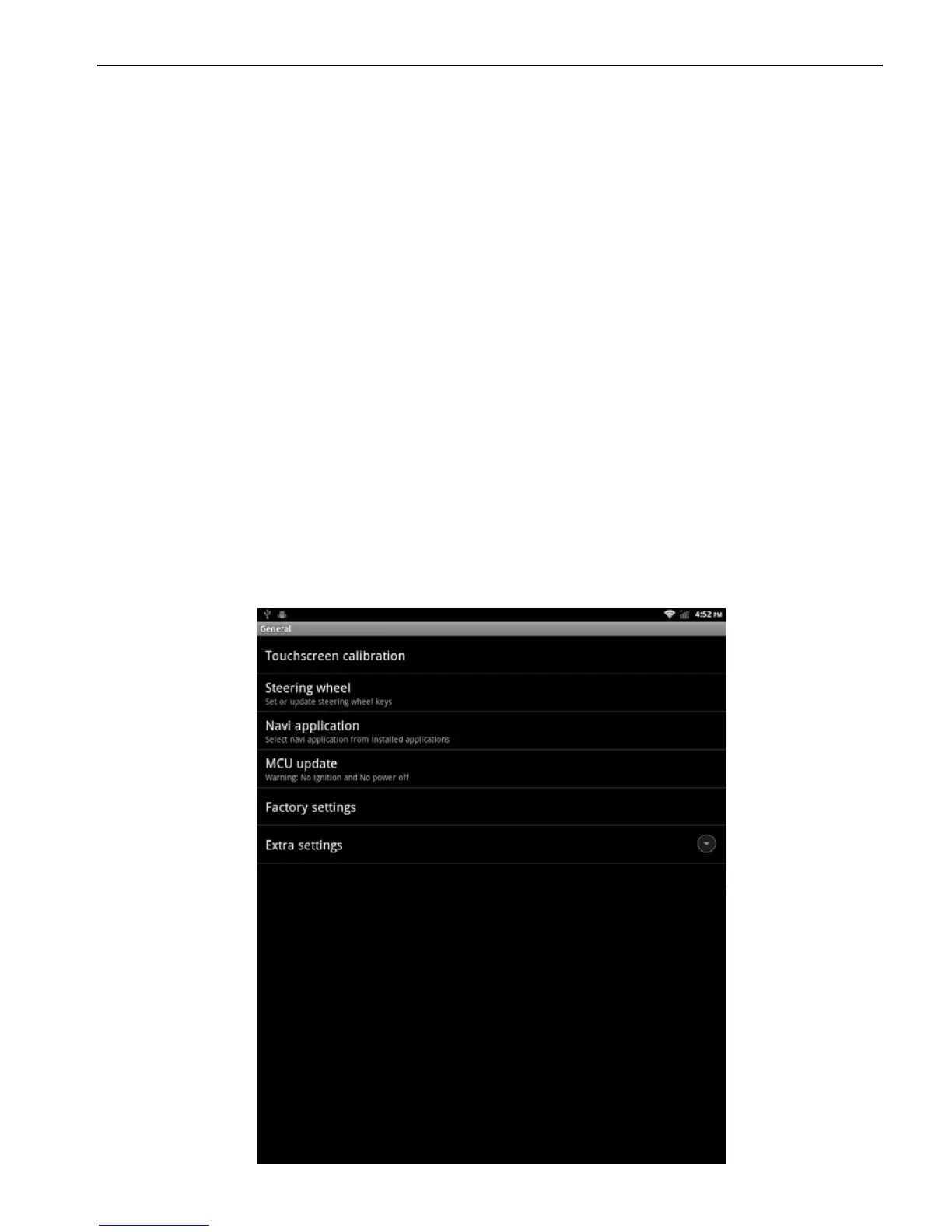
2.2.2 Screen Calibration
Applications> Settings
> General Settings
> Touch screen calibration
Enter the calibration to calibrate the screen interface. Please click
as close as possible to the cross until a successful calibration, then
exit the calibration interface.



 To Next Page