39
Recalibrate Touchscreen - the item starts calibration of the touchscreen. Follow instructions on
the screen.
Default Settings - The menu item allows you to set the items stated above (except Ethernet Settings) to default
values.
Note: the password will not be set to a default password (set password will remain without change) but the
option Protect with Password will be set to On.
7. Software update
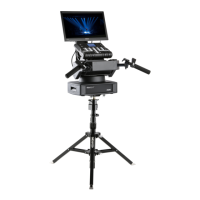
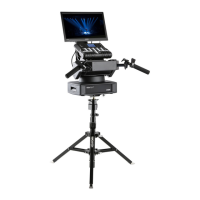
RoboSpot software update is done via a network connection between a computer running a ROBE RDM Up-
loader software through the CAMERA input (RJ45) of the RoboSpot base station. It is important to note, that
computer IPv4 address has to be set to 10.x.x.x network (for example 10.0.1.10) with netmask 255.0.0.0 .
During the update, the FollowSpot Controller has to be attached to the RoboSpot.
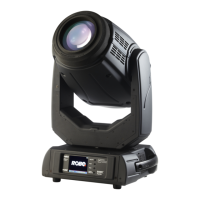
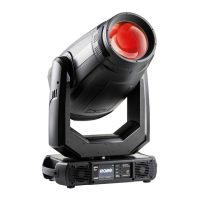
Do note, that to enable all new features, you must update the RoboSpot base station and also all BMFL xtures
controlled by the RoboSpot system.
To update software in the Robospot.
1. Connect a computer running ROBE RDM Uploader to the internet and update software libraries (Libraries
→ Update)
2. Connect the computer and the RoboSpot base station via Ethernet cable. Use Camera input RJ45 socket
on the RoboSpot base station for this connection.
3. Set computer to address 10.x.x.x/255.0.0.0 (do note the 10.x.x.x). Do not change any IP settings on the
RoboSpot.
4. Use the ROBE Uploader → Devices → Discovery and Devices → Update. This will update RoboSpot together
with the attached FollowSpot Controller panel. The message "Flashing Mode. Please do not touch any buttons!"
will appear on the RoboSpot screen during updating process.
5. Do a calibration of the Robospot handles as described in the article 5.5 RoboSpot handles calibration.


 To Next Page