13
5.2 LCD monitor screen
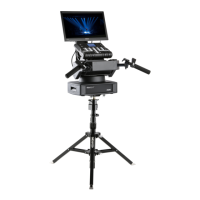
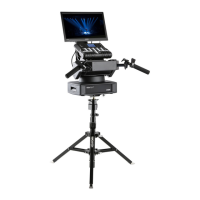
The RoboSpot is equipped with the 15.6" (10-point) touch screen with max. resolution 1366 x 768.
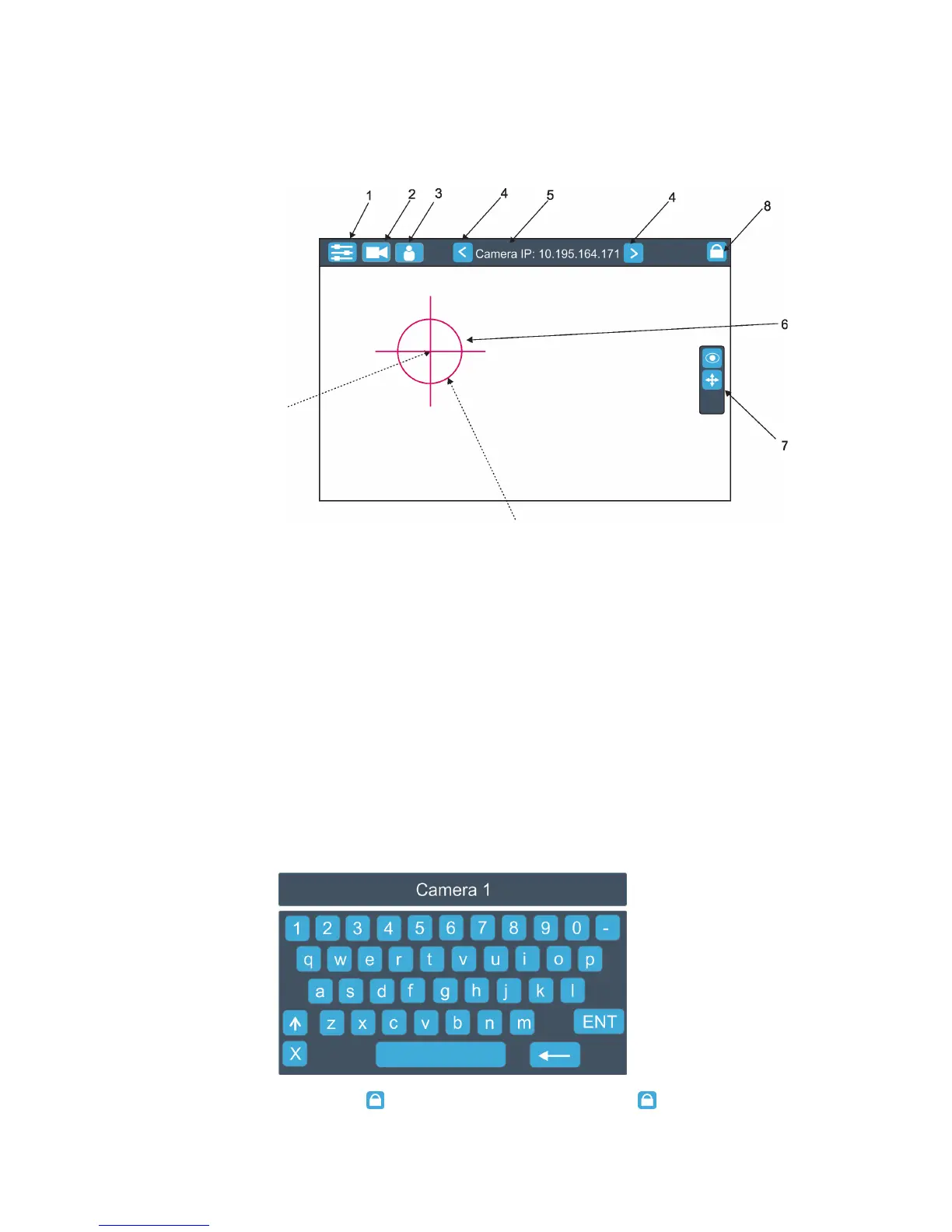
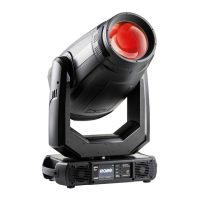
1. After switching the RoboSpot and the ROBIN BMFL FollowSpot (or the RoboSpot MotionCamera) on, image
scanned by the camera is displayed.
1- Slider button
2- Camera button
3- User button
4 - Camera selection buttons*
5- IP address of selected camera
6 - Position circle (red)
7 - Action toolbar
8 - Screen lock**
*You can change the name of selected camera. To rename selected camera, touch for two seconds the camera
name (e.g. Camera IP: 10.195.164.171).
The software touch keyboard will appear. Use the keyboard to type a new name of camera (e.g. Camera 1).
Touch ENT to save the new name of the camera. The new name is saved into camera (in case that you will
use other Robospot, the new camera name will be reloaded)
Touch the key X to close the keyboard.
** To lock the screen, touch the button . To unlock the screen, touch the button and the the software touch
keyboard will appear. Type a correct password (the password is the same as the password for the FollowSpot
Controller, default password is 5242) and conrm it by touching the key ENT.
Touch the key X to close the keyboard.
.
Touch the centre of the
positioning cross and
move the positioning
cross to desired
position on the screen.
Touch the edge of the positioning circle and move it in/out
to decrease/increase the size of the circle


 To Next Page