37
6.3 All Lamps On/O
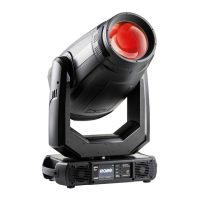
The menu item allows you to switch on/o lamp in the Robin BMFL FollowSpot and xtures connected to this
Robin BMFL FollowSpot.
6.4 Devices Settings
By entering the menu list of available devices will be displayed, e.g.
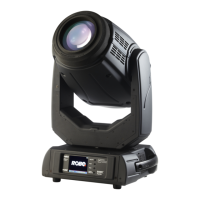
BMFL Follow Spot: 033 (Robin BMFL Follow Spot)
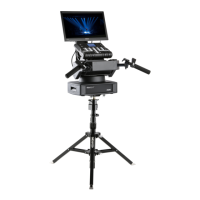
RoboCamera: 001 (RoboSpot MotionCamera)
Touch desired device and the following menu items will appear.
Set Device Label - the menu item allows you to rename actual device. Touch the item
until the keyboard will apear on the touch screen. Use the key <-- to delete original
name of the device and type a new name. Conrm it by means of the key ENT.
Pan Oset - allows you to set a pan oset in the range of +/-100% .
Tilt Oset - allows you to set a tilt oset in the range of +/-100%.
Zoom Oset - allows you to set a zoom oset in the range of +/-100%.
Focus Oset - allows you to set a focus oset in the range of +/-100%.
Lamp On/O - allows you to switch on/o lamp of the device
Pan/Tilt reverse - allows you to reverse the pan/tilt movement of the device.
DMX Address - allows you to set DMX address of the device.
DMX Preset - allows you to select DMX mode of the device.
Device Default Settings - sets all items stated above (except DMX Address and DMX Preset)
to the default (factory) values.
Set To Def. In Preset - sets items of devices displayed in the menu "Devices Settings" to default values. This
function aects the active user preset only.
Set All To Defaults - sets items of devices displayed in the menu "Devices Settings" to default values. This
function aects all user presets.
6.5 RDM Discovery
The menu item serves for searching devices and should be used when you connect/disconnect some xture to
the RoboSpot. The behaviour of the function depends on setting the item "Discovery Settings" (menu Settings).
If the item "Discovery Settings" is set to Auto, no message appears after nishing this procedure.
If the item "Discovery Settings" is set to Manual, the following message will appear:
Do You Want To Save
Discovery Cong
To RoboSpot Base
If you conrm it, list of discovered xtures will be saved and at every switching the RoboSpot on, xtures from
the list will be loaded to the RoboSpot without discovery procedure running at the RoboSpot starting-up.
Note. If the item "Discovery Settings" is set to Auto and no device is connected to the RoboSpot, the graphic
touch screen of the Follow Spot Controller displays message "Waiting for devices". To terminate the message
and enter the menu, touch this graphic touch screen for 6 seconds until you get into menu screen.
6.6 Product IDs
Select this menu item to read an RDM UID, MAC Address and RDM Label.
6.7 Software Version
Select this item to read the software version of the xture modules:
Display System - a display processor
Module C - a control panel processor
Module RPI - a control computer in the xture base


 To Next Page