Robotiq Hand-E C10 Gripper Instruction Manual
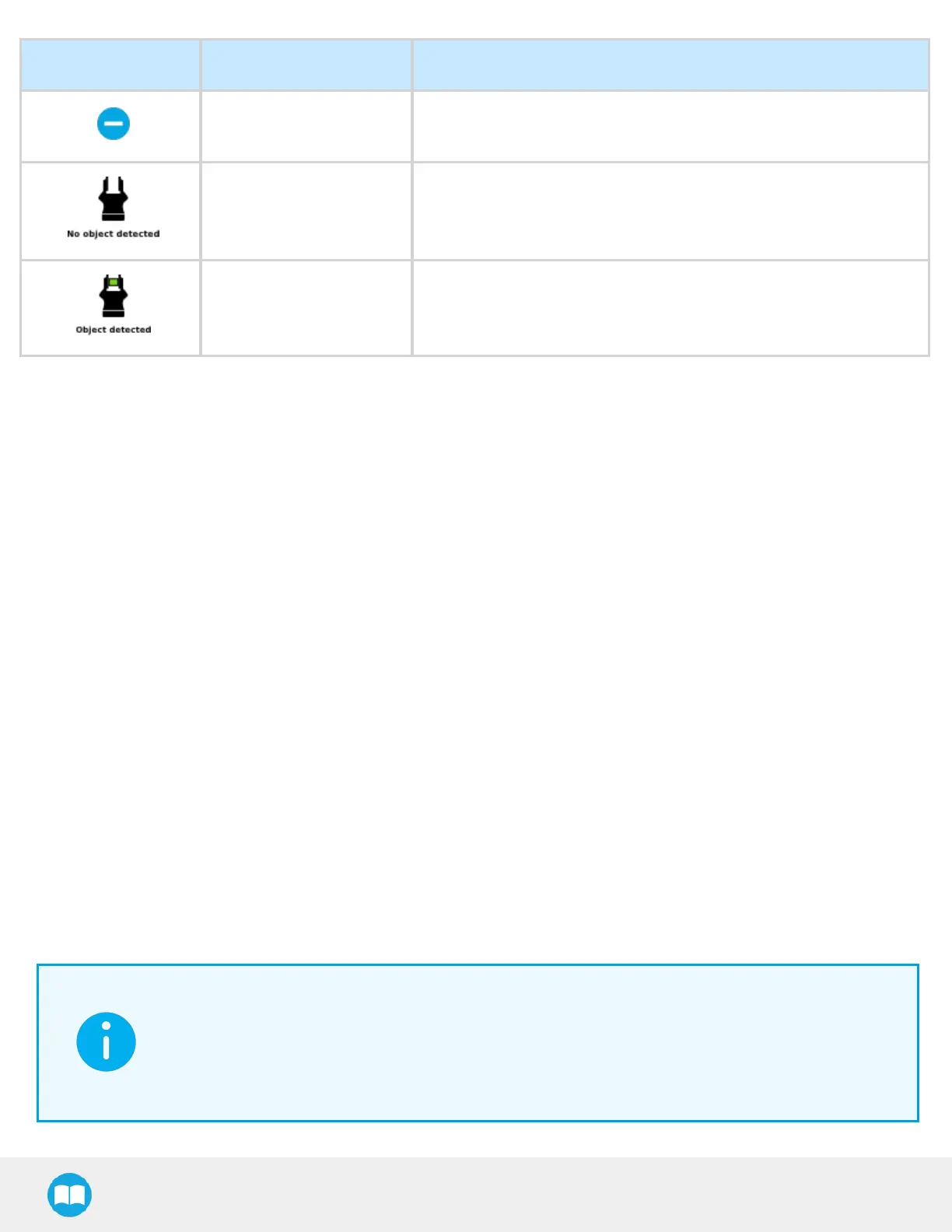
Primary Icon Functionality Name Description
Minus Tap to decrease the corresponding parameter.
No object detected Icon shown when no object is detected during a grasp.
Object detected
The icon shows a green checkmark when an object is detected during
agrasp.
4.9.8. Gripper Node
To add and edit a Gripper node inside your robot program, follow the steps below:
For e-Series
1. On the teach pendant, at the top of the screen, tap the New icon to create a program or the Open icon to load a program.
2. Select Program.
3. Tap the URCaps menu in the navigation pane on the left.
4. Tap the Gripper button.
5. Select the node in the robot program and tap the Command tab.
6. Tap the Edit action button to edit the node's parameters.
For CB-Series
1. Tap Program Robot.
2. Open an empty program or load one.
3. Go to the Structure tab and tap the URCaps submenu.
4. Tap the Gripper button.
5. Go to the Command tab to edit the Gripper node inserted.
6. Tap the Edit action button to edit the node's parameters.
INFO
The gripper needs to be activated before it can receive a command. To do so, use the rq_activate_and_wait
() function script at the beginning of the program or activate with the Gripper Toolbar. Starting from Gripper
URCap version 1.0.2, the Gripper activation script command (rq_activate() or rq_activate_and_wait()) must be
preceded by the reset command (rq_reset()). This will force the gripper's activation routine. Thus, if the
gripper was already activated, it will activate again.
85



 To Next Page