Robotiq Hand-E Gripper Instruction Manual
Features
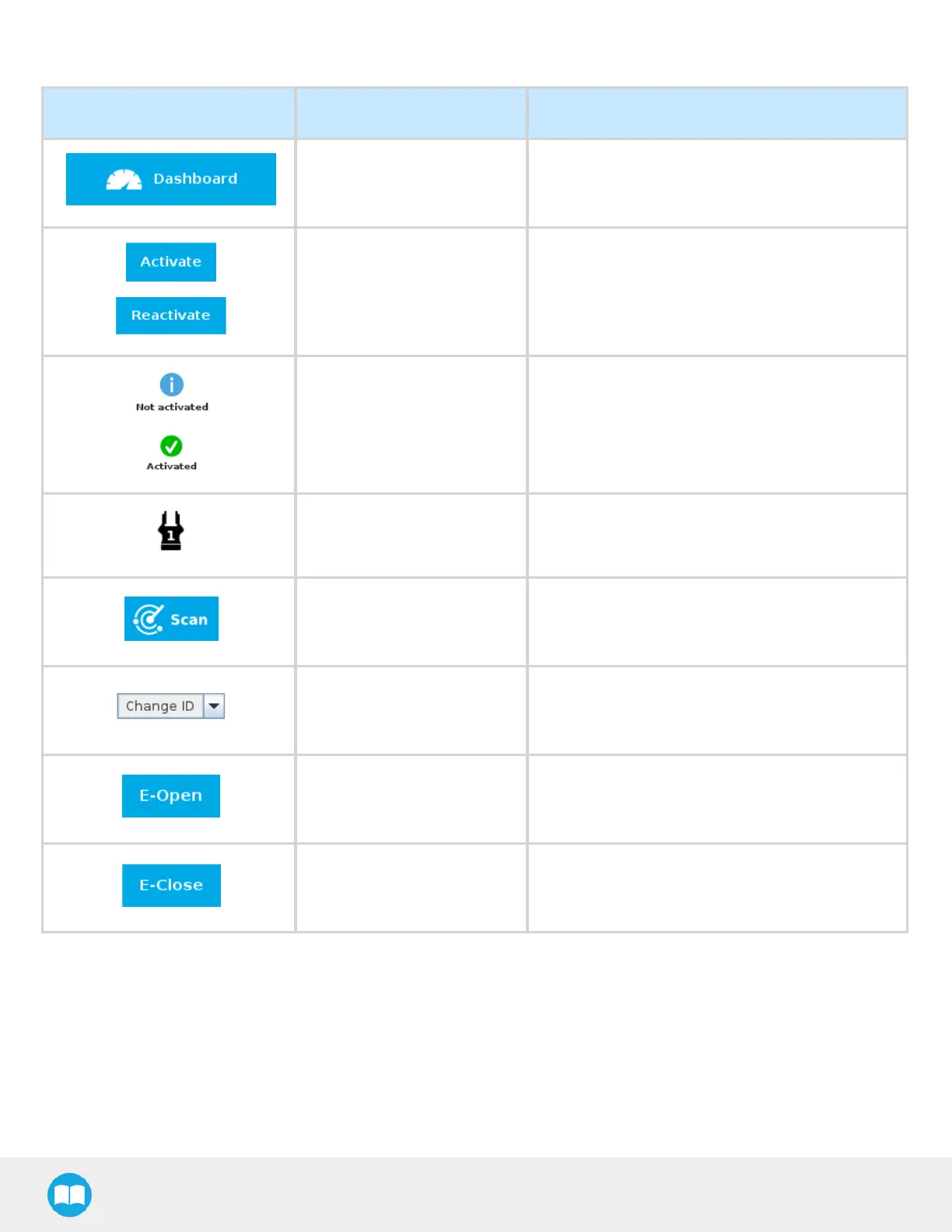
Icon Functionality Name Description
Dashboard
After selecting Gripper in the left pane of the
Installation tab, tap this button to access the Gripper
Dashboard.
Activate/Reactivate
The Activate and Reactivate buttons enables the
corresponding gripper.
Not activated/Activated
Gripper status: One or the other of these icons is
displayed next to the corresponding Gripper icon.
Gripper Label indicating the gripper's ID, ranging from 1 to 4.
Scan
Command allowing for a detection of connected
grippers. After tapping this button, the latter will
display in the Gripper Dashboard.
Change ID
Tap the arrow next to the text box to expand a list of
available gripper IDs. Selecting an available number
will allocate it to the corresponding gripper.
E-Open
Tapping this button sends an emergency open
command to the corresponding gripper, whether it is
activated or not.
E-Close
Tapping this button sends an emergency close
command to the corresponding gripper, whether it is
activated or not.
76



 To Next Page