Robotiq Hand-E Gripper Instruction Manual
4.9.7. Gripper Toolbar
The Gripper Toolbar is generally used to test and jog the gripper, meaning it has no effect on the programming of the robot.
Info
The Gripper URCap package contains the Gripper Toolbar. Therefore, the toolbar is automatically installed with the URCap
package.
Overview
Prior to using the Gripper Toolbar, the user needs to go to the Gripper Dashboard and tick the Show Gripper Toolbar box. Please refer
to the Gripper Dashboard section
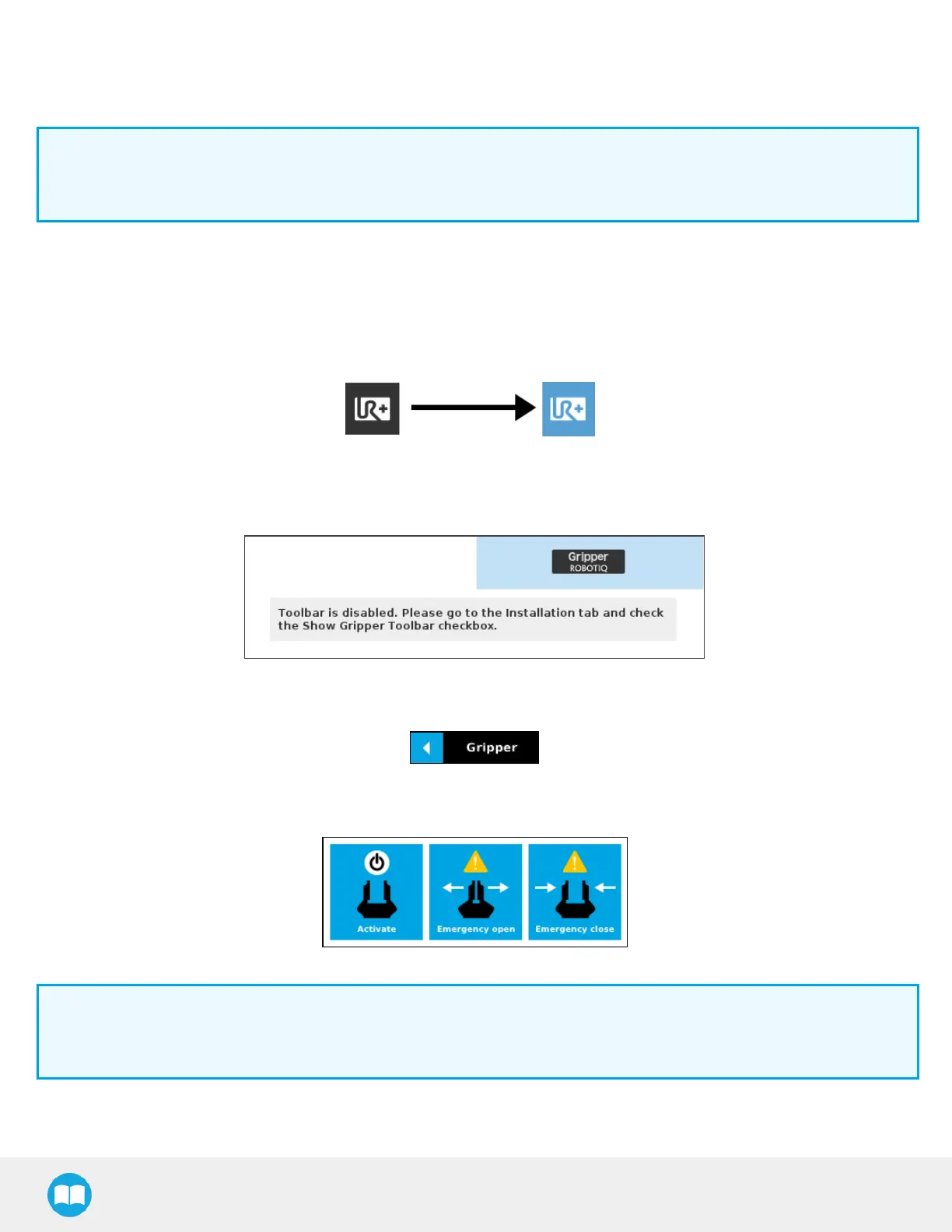
Following the proper installation of the Gripper URCap, the user can tap the UR+ button at the top of the screen to expand the Gripper
Toolbar.
Fig. 4-20: UR+ Button to Expand the Gripper Toolbar.
If the user has omitted to tick the Show Gripper Toolbar box in the Gripper Dashboard, tapping the UR+ button will display this
meesage:
Fig. 4-21: Disabled Gripper Toolbar
On CB-Series, right after the installation of the Gripper URCap, a collapsed Gripper Toolbar will display at the top of the screen.
Fig. 4-22: Gripper Toolbar (collapsed)
An expanded Gripper Toolbar prior to the activation of the gripper looks like the figure below:
Fig. 4-23: Gripper Toolbar before activation
Info
The Emergency open and Emergency close buttons allow the user to open and close the gripper even if it is not activated.
The emergency commands use very low speed and force settings.
l Tap the Activate button to enable the gripper
82



 To Next Page