47
Changing item tax status from a taxable item using tax shift key
If one item has already been programmed with tax2, before registering the item:
a. To press [1] [tax shift] key, this item will be taxable with tax1.
b. To press [3] [tax shift] key, this item will be taxable with tax3.
c. To press taxshift1 and taxshift3, this item will be item with tax1 and tax3.
For example, DEPT1 is linked Tax1, you wish to change the tax status which
including Tax1 and Tax2. Tax1 rate is 5.000%, Tax2 rate is 10.000%.
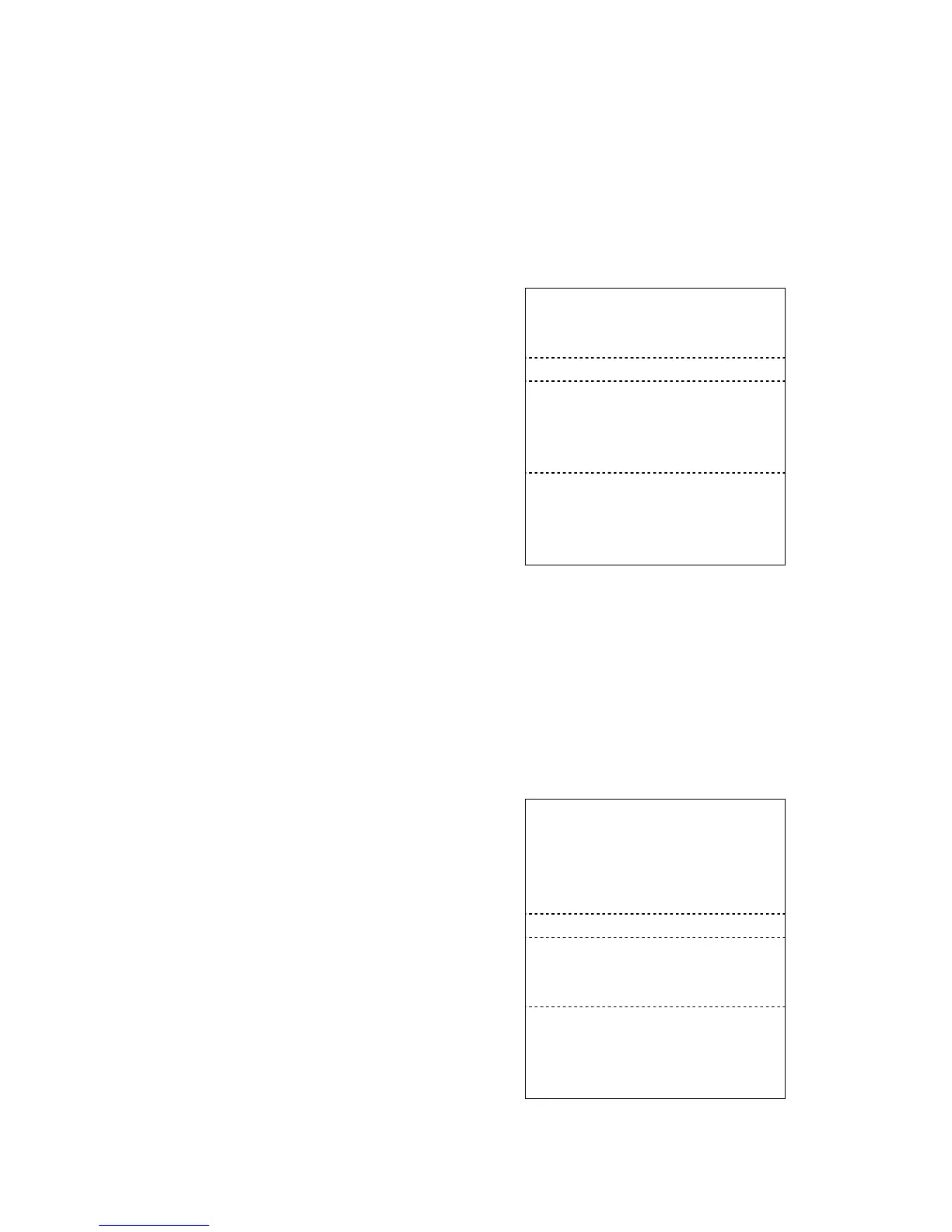
[1] [TAX SHIFT]
= = = = = = = = = = = = = = = = = = = = =
(1000) [DEPT1] Tax1 rate & tax2 rate DEPT01 10.00
Keeping the tax shift key’s status
In the above examples the tax shift key only affect the current item, if the TAX SHIFT
status is kept, it will automatically affect all items enters without pressing the TAX
SHIFT key again.
Condition: Set the Bit C to “1 “in Terminal Status 4 in System Option Preset.
If you want to cancel the Tax Shift status, only depress the corresponding Tax Shift
key. But pressing the Tax Shift key again, it will remain again, unless you also set the
Bit C to “0” in Terminal Status 4 in System Option Preset.
For example, DEPT 1 is linked Tax1, DEPT2 is Linked Tax2 and DEPT3 is
Non-Taxable Tax1 rate is 5.000%, Tax2 rate is 10.000%.
[1]
[TAX SHIFT]
Item Name Price
(100) [DEPT1] Tax1 = = = = = = = = = = = = = = = = = = = = =
(100) [DEPT2] Tax1 DEPT01 1.00
(100) [DEPT3] Tax1 DEPT02 1.00


 To Next Page