Maintenance
5-2 Chapter 5: Service & maintenance 98-139768-A
5.1.2 Software update
You can update the SAILOR 6390 Navtex Receiver software in the following ways:
• Software update using the Navtex app
• Software update with the TMA (ThraneLINK Management Application)
Software update using the Navtex app
See System and Navtex app installation on page 4-2.
Software update with the TMA (ThraneLINK Management Application)
1. Download the TMA from the Cobham eSupport web site (Self-Service Center, SSC. You
find the SSC in the Service and Support section, 24-7 Service). Make sure to use version
1.04 or higher.
2. Make sure that your PC is on the same network segment as the SAILOR 6390 Navtex
Receiver.
3. Make sure that the SAILOR 6004 Control Panel is switched on.
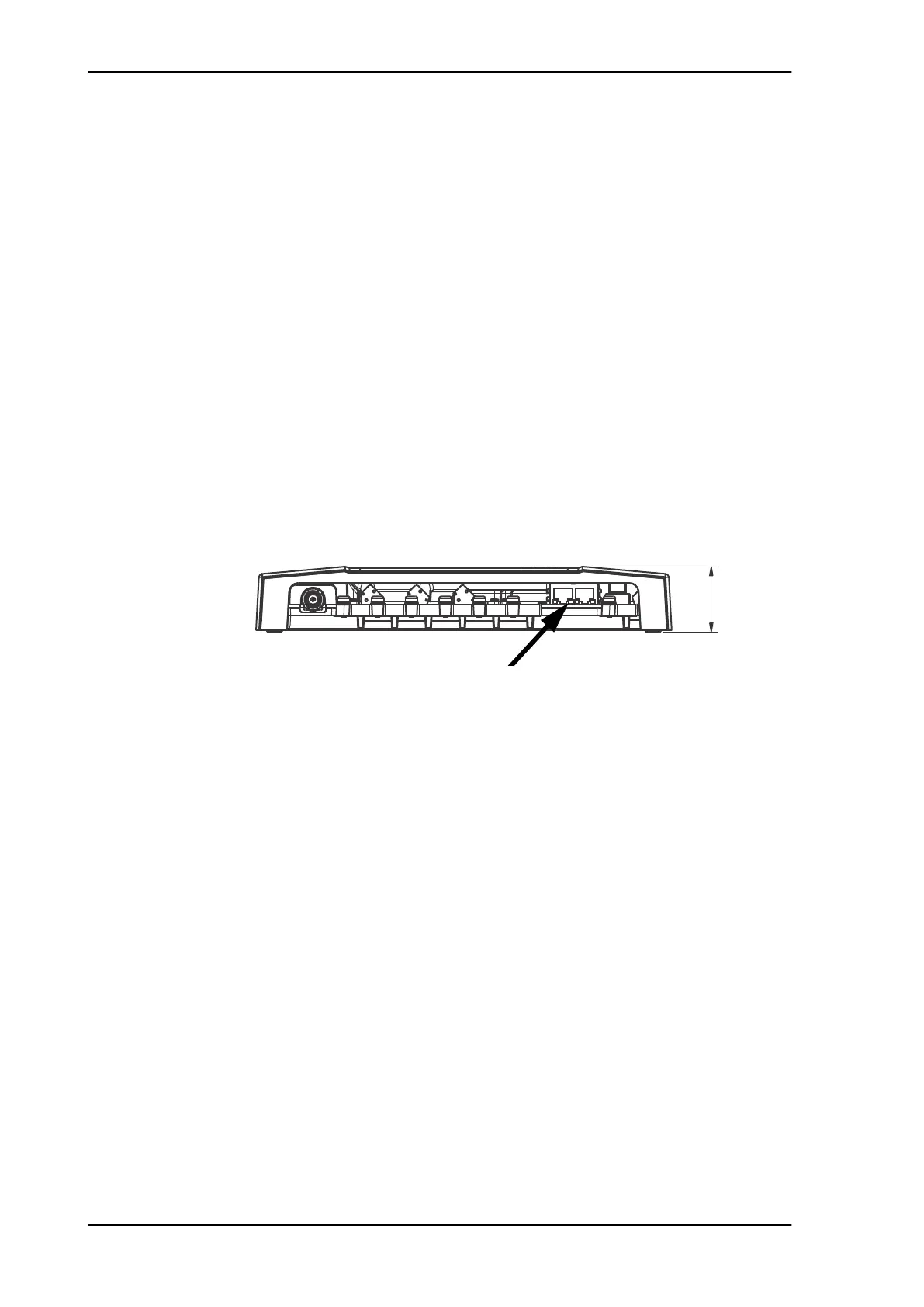
4. Connect your PC to a free LAN interface of the SAILOR 6390 Navtex Receiver.
5. Start the TMA on your PC. The SAILOR 6390 Navtex Receiver is automatically detected.
Click the icon for the SAILOR 6390 Navtex Receiver. The Software Download Status
must show Ready.
6. The icon Software update pulsates yellow when a new software version is detected
for the SAILOR 6390 Navtex Receiver.
The TMA searches all devices connected via USB for new software. You can add an
additional search path. To do so press the icon Options on the software update screen
and select Search for software. A dialog box is displayed and you can select a
directory.
7. To start the software update click the icon Software update and select Update. The
current and the new software version numbers are displayed.
You can also select a specific software version. To do so press the icon Options on the
software update screen and select Select software. A list of available software
versions is displayed. Select one and click the button Update.
Figure 5-2: LAN connectors of the SAILOR 6390 Navtex Receiver
42.5 mm



 To Next Page