EasyManua.ls Logo

Samsung 450 - Page 46

Samsung 450
95 pages
Print Icon
To Next Page IconTo Next Page
To Previous Page IconTo Previous Page
Loading...
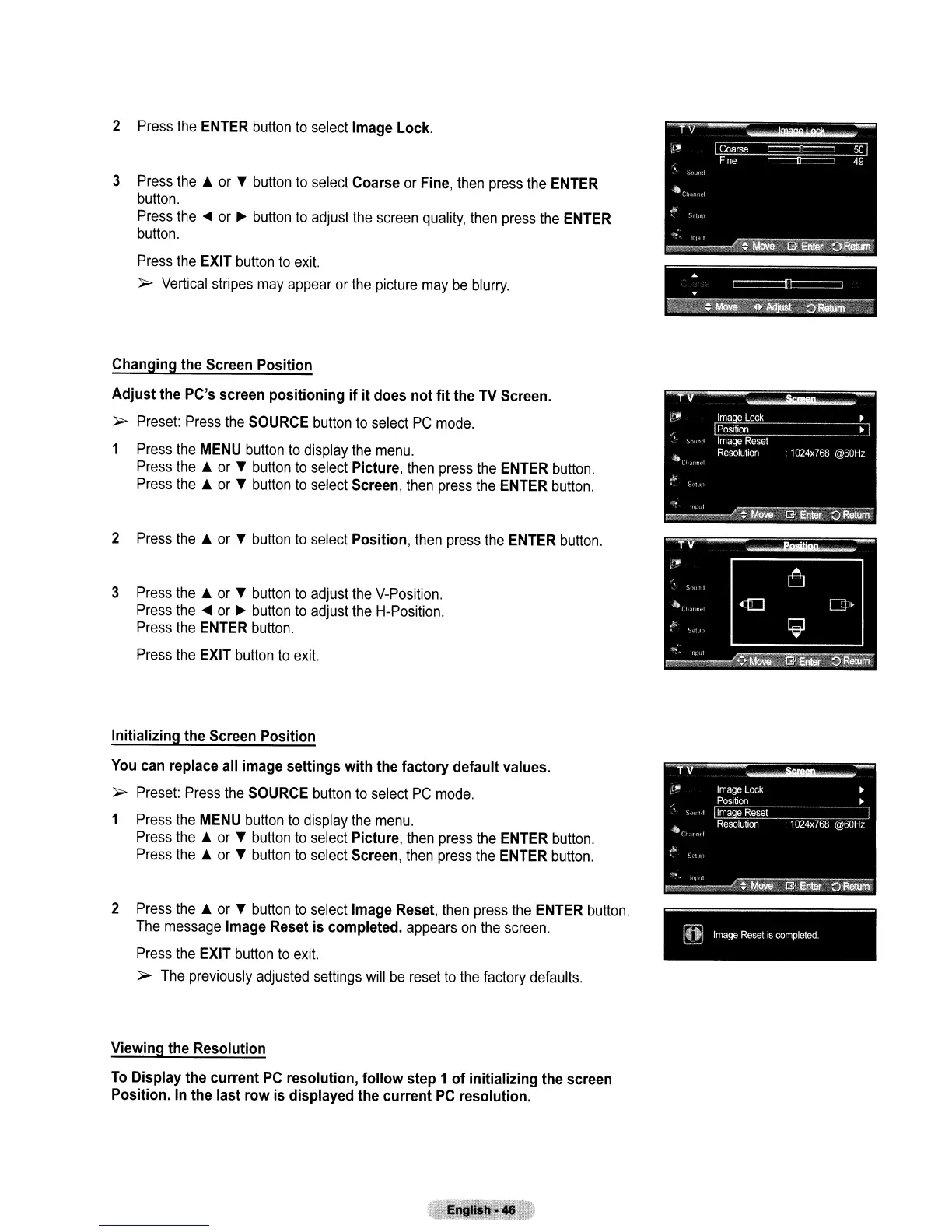
2
Press
the
ENTER
button
to
select
Image
Lock.
3
Press
the
.&
or
T
button
to
select
Coarse
or
Fine,
then
press
the
ENTER
button.
Press
the
...
or
..
button
to
adjust
the
screen
quality,
then
press
the
ENTER
button.
Press
the
EXIT
button
to
exit.
)0>-
Vertical
stripes
may
appear
or
the
picture
may
be
blurry.
Changing
the
Screen
Position
Adjust
the
PC's
screen
positioning
if
it
does
not
fit
the
TV
Screen.
)0>-
Preset:
Press
the
SOURCE
button
to
select
PC
mode.
1
Press
the
MENU
button
to
display
the
menu.
Press
the
.&
or
T
button
to
select
Picture,
then
press
the
ENTER
button.
Press
the
.&
or
T
button
to
select
Screen,
then
press
the
ENTER
button.
2
Press
the
.&
or
T
button
to
select
Position,
then
press
the
ENTER
button.
3
Press
the
.&
or
T
button
to
adjust
the
V-Position.
Press
the'"
or
..
button
to
adjust
the
H-Position.
Press
the
ENTER
button.
Press
the
EXIT
button
to
exit.
Initializing
the
Screen
Position
You
can
replace
all
image
settings
with
the
factory
default
values.
)0>-
Preset:
Press
the
SOURCE
button
to
select
PC
mode.
1
Press
the
MENU
button
to
display
the
menu.
Press
the
.&
or
T
button
to
select
Picture,
then
press
the
ENTER
button.
Press
the
.&
or
T
button
to
select
Screen,
then
press
the
ENTER
button.
2
Press
the
.&
or
T
button
to
select
Image
Reset,
then
press
the
ENTER
button.
The
message
Image
Reset
is
completed.
appears
on
the
screen.
Press
the
EXIT
button
to
exit.
)0>-
The
previously
adjusted
settings
will
be
reset
to
the
factory
defaults.
Viewing
the
Resolution
To
Display
the
current
PC
resolution,
follow
step
1
of
initializing
the
screen
Position.
In
the
last
row
is
displayed
the
current
PC
resolution.
-----------
.~
T
~
-----------
~
Image
Reset
IS
completed

Table of Contents

Other manuals for Samsung 450

Related product manuals