EasyManua.ls Logo

Samsung 450 - Setting up Anynet; Scanning and Switching between Anynet+ Devices

Samsung 450
95 pages
Print Icon
To Next Page IconTo Next Page
To Previous Page IconTo Previous Page
Loading...
I
I
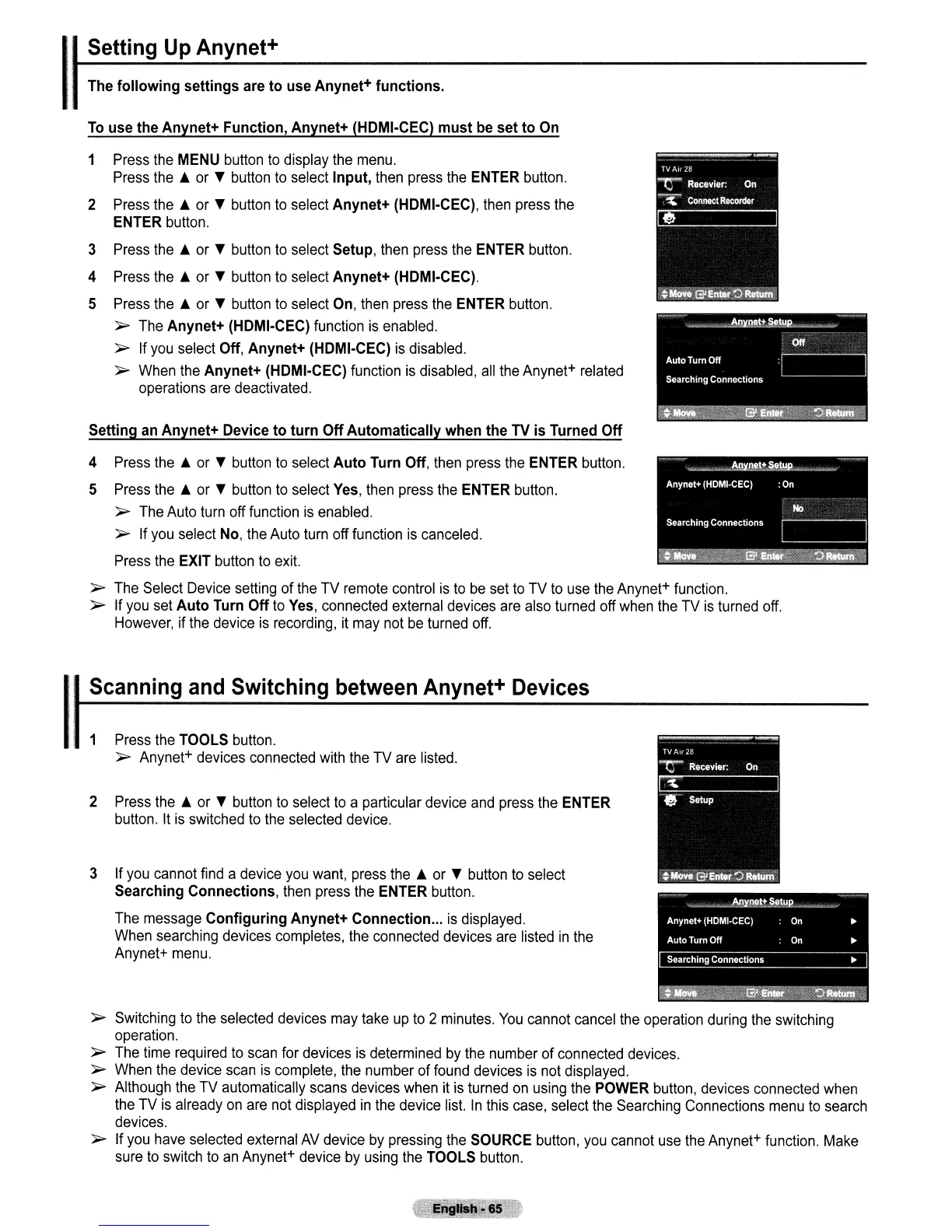
Setting
Up
Anynet+
The
following
settings
are
to
use
Anynet+
functions.
To
use
the
Anynet+
Function,
Anynet+
(HDMI·CEC)
must
be
set
to
On
1
Press
the
MENU
button
to
display
the
menu.
Press
the
~
or
T
button
to
select
Input,
then
press
the
ENTER
button.
2
Press
the
~
or
T
button
to
select
Anynet+
(HDMI-CEC),
then
press
the
ENTER
button.
3
Press
the
~
or
T
button
to
select
Setup,
then
press
the
ENTER
button.
4
Press
the
~
or
T
button
to
select
Anynet+
(HDMI·CEC).
5
Press
the
~
or
T
button
to
select
On,
then
press
the
ENTER
button.
~
The
Anynet+
(HDMI·CEC)
function
is
enabled.
~
If
you
select
Off,
Anynet+
(HDMI-CEC)
is
disabled.
~
When
the
Anynet+
(HDMI-CEC)
function
is
disabled,
all
the
Anynet+
related
operations
are
deactivated.
Setting
an
Anynet+
Device
to
turn
Off
Automatically
when
the
TV
is
Turned
Off
4
Press
the
~
or
T
button
to
select
Auto
Turn
Off,
then
press
the
ENTER
button.
5
Press
the
~
or
T
button
to
select
Yes,
then
press
the
ENTER
button.
~
The
Auto
turn
off
function
is
enabled.
~
If
you
select
No,
the
Auto
turn
off
function
is
canceled.
Press
the
EXIT
button
to
exit.
~
The
Select
Device
setting
of
the
TV
remote
control
is
to
be
set
to
TV
to
use
the
Anynet+
function.
~
If
you
set
Auto
Turn
Off
to
Yes,
connected
external
devices
are
also
turned
off
when
the
TV
is
turned
off.
However,
if
the
device
is
recording,
it
may
not
be
turned
off.
Scanning
and
Switching
between
Anynet+
Devices
1
Press
the
TOOLS
button.
~
Anynet+
devices
connected
with
the
TV
are
listed.
2
Press
the
~
or
T
button
to
select
to
a particular
device
and
press
the
ENTER
button.
It
is
switched
to
the
selected
device.
3 If
you
cannot
find
a
device
you
want,
press
the
~
or
T
button
to
select
Searching
Connections,
then
press
the
ENTER
button.
The
message
Configuring
Anynet+
Connection
...
is
displayed.
When
searching
devices
completes,
the
connected
devices
are
listed
in
the
Anynet+
menu.
~
Switching
to
the
selected
devices
may
take
up
to
2
minutes.
You
cannot
cancel
the
operation
during
the
switching
operation.
~
The
time
required
to
scan
for
devices
is
determined
by
the
number
of
connected
devices.
~
When
the
device
scan
is
complete,
the
number
of
found
devices
is
not
displayed.
~
Although
the
TV
automatically
scans
devices
when
it
is
turned
on
using
the
POWER
button,
devices
connected
when
the
TV
is
already
on
are
not
displayed
in
the
device
list.
In
this
case,
select
the
Searching
Connections
menu
to
search
devices.
~
If
you
have
selected
external
AV
device
by
pressing
the
SOURCE
button,
you
cannot
use
the
Anynet+
function.
Make
sure
to
switch
to
an
Anynet+
device
by
using
the
TOOLS
button.

Table of Contents

Other manuals for Samsung 450

Related product manuals