• The interlace mode is not supported.
• The TV operates abnormally if a non-standard video format
is
selected.
• The table above conforms to
IBMNESA
regulations and is based on using the Analog Input.
• "
t/
"mark means that this mode is supported.
» .
For
the
PN42A450P1
0,
PC
text quality
is
optimum
in
VESA
mode
(1024
x
768@60Hz).
•
For
the
PN50A450P1
0,
PC
text quality
is
optimum
in
VESA
mode
(1360
x
768@60Hz).
(Three
pixels
on
left,
right,
top
and
bottom
will
be
grayed
out
at
the
resolution
setting
of
1360x768@60Hz.
This
is
not
a
mechanical
problem
but
a result
caused
by
the
pixel
difference
between
the
standard
resolution
and
the
PDP
paneL)
•
When
this
TV
is
used
as
a
PC
display,
32-bit color
is
supported.
•
Depending
on
the
manufacturer,
your
PC
display
screen
might appear different.
(and
depending
on
your particular
version
of
Windows.)
Check
your
PC
instruction
book
for
information about
connecting
your
PC
to
a
TV.
• If a vertical
and
horizontal frequency-select
mode
exists,
select
60Hz
(vertical)
and
48.4KHz
(horizontal).
•
In
some
cases,
abnormal
signals
(such
as
stripes)
might
appear
on
the
TV
screen
when
the
PC
power
is
turned
off
(or
if
the
PC
is
disconnected).
If
so,
press
the
SOURCE
button
on
the
remote
control
or
TV
panel
to
enter
a
VIDEO
mode.
Also,
make
sure
that
the
PC
is
connected.
I
·
~:tt~~:ut~
~d~~S:
:t:~:~
:.:~::~
set automatically adjust the video signals
it
receives
from
the
PC
The
function
also
automatically
fine-tunes
the
settings
and
adjusts
the
frequency
values
and
positions.
How
to
Auto
Adjust
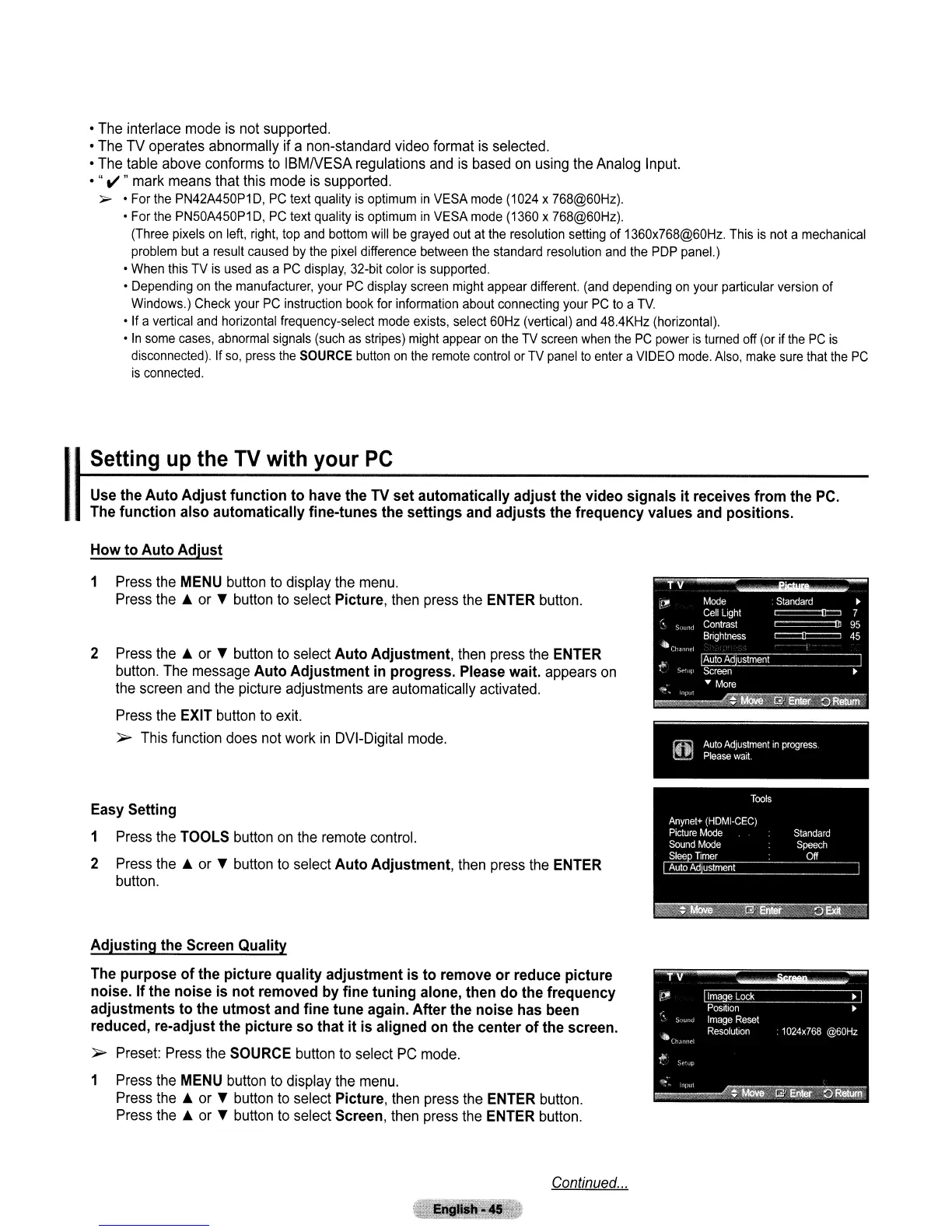
1 Press the
MENU
button to display the menu.
Press the A or T button to select
Picture,
then press the
ENTER
button.
2 Press the A or T button to select
Auto
Adjustment,
then press the
ENTER
button. The message
Auto
Adjustment
in
progress.
Please
wait.
appears
on
the screen and the picture adjustments are automatically activated.
Press the
EXIT
button to exit.
~
This function does not work
in
DVI-Digital mode.
Easy
Setting
1 Press the
TOOLS
button
on
the remote control.
2 Press the A or T button to select
Auto
Adjustment,
then press the
ENTER
button.
Adjusting
the
Screen
Quality
The
purpose
of
the
picture
quality
adjustment
is
to
remove
or
reduce
picture
noise.
If
the
noise
is
not
removed
by
fine
tuning
alone,
then
do
the
frequency
adjustments
to
the
utmost
and
fine
tune
again.
After
the
noise
has
been
reduced,
re-adjust
the
picture
so
that
it
is
aligned
on
the
center
of
the
screen.
~
Preset: Press the
SOURCE
button to select
PC
mode.
1 Press the
MENU
button to display the menu.
Press the A or T button
to
select
Picture,
then press the
ENTER
button.
Press the A or T button
to
select
Screen,
then press the
ENTER
button.
Continued
...
fa!
Auto
Adjustment
In
progress
~
Please
wall


 To Next Page