EasyManua.ls Logo

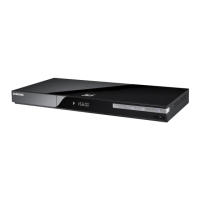
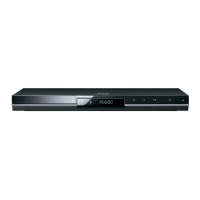
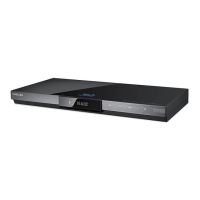
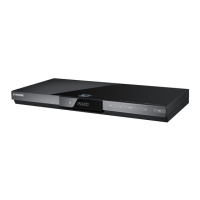
Samsung BD-C5900 - User Manual

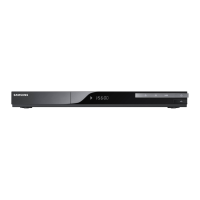
Samsung BD-C5900
85 pages
Print Icon
To Next Page IconTo Next Page
Loading...
Bu-ray
Disc
user
manual
imagine
the
possibilities
Thank
you
for
purchasing
this
Samsung
product.
To
receive
more
complete
service,
please
register
your
product
at
www.samsung.com/register

Table of Contents

Questions and Answers

  • P
    petersonphillipSep 2, 2025
    Why is there no audio from my Samsung BD-C5900 Blu-ray Player?
    • R
      Raymond CookSep 2, 2025
      If there is no audio from your Samsung Blu-ray Player, make sure you have selected the correct Digital Output in the Audio Options Menu.
  • D
    Debra MartinezAug 31, 2025
    Why is AllShare connection unstable on my Samsung BD-C5900?
    • O
      ortizfeliciaAug 31, 2025
      If you're experiencing an unstable AllShare connection between your TV and PC with your Samsung Blu-ray Player, ensure that each IP address on the subnetwork is unique to avoid IP collision. Also, check if you have a firewall enabled and, if so, disable it.
  • D
    Darrell MolinaAug 29, 2025
    Why won't my Samsung BD-C5900 play the disc?
    • K
      Kristen DavisAug 29, 2025
      If your Samsung Blu-ray Player isn't playing discs, make sure the disc is loaded correctly with the label side facing up. Also, verify that the region code of the Blu-ray Disc or DVD is compatible with the player.
  • J
    Jeremiah PerkinsAug 27, 2025
    Why is there no HDMI output from my Samsung BD-C5900?
    • K
      Kenneth CastilloAug 27, 2025
      If there is no HDMI output from your Samsung Blu-ray Player, check the connection between the TV and the HDMI jack on the player. Also, make sure your TV supports the HDMI input resolution (480p, 720p, 1080i, or 1080p).
  • D
    Dr. Kimberly JonesAug 26, 2025
    What to do if the screen is blocked on my Samsung Blu-ray Player?
    • J
      Jack JohnsAug 26, 2025
      If the screen is blocked on your Samsung Blu-ray Player, and you can't see a picture, it might be due to the HDMI output being set to a resolution your TV doesn't support (e.g., 1080p). Try resetting the player to factory settings by pressing the STOP button on the front panel for more than 5 seconds with no disc inside. Note that this will erase all stored user BD data.
  • K
    Kenneth MartinAug 25, 2025
    Why is my Samsung Blu-ray Player video playing intermittently?
    • S
      sara42Aug 25, 2025
      If the video on your Samsung Blu-ray Player is playing intermittently, verify that your network connection is stable. If you're using a wired connection, ensure the network cable is properly connected and the network isn't overloaded. For wireless connections, check the stability of the wireless connection between the server and the player.
  • J
    Joshua WrightAug 22, 2025
    What to do if I forgot my Samsung Blu-ray Player password?
    • M
      Marvin RoyAug 22, 2025
      If you forgot your password for the Samsung Blu-ray Player, you can restore all settings, including the password, to the factory defaults by pressing the STOP button on the front panel for more than 5 seconds without a disc inside. Be aware that this will delete all stored user BD data, so only use this method if absolutely necessary.

Summary

Key Features

Blu-ray Disc Features

Details on Blu-ray Disc capabilities, including video quality, codecs, and resolutions.

Blu-ray Disc Player Features

Player-specific functionalities like Internet@TV and 3D playback.

Safety Information

Warning Messages

General warnings about electric shock and precautions for safe operation.

Class 1 Laser Product Safety

Information about laser safety, potential radiation exposure, and warnings.

Safety Precautions

Important Safety Instructions

Crucial operating instructions and safety measures to follow before using the unit.

Connections

Connecting to a TV

Detailed steps for connecting the player to a TV via different cable types.

Connecting to an Audio System

Instructions for connecting the player to various audio systems for enhanced sound.

Basic Functions

Playing a Disc

Step-by-step guide on how to insert and play discs.

Getting Started

Supported Disc Types

Information on supported disc formats, logos, and their definitions.

Disc Type Details

Detailed descriptions of compatible disc types like BD-ROM, DVD-VIDEO, DVD-RW, DVD-R.

Supported File Formats

List of supported video and audio file formats with codecs and resolutions.

Region Code Information

Explanation of regional codes for Blu-ray and DVD discs and player compatibility.

Front Panel Overview

Identification and function of controls and ports on the player's front panel.

Rear Panel Overview

Identification and function of the player's rear panel connectors and ports.

Remote Control Guide

Detailed tour of the remote control buttons and their functions.

Remote Control Setup

Guide to programming the remote control to operate your TV.

TV Connection Types

HDMI-DVI Cable Connection

Guide for connecting the player to a TV using an HDMI-DVI cable and audio cables.

Component Connection

Instructions for connecting the player to a TV using component video and audio cables.

Audio System Connections

HDMI Audio System Connection

How to connect the player to an HDMI-supported amplifier for best audio quality.

Optical Audio System Connection

Connecting the player to an audio system using optical and video cables.

Network Setup

Connecting to the Network

Instructions for connecting the player to a network for online services.

Cable Network Setup

Steps for setting up a wired network connection using a LAN cable.

Wireless Network Setup

Steps for setting up a wireless network connection using a LAN adapter.

Setup Menu

Initial Settings

Guide to the initial setup process, including language and network configuration.

Display Settings

Configuring display options such as TV Aspect, Resolution, and BD Wise.

3 D Playback Settings

Selecting whether to play Blu-ray Discs in 3D or 2D mode.

Resolution Settings

Setting output resolution for Component and HDMI video signals.

Output Resolution Modes

Tables showing output resolutions for Blu-ray and DVD playback based on connection.

Initial System Settings

Guide to initial setup for language, TV aspect, and network settings.

Network Connection Setup

Steps for setting up the player's network connection.

Network Settings Configuration

Instructions for configuring network settings, including IP address and DNS.

Wired Network Setup

Steps for setting up a wired network connection using Auto or Manual methods.

Manual Wired Connection

Manually entering network settings for a wired connection if Auto fails.

Network Test Procedure

Testing the wired or wireless network connection to ensure it is working.

Security Settings

Setting up password and parental rating for security functions.

Software Upgrade Process

Instructions for upgrading player software via internet or USB/CD.

Network Services

Using Internet@TV

Downloading applications and accessing internet content.

Getting Started with Internet@TV

Steps to begin using the Internet@TV service, including agreement.

BD-LIVE Service

Enjoying movie-related services using BD-LIVE compliant discs.

Software Upgrade Notification

Notifying about new software versions and guiding through the upgrade process.

Appendix

Troubleshooting Common Issues

Solutions for common problems like remote control issues, no playback, or blocked screen.

Troubleshooting Other Problems

Solutions for problems like forgotten password, noisy picture, or no HDMI output.

BD-LIVE Connection Issues

Troubleshooting connection issues with BD-LIVE server or errors during service.

Limited Warranty

Warranty Period and Labor

Details of the limited warranty period for parts and labor.

Samsung BD-C5900 Specifications

General IconGeneral
3DYes
Depth205 mm
Width433 mm
Height43 mm
Weight1700 g
Device typeBlu-Ray player
Product colorBlack
Audio decodersDolby Digital Plus, Dolby TrueHD, DTS, DTS-HD, DTS-HD Master Audio
Disc types supportedBD, BD-R, BD-RE, CD, CD-R, CD-RW, DVD, DVD+R, DVD+RW, DVD-R, DVD-RW
Supported video modes1080i, 1080p, 576i, 576p, 720p
Card reader integratedNo
USB 2.0 ports quantity1
Audio formats supportedAAC, AMR, MP3, WMA
Video formats supported3GP, AVCHD, DIVX, H.264, MKV, MP4, MPEG2, WMV9
Deep color support-
Audio output channels2.0 channels

Related product manuals