Setting the Menu
Press the MENU button.
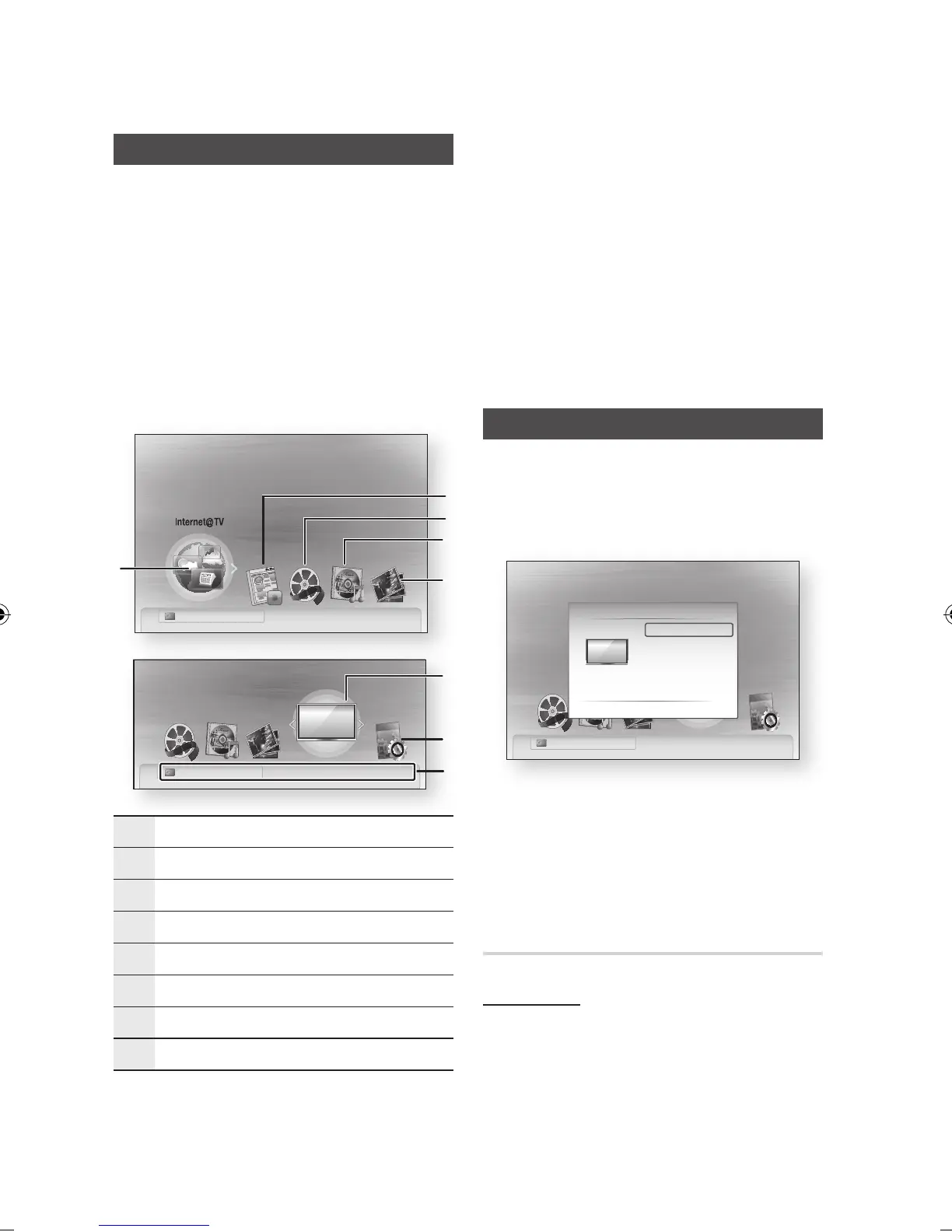
The home menu will be displayed.
Press the ◄► buttons to select the desired
home menu, then press the ENTER button.
Press the ▲▼ buttons to select the desired
submenu, then press the ENTER button.
Press the ▲▼ buttons to select the desired
item, then press the ENTER button.
Press the EXIT button to exit the menu.
Home Menu
1
Selects the Internet@TV.
2
Select the Recorded TV.
3
Selects the Videos.
4
Selects the Music.
5
Selects the Photos.
6
Selects the Channels.
7
Selects the Settings.
8
Displays the buttons available.
1.
2.
3.
4.
5.
•
NOTE
When you return to home menu, the full screen
mode will be cancelled automatically.
The access step may differ depending on the
selected menu.
The OSD (On Screen Display) may change in this
product after upgrading the software version.
When the product is connected to the network,
select Internet@TV from the home menu.
Download desired content from Samsung Apps.
(See page 70)
Channels
Press the MENU button.
The home menu will be displayed.
Press the ◄► buttons to select the Channels,
then press the ENTER button.
Press the ▲▼ buttons to select the desired
submenu, then press the ENTER button.
Press the ▲▼ buttons to select the desired
item, then press the ENTER button.
Press the EXIT button to exit the menu.
Channel Settings
Antenna-Air
In Channel Settings menu, press the ▲▼
buttons to select the Antenna.
Press the ◄► buttons to select the Air, then
press the ▼ button.
✎
▪
▪
▪
▪
1.
2.
3.
4.
5.
1.
2.


 To Next Page