Playing back a DivX file
x
Insert a DivX disc into the disc tray.
Press the ENTER button to select the Media
Play.
Press the ◄► buttons to select the Videos,
and then press the ENTER button.
Press the ▲▼◄► buttons to select the file
you want to play, and then press the ENTER
button.
NOTE
Some DivX files created on a personal computer can
not be played back. That is why Codec Type, Version
and Higher resolution over specification are not
supported.
The loading time taken to collect video information
for playback may be delayed, depending on the
device.
Media Play
Media Play will enable you to play HDD/USB
contents or the contents transferred to your PC
using the AllShare function.
For more information about AllShare, refer to
pages 71~72.
Press the MENU button.
The home menu will be displayed.
Press the RED(A) button to select desired
mode (HDD, USB, etc), then press the
ENTER button.
1.
2.
3.
4.
✎
▪
▪
1.
2.
Press the ◄► buttons to select the desired
Videos, Music or Photos, then press the
ENTER button.
Press the ▲▼◄► buttons to select the
desired file you want to play, then press the
ENTER button.
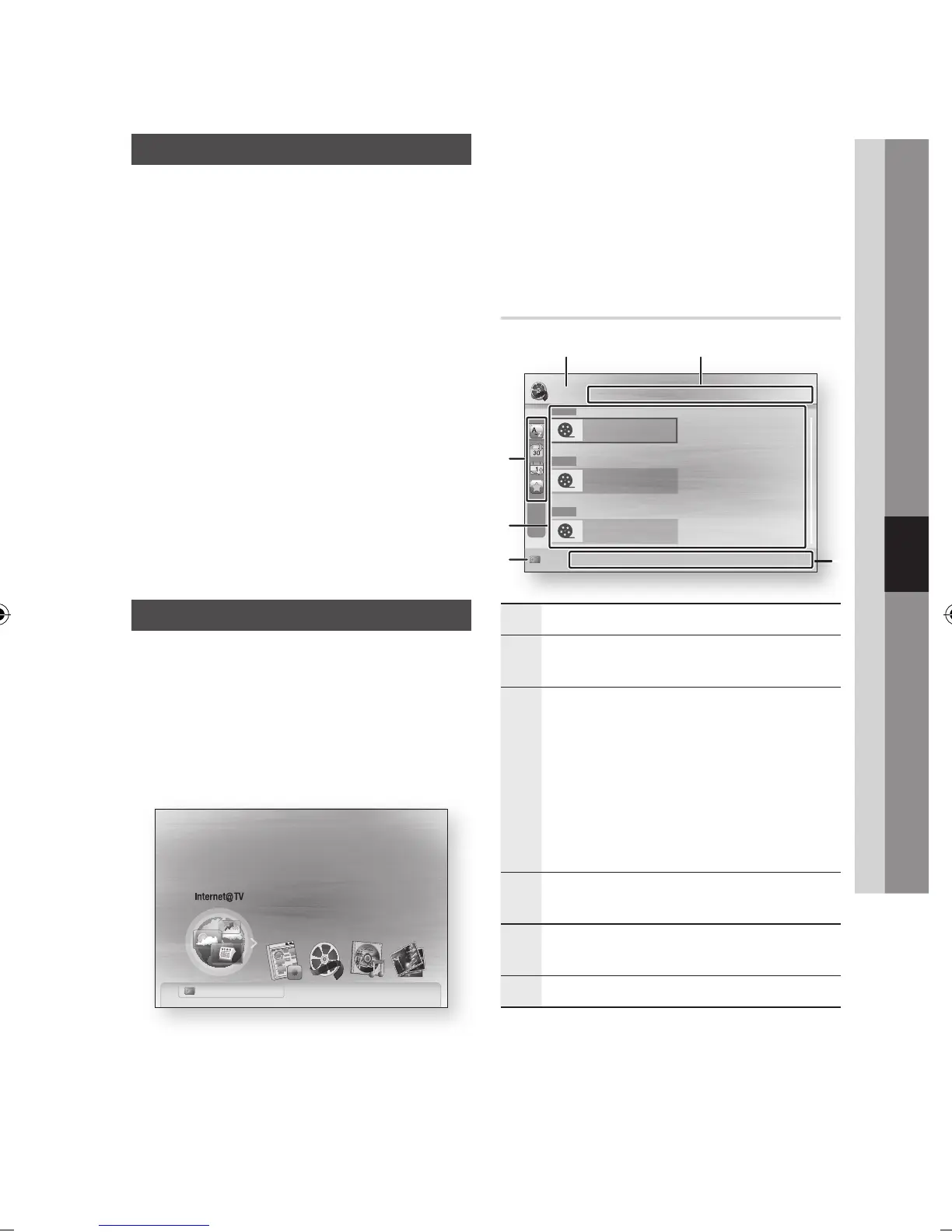
Screen Display
1
Displays the selected home menu.
2
Displays the selected file name and the number of
files and pages.
3
Nevigation Help : Displays remote control buttons
available.
RED(A) : Selects this to change the device mode.
GREEN(B) : Sets the file preference.
YELLOW(C) : Selects multiple files from file list.
Selected files are marked with a symbol.
BLUE(D) : Selects the sort list.
TOOLS button : Displays the option menu.
•
•
•
•
•
4
Displays the current device mode. (HDD, CD or
USB, etc)
5
You can confirm the files and groups that is sorted
by each category.
6
Displays sorting method. (See page 58)
3.
4.


 To Next Page