APPENDIX
4 [Android] The connection to your device will be progressed automatically.
– [iOS] Open the setting app, and select [vacuum]_E30AJT** in the Wi-Fi list.
5 Provide the authentication when you are directed to do so.
6 [Android] The connection to your wireless router will be progressed automatically.
– [iOS] Open the setting app, and select the wireless router in the Wi-Fi list.
7 When the product registration is complete, the Jet Bot device card is added.
NOTE
• When the Jet Bot cannot be registered to the SmartThings App
– Refer to the SmartThings App guide or pop-up messages.
– Conrm that the UPnP option of your wireless router is active, and then try the registration
procedure again.
– Conrm that your wireless router is operating in a wireless mode. If not, change it to the
wireless mode and try again.
– If you have two or more Jet Bots, turn off the other Jet Bots, and then try to register your
Jet Bot again.
– Change the name of the wireless router which has the same SSID to be distinguished from
each other.
• If the Jet Bot and smartphone are not connected to the same wireless router, a response can
be delayed depending on the network environment.
– When the wireless router is changed, the connection between the Jet Bot and the
SmartThings App is disconnected.
– After changing the wireless router, register your Jet Bot again at the SmartThings App.
Software Update
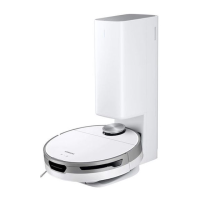
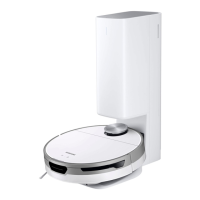
• When the Jet Bot is charging on the Clean Station, the Jet Bot connects to the server and
checks for software updates. If a new software is found, the Jet Bot will automatically
download and update it.
• If the Status Indicator of the Jet Bot turns violet and stays violet while charging, it means
that the Jet Bot is being updated. Please wait until rebooting is complete.
31
1_VR8500_EN_00858C-02_SW.indd 31 2022-10-13 오후 6:06:28






 To Next Page