
 To Next Page
V
Virginia RileySep 23, 2025
What to do if I can't log into my SAMSUNG account for my Samsung Jet Bot?
- TtracyobrienSep 23, 2025
Check your ID and password on the screen of the SAMSUNG account.

What to do if I can't log into my SAMSUNG account for my Samsung Jet Bot?
Check your ID and password on the screen of the SAMSUNG account.
Why is the suction power weak on my Samsung Vacuum Cleaner?
If you notice weak suction power on your Samsung Vacuum Cleaner, it could be due to: a full Dustbin (turn off the power switch and empty it), or a brush blocked by foreign matter (turn off the power switch and remove the matter). Also, if the noise suddenly increases, turn off the power switch and empty the Dustbin.
How to troubleshoot a Samsung Vacuum Cleaner Jet Bot that is not working?
If your Samsung Vacuum Cleaner Jet Bot is not working at all, check if the power switch is on, ensure the Status Indicator is on, and verify that the battery is not depleted. If the Status Indicator turns red, place the Jet Bot manually on the Clean Station to charge it. When charging is partially complete (about 10-20 minutes later), the Status Indicator is on and the buttons work again.
What to do if the Empty Dust function on my Samsung Jet Bot doesn't work?
If the Empty Dust function on your Samsung Vacuum Cleaner is not working, make sure the Jet Bot is sufficiently charged and run the function again. Check whether the Clean Station's cover is open or the Dust Bag is full. Check the time to empty Dustbin at the SmartThings App. If it is set as 'When the robot vacuum’s dustbin is full', the Empty Dust function does not work until the Dustbin is full. If the Empty Dust function does not work properly, press the [ ] button on the body of the Jet Bot while it is charging, you can empty the Dustbin of the Jet Bot manually. If you press the [ ] button during dust emptying, the dust emptying stops.
Why won't my Samsung Vacuum Cleaner Jet Bot start on the SmartThings App?
If the Jet Bot fails to start on the SmartThings App, check if the Jet Bot is offline. Connect the wireless router to Jet Bot again by referring to the ‘SmartThings App’ on the manual.
What to do if the wireless router password isn't input correctly during Samsung Jet Bot Vacuum Cleaner registration?
Cancel the product registration, run the SmartThings App again, and try the product registration again. Press and hold the wireless router you want to connect on the network list, and delete the network to initialize the password.
Why is there a delay when controlling my Samsung Vacuum Cleaner with a smartphone?
If the Jet Bot and the smartphone are not connected to the same wireless router, a response can be delayed depending on the network environment.
Why isn't the Intelligent Power Control function working on my Samsung Vacuum Cleaner?
If the Jet Bot is cleaning a carpet with short fiber and bright color, it may recognize the carpet as a floor and then the Intelligent Power Control function may not work.
Why doesn't my Samsung Vacuum Cleaner Jet Bot clean some places?
If your Samsung Vacuum Cleaner Jet Bot doesn't clean some places, check whether the Clean Station is installed in a narrow passage or near a room door and move it to another place. If the Clean Station is installed in a narrow passage or near a room door, the Jet Bot cannot pass through the passage or the door. Check whether the places the Jet Bot does not clean are set as No-go Zones.
Why does my Samsung Vacuum Cleaner Jet Bot cross No-go Zones?
If the Jet Bot does not start cleaning from the Clean Station, the set No-go Zones function does not work. Therefore, start cleaning from the Clean Station to use the function.
Explains safety warnings, cautions, and symbols for safe operation and maintenance.
Covers general safety rules, child safety, environmental hazards, and device-specific warnings.
Discusses safe operating locations, surface types, and handling of the Jet Bot.
Step-by-step guide on setting up the Clean Station, including placement and power connection.
Instructions for first-time charging, auto-charging, and docking procedures.
Explains LED status indicators, power on/off, and basic cleaning start/stop functions.
Details different cleaning modes, functions, and advanced features like No-go Zones.
Guides on using boundary markers and additional features like Downtime and Scheduled Cleaning.
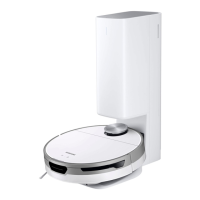
Identifies and labels all parts of the Jet Bot (top and bottom views).
Identifies and labels all parts of the Clean Station.
Step-by-step guide for cleaning the dustbin, brush, sensors, and wheels of the Jet Bot.
Guidance on cleaning or replacing the Jet Bot's side brush.
Instructions for replacing the dust bag, cleaning filters, and the bottom cover of the Clean Station.
Guides on setting up the app, connecting the device, and app features.
Provides important notes, cautions for operation, and guidelines for battery usage and care.
Offers solutions for common problems, voice guide errors, and system malfunctions.
Lists detailed technical specifications for the Jet Bot and Clean Station.
 General
| Suction Power | 20W |
|---|---|
| Battery Type | Li-ion |
| Connectivity | Wi-Fi |
| App Control | Yes |
| Auto Recharge | Yes |
| Wet Mopping | No |
| Type | Robot Vacuum |
| Charging Time | 240 minutes |
| Voice Control | Yes (Bixby, Alexa, Google Assistant) |
| Cleaning Modes | Auto, Spot, Edge |
| Sensors | Cliff |