External devices
88
3
Select the pop-up message to open the memory card folder.
If a pop-up message appears, click the corresponding window
→
Continue without scanning
.
4
Select
Open folder to view files
.
5
Save, move, or delete data on the memory card.
The memory card folder opens only on the desktop.
Removing a memory card
Grasp the end of the card and pull it out of the slot.
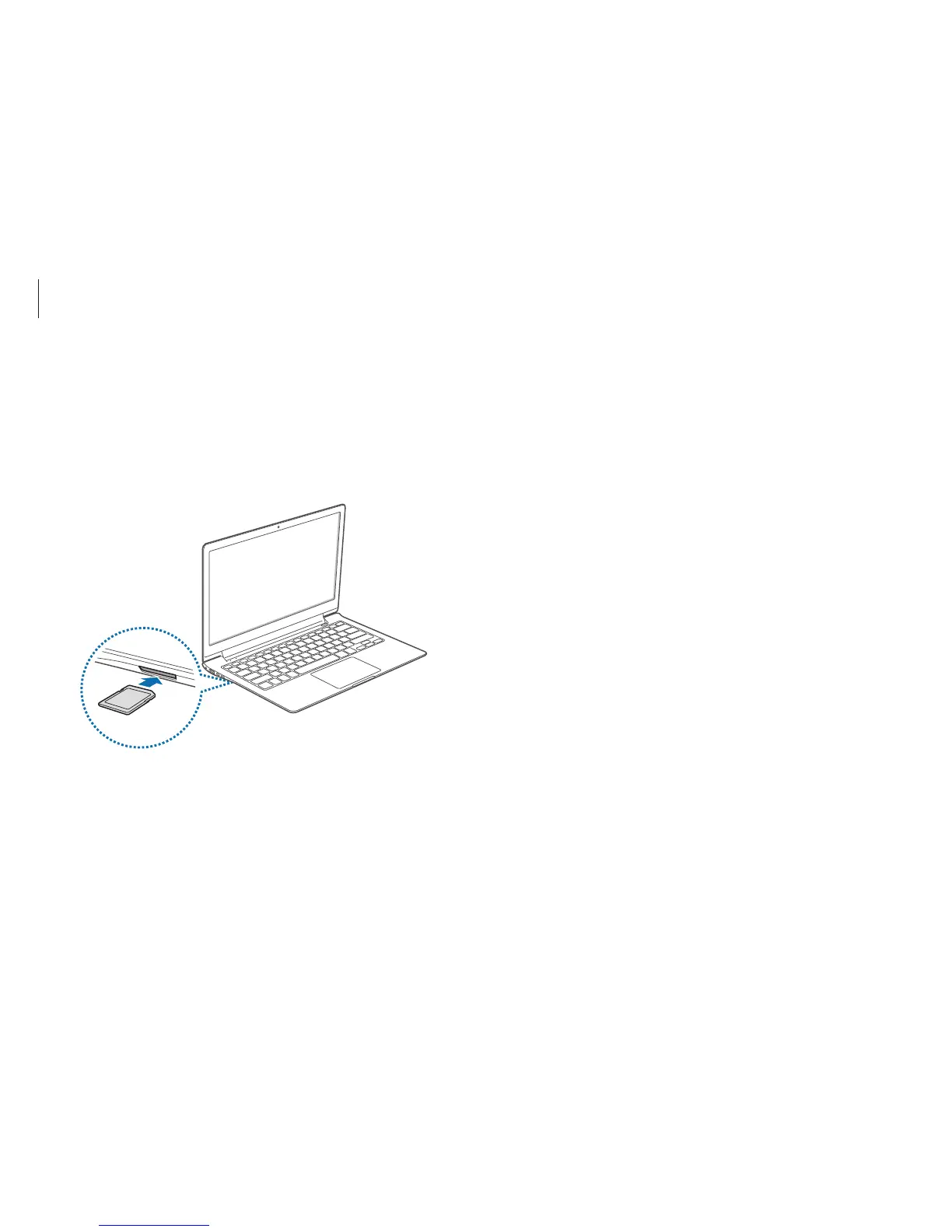
Inserting a memory card
1
If a dummy card is inserted in the memory card slot, remove it.
2
Insert a memory card into the memory card slot in the
indicated direction.





 To Next Page