External devices
91
3
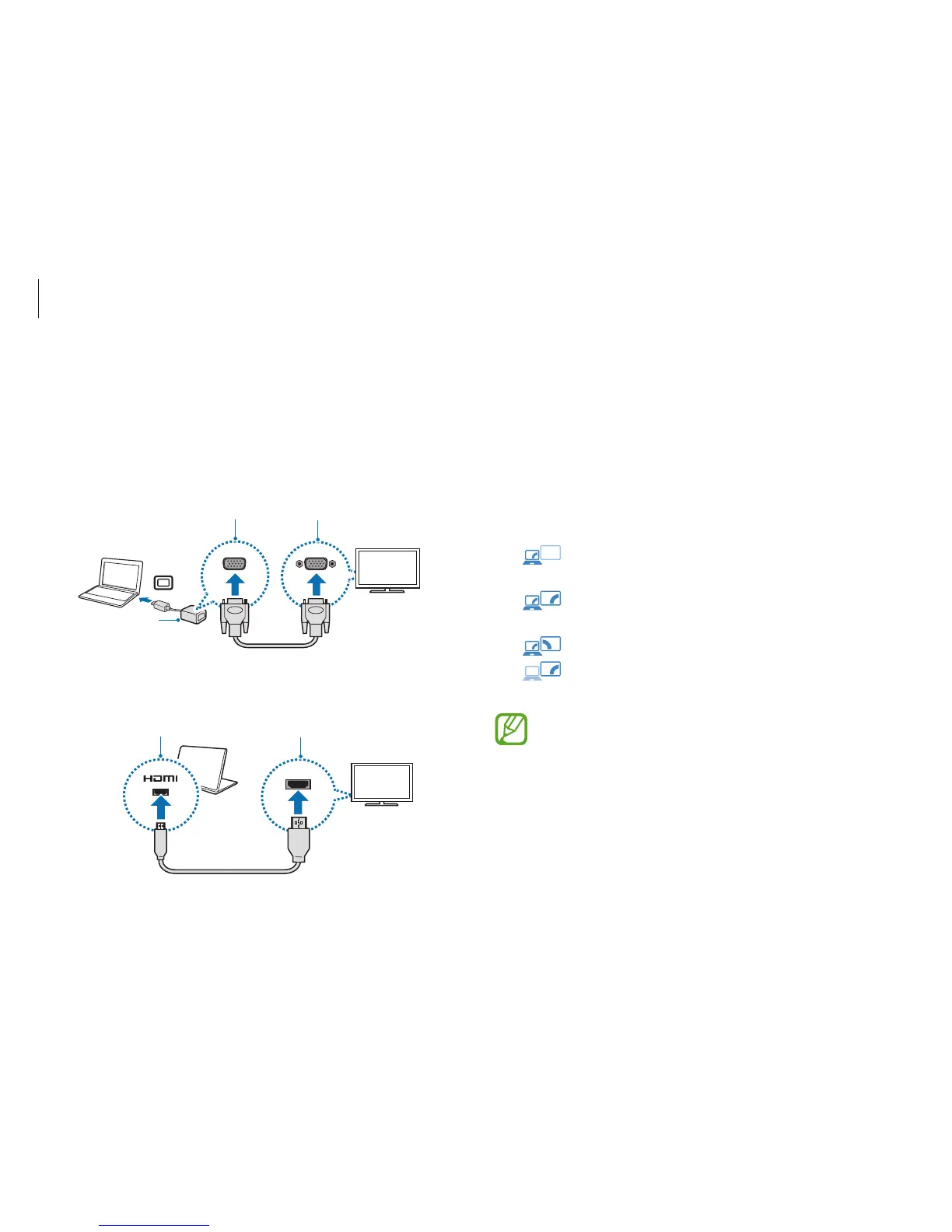
Connect the power cord to the external display.
4
Turn on the display and change its display mode to one that
supports an external input.
5
On the computer, open the Charms and select the
Devices
charm
→
Project
→
Second screen
.
6
Select a mode.
•
PC screen only
: Show the interface on the computer
monitor only.
•
Duplicate
: Show the interface on both the computer
and the external display.
•
Extend
: Extend the screen to the external display.
•
Second screen only
: Show the interface only on the
external display.
Alternatively, on the desktop, open the Charms and select
the
Settings
charm
→
Control Panel
→
Appearance and
Personalization
→
Display
→
Change display settings
→
Display
→
an option. For more information, refer to OS
help.
2
Connect the other end of the cable to the D-SUB port or HDMI
port of the external display.
If the display has several HDMI ports, connect the cable to the
DVI IN port.
<When using a VGA cable>





 To Next Page