78
Changing Resolution and Color
Aresolutionisthenumberofpixelsdisplayedonthe
screen. If you set the resolution to a higher value, items
onthescreenwillbedisplayedsmallerandthescreen
looks wider than the pervious. As color quality gets higher,
morecolorscanberepresented.
1
Click Start > Control Panel > Appearance and
Themes > Change the screen resolution.
2
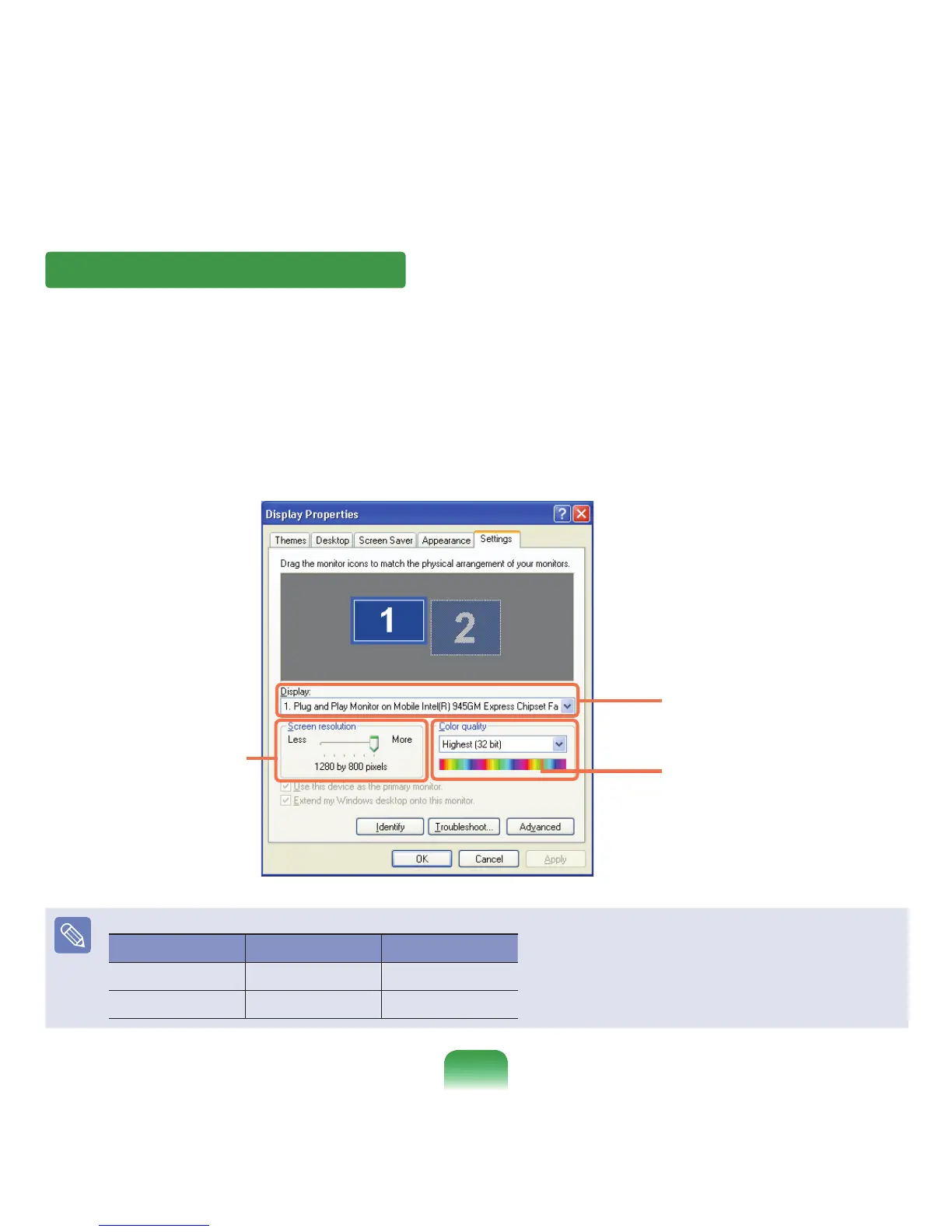
Click Settings and change the resolution and color
quality. Then, click OK.
You can select a graphic chip set.
Clickthepull-downmenubuttonto
selectthenumberofcolorsyouwant.
Movethesliderbartosetthe
resolution.
ItisrecommendedtosettheresolutionandcolorqualitydependingontheLCDtypeofyourcomputerasthefollowing:
LCD Type Resolution Color Quality
XGA 1024x768 Strongest(32-bit)
SXGA+ 1400x1050 Strongest(32-bit)


 To Next Page