92
Wireless LAN AP Connection Procedures
TouseawirelessLAN,rstconnecttoawireless
LANAPandthenyoucanaccessthenetworkeven
when moving location. moving location and then you
can access the network even when connecting to a
wirelessLANAP
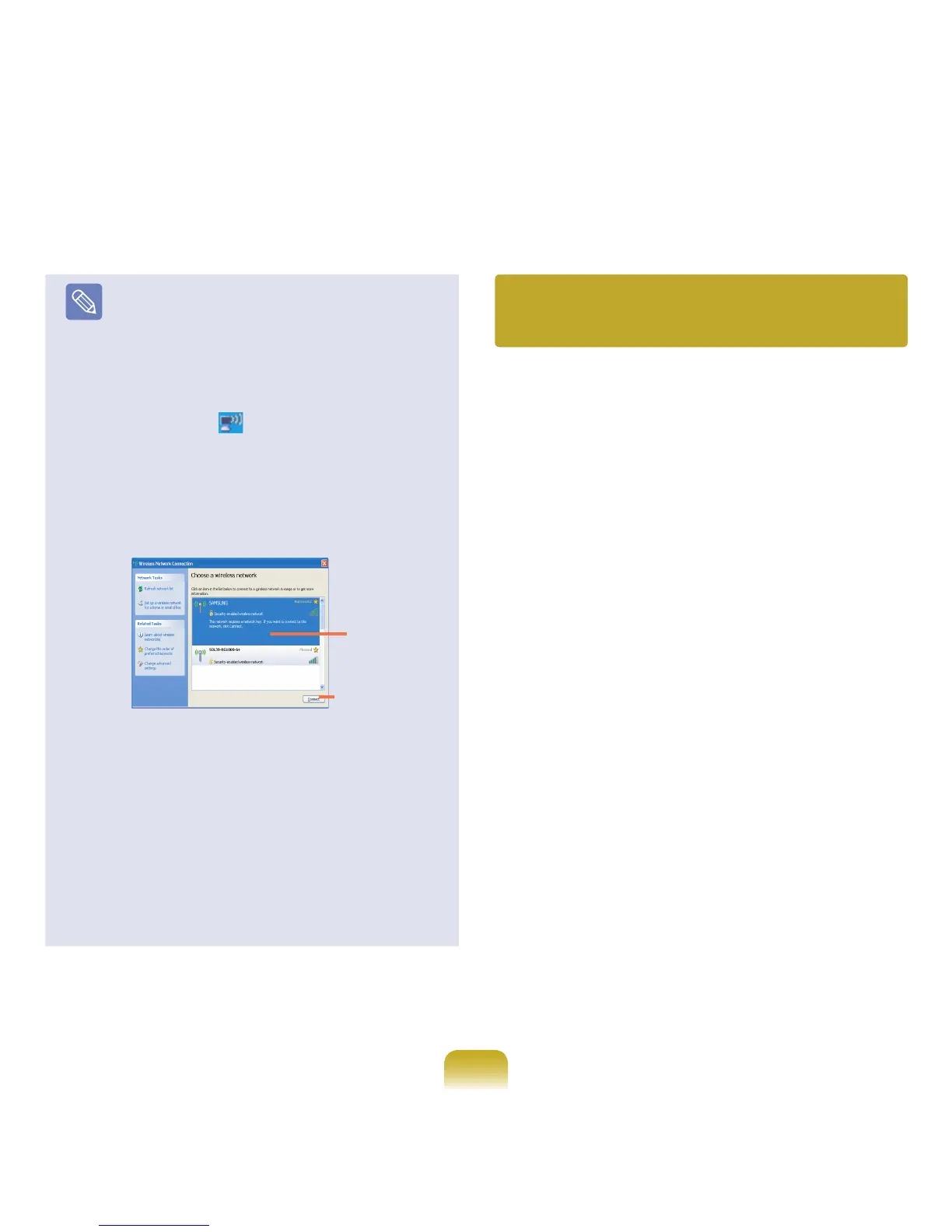
1.Right-clickoverthe
Wireless Network
Connection ( )iconontheTaskbarandclick
View Available Wireless Networks.
2. Click
Search AP from the Wireless menu to
searchforwirelessLANAPs.Selectanavailable
wirelessnetwork(e.g.SAMSUNG)andclickthe
Connectbutton.Forinformationonavailable
wirelessLANAPs,askyournetworkadministrator.
3. The network key (security key) input window
appears.
-IfanetworkkeyhasbeensetforthewirelessLAN
AP, enter the network key and click the Connect
button.Forthenetworkkeyinformation,askyour
network administrator.
-Ifnonetworkkeyhasbeensetforthewireless
LANAP,clicktheConnectbuttonwithoutentering
the network key.
4.Whenthecomputerisconnectedtothewireless
LANAP,theConnectedmessagewillappearonthe
WirelessNetworkiconintheTaskbar
.
By setting the network settings (IP address, printer setting,
etc.) for each location, you
can immediately access the network without performing
the network setting procedures
regardless of your location.
1
RunSamsungNetworkManagerwhenconnectedto
the Internet.
2
Select an icon that represents the corresponding
location from the Saved Locations window and then
click Move.
3
Whenthenetworksettingsoftheselectedlocation
are applied, the new location and the network
connection information are displayed in The detailed
Information for window.
AvailableAP
Connect
Using the network after moving
location


 To Next Page