84
Connecting to Wireless LAN
IfanAPexistsnearyourlocation,youcaneasilyconnect
towirelessLANinthemethodprovidedbyWindowsXP.
IfyouusetheprogramprovidedbyawirelessLANcard
provider,connecttowirelessLANafterseeingpage 88
of this document.
ThefollowingdescriptionisbasedonWindowsXP
Service Pack 2; thus, the pictures may vary.
1
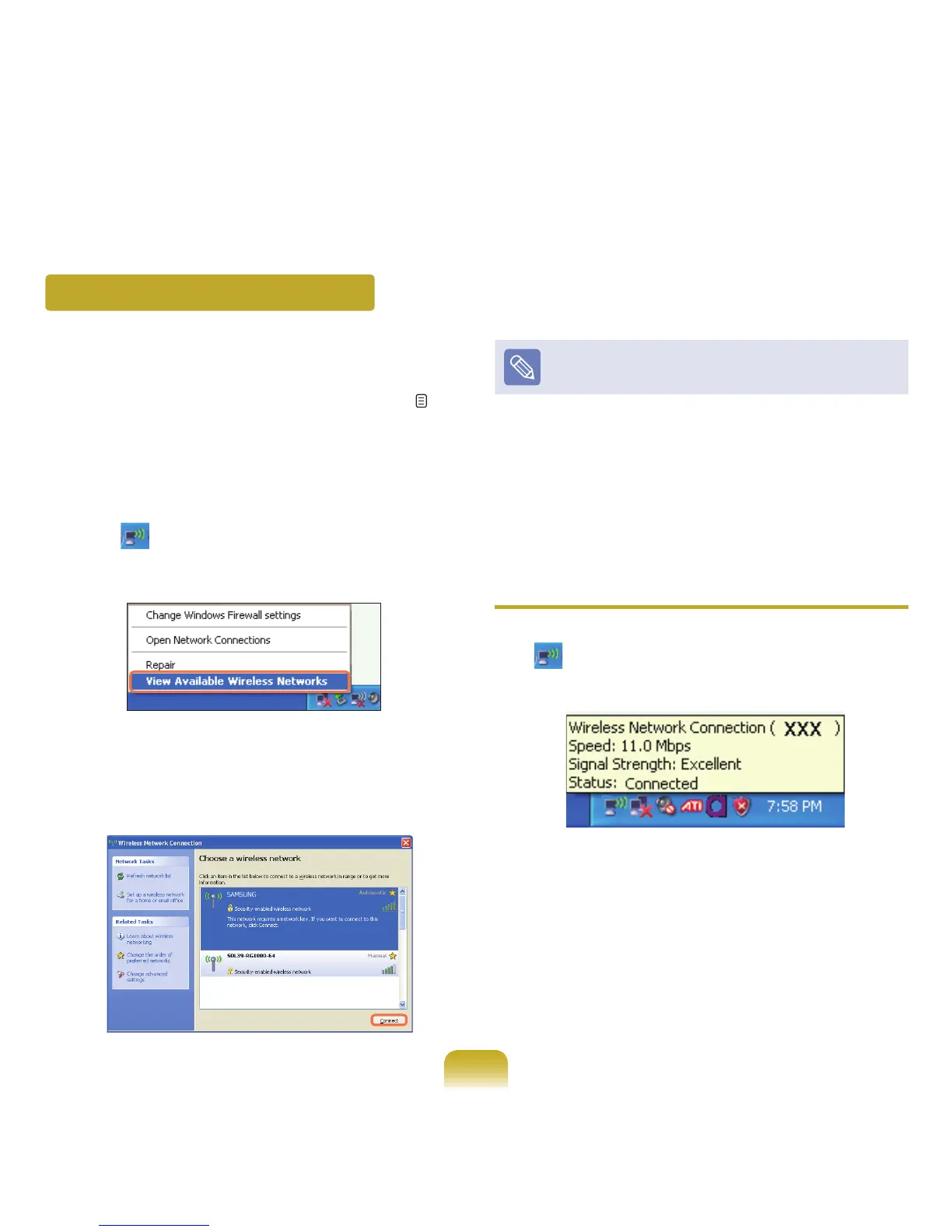
Click the Wireless Network Connection
icon ( )fromtheTaskbarusingtherightbuttonof
the touch pad. Then, click View Available Wireless
Networks.
2
SelectanAPtobeconnectedandclickConnect.
If a network key is set in the AP, the network key
inputwindowwillappear.Enterthenetworkkeyin
the input window and click OK.
For a network key, contact the network administrator.
3
Once Connected to AP is displayed, you can use a
wireless network.
To check the network connections
Place the mouse on the Wireless Network Connection
icon ( )fromtheTaskbar.Then,thestatuswillappear.


 To Next Page