Chapter 2. Loading Your Desired File
23
Adding Folders/Files in Samsung
Media Studio
Before you start!
■ Connect the player to your PC.
■ Media Studio must be installed on your PC.
To add folders
To add files
4
4
1
Media Studio will automatically start when the player is connected to your PC.
■ If the program does not start automatically, double Click the Media Studio icon on the desktop.
2
Click the icon.
■ Click icon to display music list.
3
Click <Add Folder> on the bottom of Media Studio.
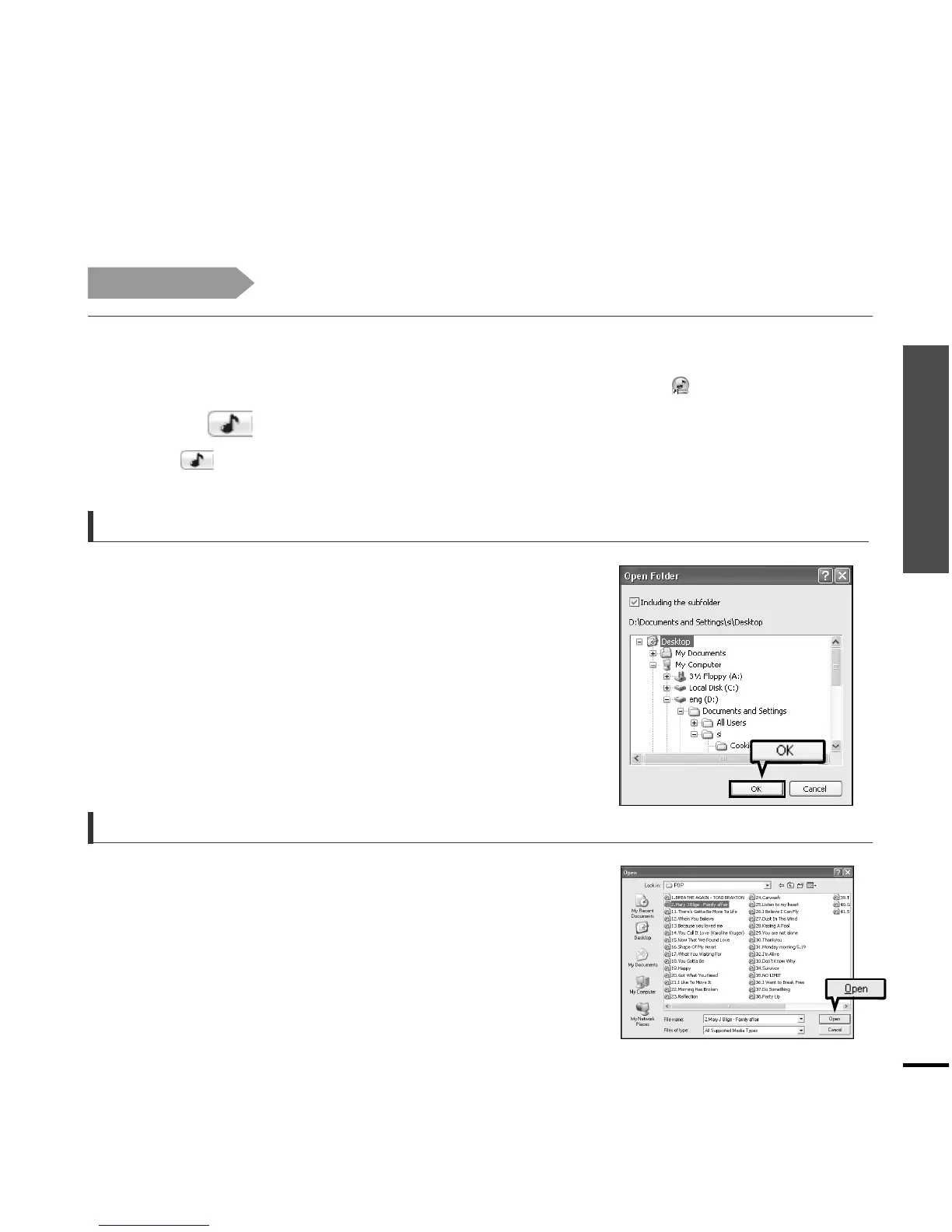
■ The Open Folder window will appear.
4
Select the folder to add and click <OK>.
■ The files of the selected folder are added to the list on the left
side the Media Studio Screen.
3
Click <Add File> on the bottom of Media Studio.
■ The Open window will appear.
4
Select the files to add and click <Open>.
■ The selected files are added to the list on the left side the
Media Studio Screen.


 To Next Page