EN-49
Connecting to a PictBridge Compliant Printer
If a printer that supports PictBridge is available, images can be printed by connecting the
digital still camera directly to the PictBridge-compatible printer without using a computer.
Connecting the camera to the printer
1. Connect the USB port on the camera and the USB jack on the printer with the
supplied USB cable, then turn on your camera and the printer.
The screen for selecting the USB mode is displayed.
2. Select [PictBridge] and press the
OK button.
Printing images
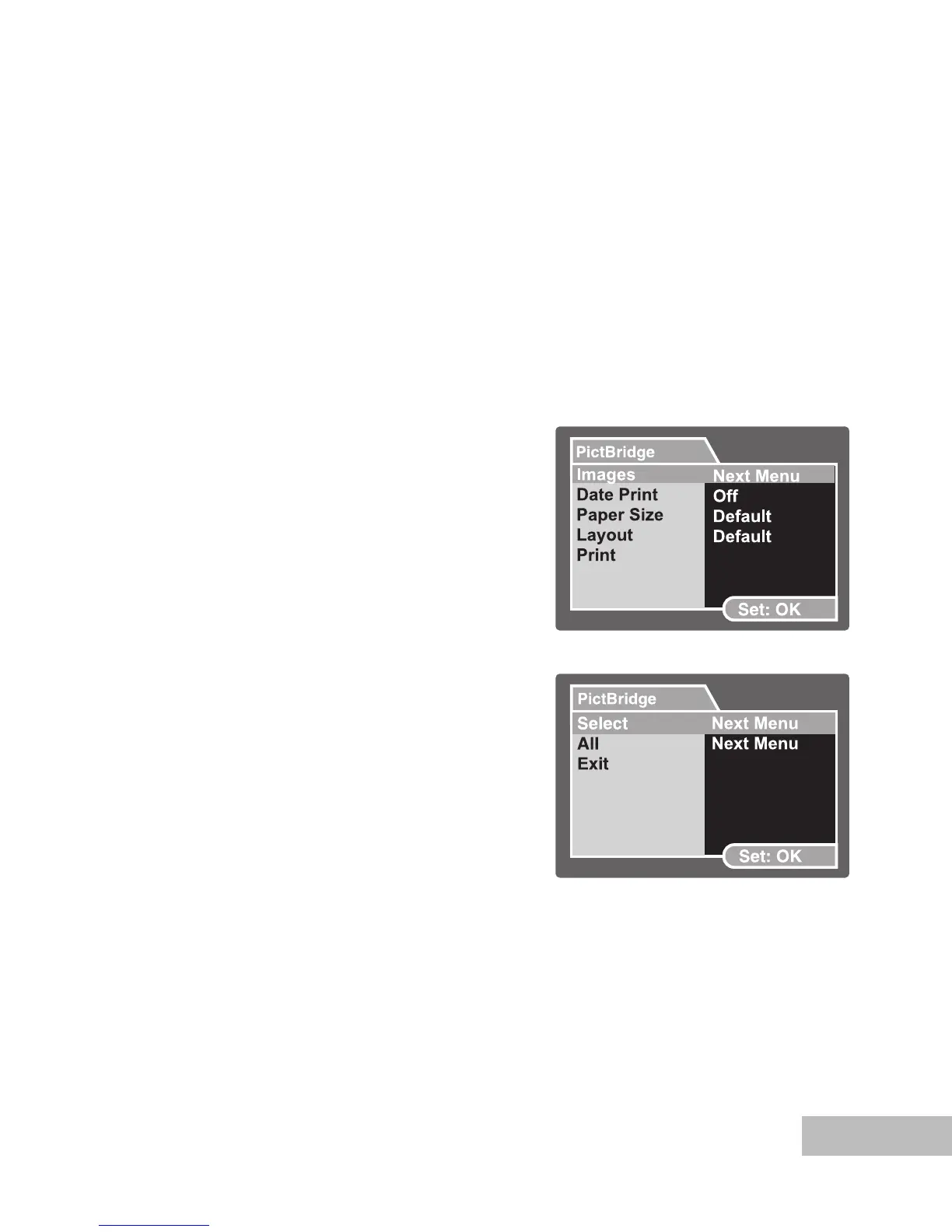
When the camera is properly connected to a PictBridge compliant printer, the
PictBridge menu is displayed on the monitor.
1. Select the item you want to configure
with the
/ buttons, and press the
OK button.
[Images]: Select whether you want
to print specific image or all images.
You may also select printing
number for specific image.
[Date Print]: According to the printer
type, select whether you want to print
the image with date imprint or not.
[Paper Size]: Select the desired paper
size according to the printer type.
[Layout]: Select the desired printing
layout according to the printer type.
[Print]: After all settings are
configured, select this item to start
printing.
2. If you select [Images] in the previous
step, the figure shown on the right hand
side will appear. Select [Select] or [All]
with the / buttons, and press the
OK button.
[Select]: Select to print multi images
simultaneously.
[All]: Select to print all images.
[Exit]: Exit from Images option.


 To Next Page