EasyManua.ls Logo

Sealife DC2000 - User Manual

Sealife DC2000
105 pages
Print Icon
To Next Page IconTo Next Page
Loading...
1
Instrucon Manual
Visit www.sealife-cameras.com/manuals
for ENGLISH, FRANÇAIS, DEUTSCH, ITALIANO,
ESPAÑOL and NEDERLANDS versions

Table of Contents

Other manuals for Sealife DC2000

Questions and Answers

Summary

About this Manual

Federal Communications Commission Interference Statement

Statement regarding FCC compliance for digital devices and interference.

RF Exposure Warning

Warning regarding radio frequency radiation exposure limits and compliance.

CE Mark Warning

Safety and Handling Precautions

Battery Information

USB Adapter Information

Important Information About Using the Inner Camera Underwater

Introduction

System Requirements

For Windows

Computer system requirements for Windows operating systems.

For Macintosh

Computer system requirements for Macintosh operating systems.

Inner Camera Performance Features

Package Contents

Getting to Know Your Camera

Front View

Diagram and labels for the front view of the camera.

Back View

Diagram and labels for the back view of the camera.

Top View

Diagram and labels for the top view of the camera.

Bottom View

Diagram and labels for the bottom view of the camera.

Right Side View

Diagram and labels for the right side view of the camera.

Left Side View

Diagram and labels for the left side view of the camera.

Camera Buttons

Navigation Control

Getting Started

Attach the Wrist Strap to Inner Camera

Instructions on how to attach the wrist strap to the camera.

Inserting the Battery

Step-by-step guide for inserting the camera battery.

Inserting the Memory Card (Card Sold Separately)

Instructions for inserting a memory card into the camera.

Charging the Battery

Power Camera On and Off

Initial Settings

Setting the Language

Guide to selecting the camera's menu language.

Setting the Date & Time

Procedure for setting the camera's date and time.

Taking a Picture and Recording a Video Clip

Playback Pictures and Video Clips

Using the LCD Monitor

LCD Monitor Layout - Record Mode Screen

Explanation of icons and information on the record mode screen.

LCD Monitor Layout - Video Recording Screen

Explanation of icons and information on the video recording screen.

LCD Monitor Layout - Playback Mode Screen

Explanation of icons and information on the playback mode screen.

Recording Images and Videos

Taking Images

Detailed steps for capturing still photographs with the camera.

Setting the Zoom Control

Instructions on how to use the digital zoom feature.

Using EV Compensation

Using the Flash

Using Self-timer

Setting the Focus Mode

Using the Delete Button

Recording Videos

Using Picture-in-Video (PIV) Function

About the Mode Dial

Program

Camera automatically adjusts exposure for ambient lighting conditions.

Intelligent Scene

Camera automatically detects and switches to appropriate scene modes.

Land Scene

Select from 25 common land scene modes for specific shooting conditions.

Panorama

Create panoramic photos by panning or tilting the camera.

Manual

Allows full exposure control via aperture, shutter speed, and ISO.

Underwater

Adjusts camera settings for specific underwater environments.

Aperture Priority

Manually adjust aperture; camera adjusts shutter speed for exposure.

Shutter Priority

Manually adjust shutter speed; camera adjusts aperture for exposure.

Using Intelligent Scene

Setting the Land Scene Mode - SCN

Scene Modes

Self Portrait

Uses face tracking to capture self-portraits with auto focus and timer.

Smile Shutter

Captures continuous pictures automatically when the subject smiles.

HDR

Applies digital processing to enhance highlights, shadows, and contrast.

Time Lapse

Takes photos automatically at specified time intervals, creating a movie.

GIF Capture

Captures specified images at intervals, combined into a GIF file.

Art Effect

Applies one of 17 artistic effects to images and movies.

Continuous Shooting

Captures a series of images using different shooting modes.

Using Time Lapse [Land Scene Mode]

Using GIF Capture [Land Scene Mode]

Using Art Effect [Land Scene Mode]

Using Continuous Shooting [Land Scene Mode]

Using Panorama Mode

Using Manual Mode

Setting Underwater Scene Mode

Using Aperture Priority Mode

Using Shutter Priority Mode

Using the Main Menu

Photo Size;Image Ratio

Sets image resolution (megapixels) and aspect ratio.

Focus Mode

Options for automatic focus adjustment based on shooting distance.

Flash

Controls flash settings for low light conditions and specific shooting modes.

Self-timer

Sets a delay before capturing an image for self-portraits.

EV Compensation

Adjusts overall scene brightness for brighter or darker images.

RAW+JPEG

Saves images in both uncompressed RAW and JPEG formats.

Quality

Determines the amount of compression used to save JPEG images.

White Balance

Adjusts color cast based on lighting for accurate white rendering.

ISO

Controls sensor light sensitivity for different lighting environments.

Maximum ISO Auto

Sets the upper limit for automatic ISO adjustment.

Metering

Sets the method for calculating scene exposure.

Exposure Bracketing

Takes multiple exposures of the same scene for varied results.

AF Area

Determines the focus area within the picture frame.

AF Lamp

Assists camera focusing in low light conditions.

Digital Zoom

Enlarges far-away objects up to 3X digitally.

Date Stamp

Prints capture date and time directly on still images.

Auto Review

Displays the captured image for a short period after shooting.

Blink Detection

Detects if subjects' eyes are closed in captured photos.

Grid Line

Displays a framing grid on screen for composing pictures.

Continuous AF Photo

Camera periodically adjusts focus during preview without pressing shutter.

Movie Mode (Video Resolution)

Sets video resolution and frame rate for recording movies.

Continuous AF Video

Camera adjusts focusing during video recording.

Wind Cut

Reduces wind noise during movie recording.

Stabilizer

Reduces shaky movements when recording video.

Setup Menu

Startup

Controls the sound played when the camera is powered on.

Shutter

Controls the sound made when the shutter button is pressed.

Beep Volume

Adjusts the volume for camera focus and warning sounds.

Shortcut

Assigns quick access to popular menu settings via the OK button.

Power Save

Sets the time before the camera enters sleep or powers off.

Date & Time

Sets the camera's date and time for accurate file stamping.

Language

Specifies the language used for menus and messages.

Display Mode

Controls the icons displayed on the LCD monitor.

LCD Brightness

Adjusts the brightness level of the LCD monitor.

Format

Formats memory card or internal memory, erasing all data.

Reset All

Resets camera settings to factory defaults, excluding Date & Time and Language.

Playback

Viewing in Single Navigation

Displays images and videos one by one on the LCD monitor.

Viewing Series Photo

Allows viewing of photos captured in a sequence as a single item.

Viewing Thumbnails

Displays multiple thumbnail images on the LCD monitor simultaneously.

Using Calendar View

Finds images/videos recorded on a specific date using a calendar.

Playing Videos

Instructions for playing back recorded video clips on the camera.

Using Movie Edit

Playing Voice Memo

Playback Menu

Slide Show

Plays back still images automatically in sequential order.

Protect

Prevents images and videos from being accidentally erased.

Voice Memo

Records up to 30 seconds of audio attached to still images.

Filter Effects

Applies artistic filters to photos captured in 4:3 aspect ratio.

Trimming

Allows cropping of images captured in 4:3 aspect ratio.

Resize

Creates smaller copies of images for email or sharing.

Startup Image

Changes the image displayed when powering on the camera.

DPOF

Formats print order information for memory cards.

Copy

Copies images between internal memory and memory card.

Movie Paste

Combines two video clips into a single video file.

Face Beauty

Enhances skin appearance in still images.

Using the Wireless Function

Establishing a Wireless Connection

Steps to connect the camera wirelessly to a smart device.

Using the Link 123 Plus App

Remote Mode

Controls camera functions remotely via the smart device app.

App Menu

Accesses different operating modes of the smart device app.

Geotagging

Camera Mode

How to Use Auto Send

Automatically sends photos to smart device when captured.

How to Use Quick Send

Manually sends selected photos to smart device.

Album Mode

Connecting the Camera to a Computer or Printer

How to Print Images Using a PictBridge Compatible Printer

Setting the Print Mode Menu

Configures print settings like select, print all, or print DPOF.

Underwater Housing Instructions

Front View

Diagram and labels for the front view of the underwater housing.

Back View

Diagram and labels for the back view of the underwater housing.

Inside View

Diagram and labels for the inside view of the underwater housing.

Important Care and Maintenance Information

Preparing the Camera and Housing for Underwater Use

Preparing the Inner Camera

Steps for preparing the camera before underwater use.

Preparing the Underwater Housing

Steps for preparing the housing before underwater use.

Before Entering Water

Entering;Exiting the Water

After Using the Housing Underwater

Installing Flash Link Optical Cable Adapter

How to Replace the Housing O-ring

Removing the O-ring

Instructions for safely removing the housing's O-ring seal.

Inserting the O-ring

Instructions for correctly installing a new O-ring seal.

Great Underwater Pictures Made Easy

Crystal Clear Water

Tips for achieving great underwater pictures in clear water conditions.

Stay Close to the Subject

Advice on maintaining optimal shooting distance for clear subjects.

Control Your Buoyancy and Move Calmly

Tips for managing buoyancy and movement for better underwater photos.

Keep Shooting

Encourages practice and learning from mistakes for improved skills.

Shoot Up, Not Down

Guidance on shooting angle for better contrast and subject separation.

Expand Your Camera System with an External Flash or Photo-Video Lighting Accessory

Recommendations for enhancing underwater photography with lighting.

Troubleshooting - Inner Camera

Troubleshooting - Underwater Housing

Camera Specifications

Housing Specifications

About Folder and File Names

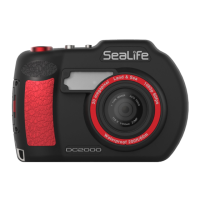
Sealife DC2000 Specifications

General IconGeneral
Cables includedUSB
Quick start guideYes
CertificationCE, FCC, WEEE
Product colorBlack, Red
Megapixel20 MP
Camera typeCompact camera
Sensor typeCMOS
Image sensor size1 \
Image formats supportedDNG, JPG, RAW
Supported aspect ratios1:1, 3:2, 4:3, 16:9
Maximum image resolution5472 x 3648 pixels
Image stabilizer locationBody
Still image resolution(s)5472x3648, 3888x2592, 2736x1824, 4864x3678, 3648x2746, 2592x1944, 640x480, 5472x3080, 3648x2056, 2720x1528, 3648x3648, 2544x2544, 1920x1920
Memory slots1
Internal memory80 MB
Compatible memory cardsMicroSD (TransFlash), MicroSDHC, MicroSDXC
Focus adjustmentAuto
Auto focusing (AF) modes-
Normal focusing range (wide)- m
Digital zoom3 x
Optical zoom- x
Fixed focal length11.6 mm
Maximum aperture number11
Minimum aperture number1.8
Motion JPEG frame rate60 fps
Video formats supportedH.264, MOV
Maximum video resolution1920 x 1080 pixels
Resolution at capture speed1280x720@30fps, 1280x720@60fps, 1920x1080@15fps, 1920x1080@30fps, 1920x1080@60fps
Camera shutter typeMechanical
Fastest camera shutter speed1/2000 s
Slowest camera shutter speed15 s
ISO sensitivity125, 200, 400, 800, 1600, 3200, 6400, 12800, 25600, Auto
Light exposure modesAperture priority AE, Auto, Manual, Shutter priority AE
ISO sensitivity (max)25600
ISO sensitivity (min)125
Flash modesForced off, Forced on, Red-eye reduction, Slow synchronization
Scene modesBacklight, Beach, Candlelight, Children, Dawn, Fireworks, Food, Night, Night portrait, Party (indoor), Portrait, Self-portrait, Snow, Sports, Sunset, Underwater, Landscape (scenery)
Tripod thread1/4 \
White balanceAuto, Cloudy, Daylight, Fluorescent, Manual, Tungsten
Self-timer delay2, 10, 12 s
Languages supportMulti
Mac operating systems supportedMac OS X 10.10 Yosemite, Mac OS X 10.11 El Capitan, Mac OS X 10.12 Sierra, Mac OS X 10.4 Tiger, Mac OS X 10.5 Leopard, Mac OS X 10.6 Snow Leopard, Mac OS X 10.7 Lion, Mac OS X 10.8 Mountain Lion, Mac OS X 10.9 Mavericks
Windows operating systems supportedWindows 10 Education, Windows 10 Education x64, Windows 10 Enterprise, Windows 10 Enterprise x64, Windows 10 Home, Windows 10 Home x64, Windows 10 Pro, Windows 10 Pro x64, Windows 7 Enterprise, Windows 7 Enterprise x64, Windows 7 Home Basic, Windows 7 Home Basic x64, Windows 7 Home Premium, Windows 7 Home Premium x64, Windows 7 Professional, Windows 7 Professional x64, Windows 7 Starter, Windows 7 Starter x64, Windows 7 Ultimate, Windows 7 Ultimate x64, Windows 8, Windows 8.1, Windows Vista Business, Windows Vista Business x64, Windows Vista Enterprise, Windows Vista Enterprise x64, Windows Vista Home Basic, Windows Vista Home Basic x64, Windows Vista Home Premium, Windows Vista Home Premium x64, Windows Vista Ultimate, Windows Vista Ultimate x64, Windows XP Home, Windows XP Home x64, Windows XP Professional, Windows XP Professional x64
Flip-out screenNo
Display diagonal3 \
Display resolution (numeric)920000 pixels
Audio systemstereo
Wi-Fi standards802.11b, 802.11g, Wi-Fi 4 (802.11n)
Bluetooth version4.1
Power source typeBattery
Battery voltage3.7 V
Battery capacity1130 mAh
Battery technologyLithium
Battery life (CIPA standard)200 shots
Sustainability certificatesRoHS
Storage temperature (T-T)-29 - 60 °C
Operating temperature (T-T)5 - 44 °C
Weight and Dimensions IconWeight and Dimensions
Depth36 mm
Width116 mm
Height67 mm
Weight234 g

Related product manuals