71
Trimming
TheTrimtoolallowsyoutocropanimage.Thisfunctionisonlyapplicabletophotoscapturedin4:3
imageratio(aspectratio)andmaintainsthatratio.TrimisnotavailableforVGAimagesizes.
Totrimanimage:
1. PushthePlaybackbutton
.
2. Pushthe or keystoscrolland
selecttheimageyouwanttotrim.
3. PushtheMenubuttontolaunchthe
Playbackmenu.
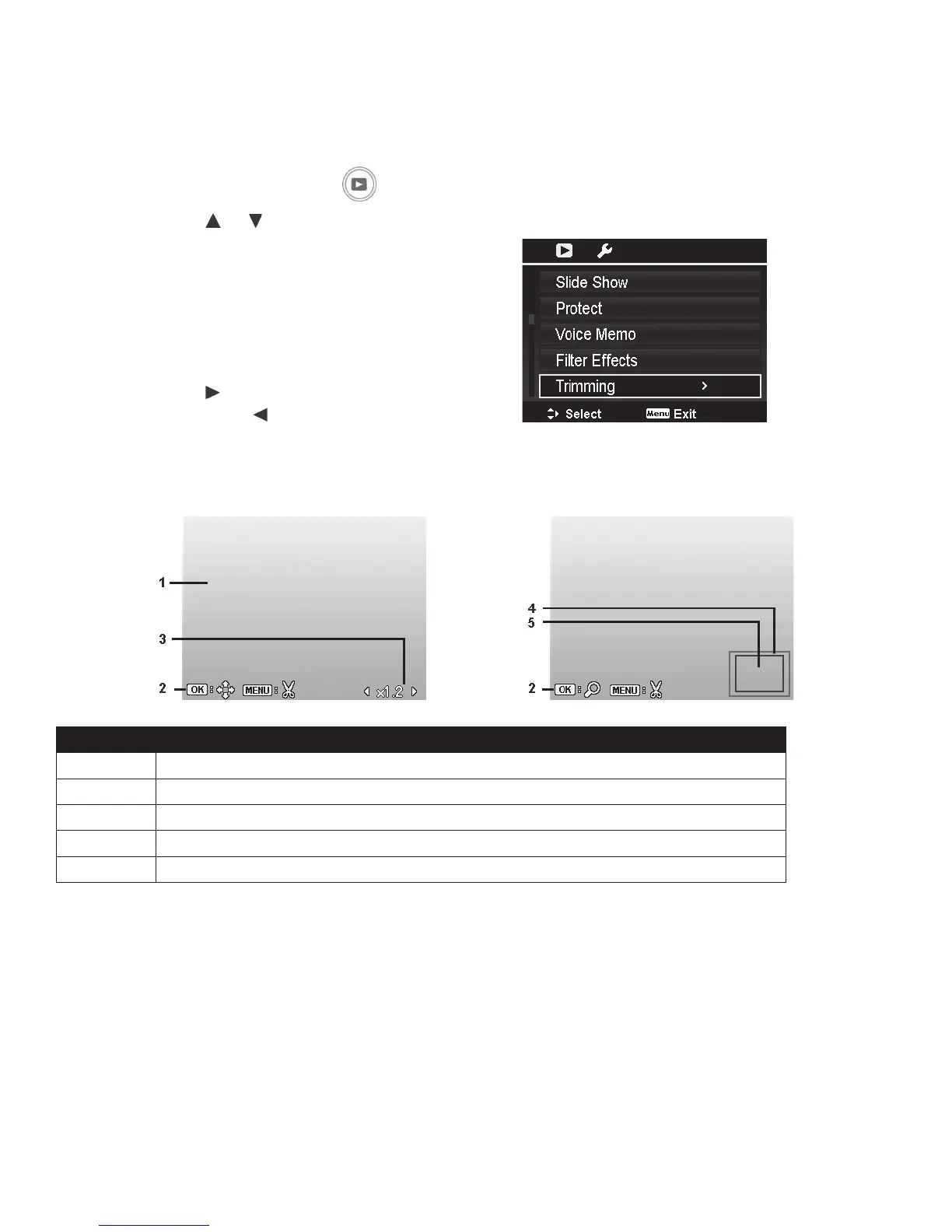
4. SelectTrimming.TheTrimscreen
layoutisdisplayedontheLCD
monitor.
5. Pushthe
keytozoominonthe
theimageand tozoomout.
6. PushOKbuttontoswitchtothe
Movemodeandusethe4-way
navigationcontrolstomovearound
theimage.
No. Description
1 Enlargedimage
2 MovemodeSwitch
3 Currentzoommagnication.
4 Imagearea
5 Theapproximatelocationofthetrimmedarea
7.PushtheMenu buttonandaconrmationmenuappears.
8.SelectYes tosavechangesasanewleorCanceltogobacktothePlaybackMenu
withoutsavingchanges.



 To Next Page