14
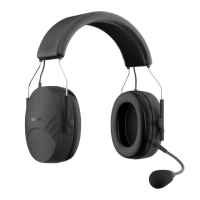
Tufftalk Lite
4.3.1 A2DP Stereo Music Only
1. To enter the voice conguration menu, press and hold the
Center Button for 10 seconds until you hear the voice prompt,
“Conguration menu”.
2. Tap the (+) Button four times and you will hear the voice prompt,
“Media selective pairing”.
3. Search for Bluetooth devices on your smartphone. Select Sena
Tufftalk Lite in the list of devices detected on your phone.
4. Enter 0000 for the PIN. Some mobile phones may not ask for the
PIN.
4.3.2 HFP for Phone Call Only
1. To enter the voice conguration menu, press and hold the
Center Button for 10 seconds until you hear the voice prompt,
“Conguration menu”.
2. Triple tap the (+) Button and you will hear the voice prompt,
“Phone selective pairing”.
3. Search for Bluetooth devices on your smartphone. Select Sena
Tufftalk Lite in the list of devices detected on your phone.
4. Enter 0000 for the PIN. Some mobile phones may not ask for the
PIN.
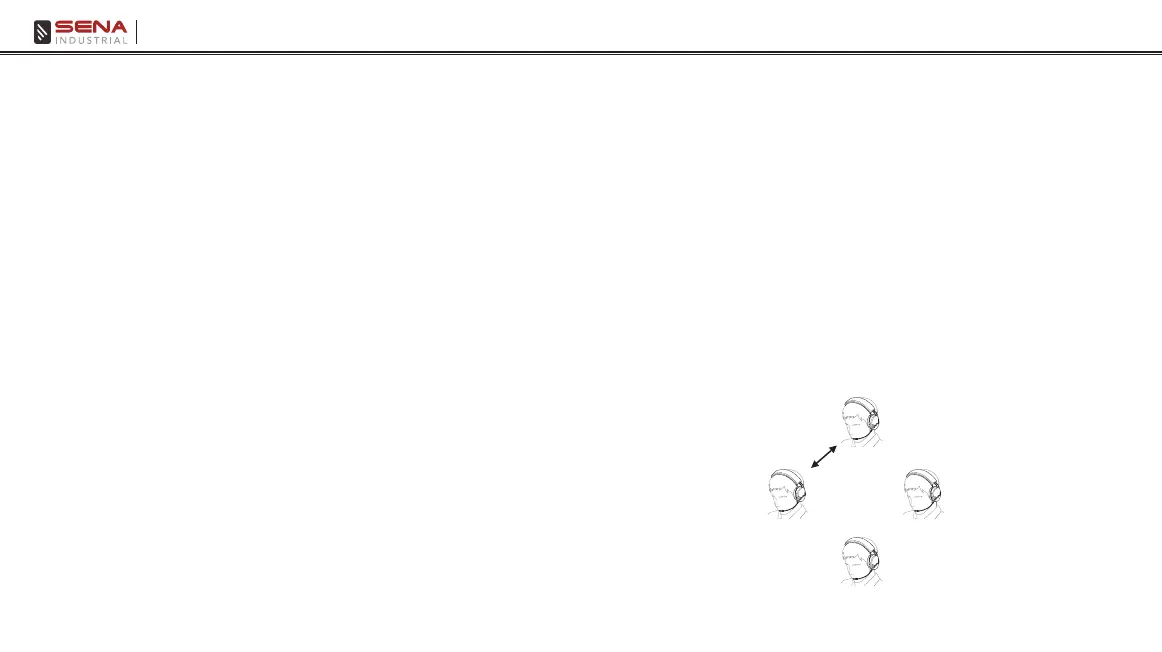
4.4 Intercom Pairing - Other Tufftalk Lite headsets
The Tufftalk Lite can be paired with up to three other headsets for
Bluetooth intercom conversation.
1. Turn on the two Tufftalk Lite headsets (A and B) that you would like
to pair with each other.
2. Press and hold the Center Button for 5 seconds, then you will
hear a mid-toned single beep and the voice prompt, “Intercom
pairing”.
3. Simply tap the Center Button of any one of the two headsets A
or B and intercom connection is automatically established. The
two Tufftalk Lite headsets A and B are paired with each other for
intercom conversation. If the pairing process is not completed
within one minute, the Tufftalk Lite will return to stand-by mode.
A
B
C
D
Pairing A & B


 To Next Page