SCORPIO 38’ - 45’ - CONTROL DISPLAY INFORMATION - Operation menu
Version 1.02 May 27, 2022
50
4.2.2 MEMORIES
The Memory menu allow to record movements of the arm. The recorded movement can be
reproduced and modified afterwards. It also allows to change the direction and the time lapse of the
recorded movement.
The system records the memory directly to an SD card located inside the electronic box. In case
there is no SD card, the system will not allow you to go further on the memory menu.
4.2.2.1 RECORD A MOVEMENT
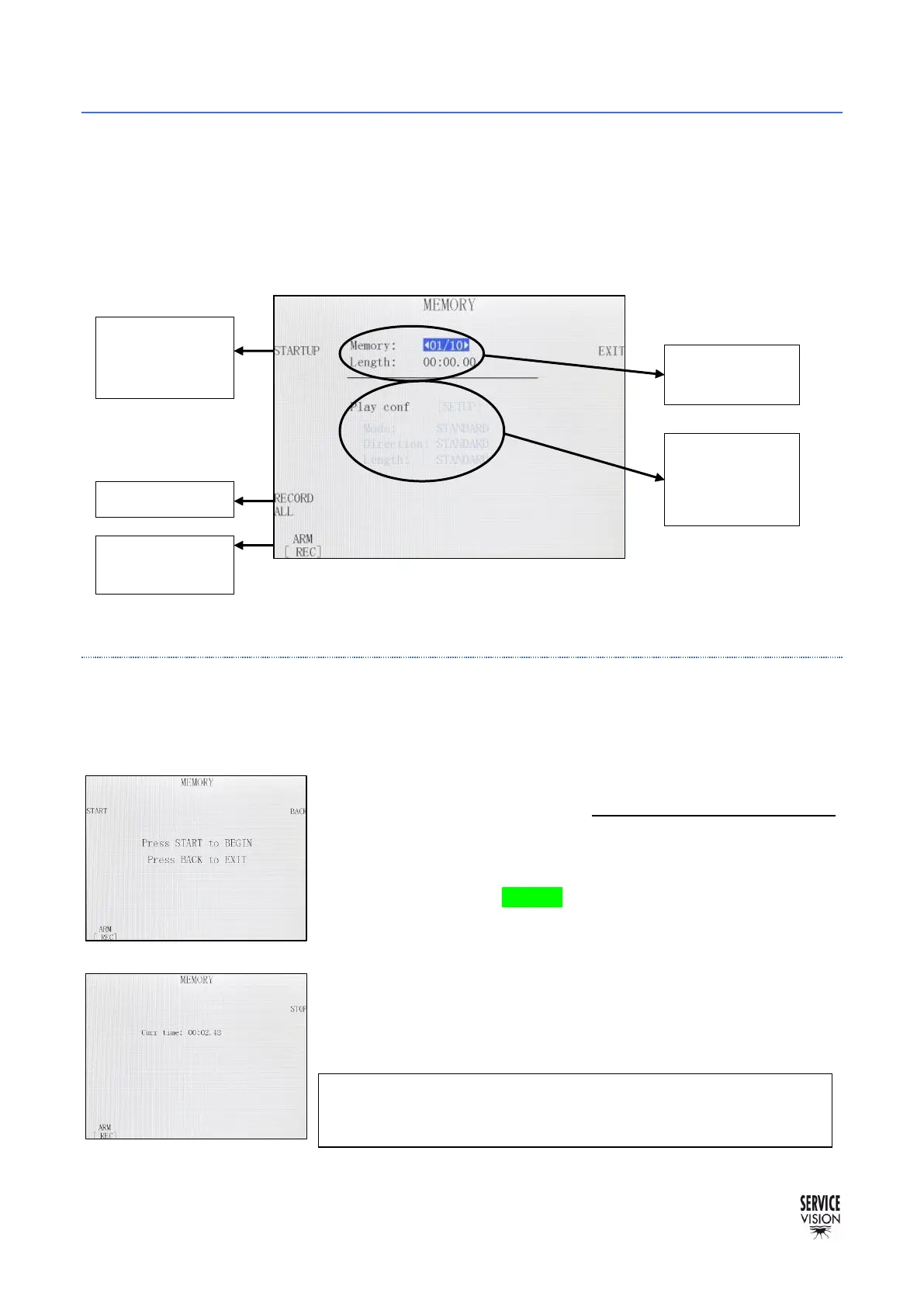
There are 10 slots of memories. To record a movement, select which of those 10 memories will be
recorded. Then, on the bottom left corner, be sure that the ARM axis is on REC. RECORD ALL button
can be pressed to change all the axes states to REC.
Now press STARTUP and the screen will change to fig. 04.15. While
this is screen is being displayed, no movement will be recorded,
allowing the user to relocate the crane at the beginning position for his
movement. The START button triggers the memory and a counter will
appear (fig. 04.16) indicating that the memory is being recorded. It can
also be triggered by the GREEN button in the Hand Command.
Once the take is finished, the STOP button finishes recording the
memory.
This is to start the
movement. Once pressed,
screen 04.15 will be
displayed



 To Next Page