12
Note! Factory reset with a switch/push-button is only possible within the first minute after the
Device is connected to a power supply.
1. Connect the Device to a power supply.
2. Toggle the switch/push-button connected to any of the SW terminals (SW, SW1, SW2,…)
5 times within 3 seconds. The Device must receive on/off signal 5 times, which means
pressing the push-button 5 times, or toggling the switch on and off 5 times.
3. During factory reset, the LED will turn solid green for about 1s, then the blue and red
LED will start blinking in Mode 3 for approx. 2s.
4. The blue LED will be blinking in Mode 1 if the Factory reset is successful.
8. Z-Wave® Security 2 and Device Specific Key (DSK)
The Device supports the latest Security 2 (S2) feature. S2 is handled by the strong AES 128
Encryption protocol, which means that the S2 makes Z-Wave® the most secure IoT (Internet of
Things) security platform out there. To fully utilize the product and its Security 2 feature, a
Security 2-enabled Z-Wave® gateway must be used.
Authenticated Control
- Out-Of-Band DSK for adding (inclusion)
- May be used by most implementations
The Device also supports Security 2 Authenticated, Unauthenticated, and Unsecure adding
(inclusion).
Note! When adding the Device to a Z-Wave network with a gateway supporting Security 2 (S2),
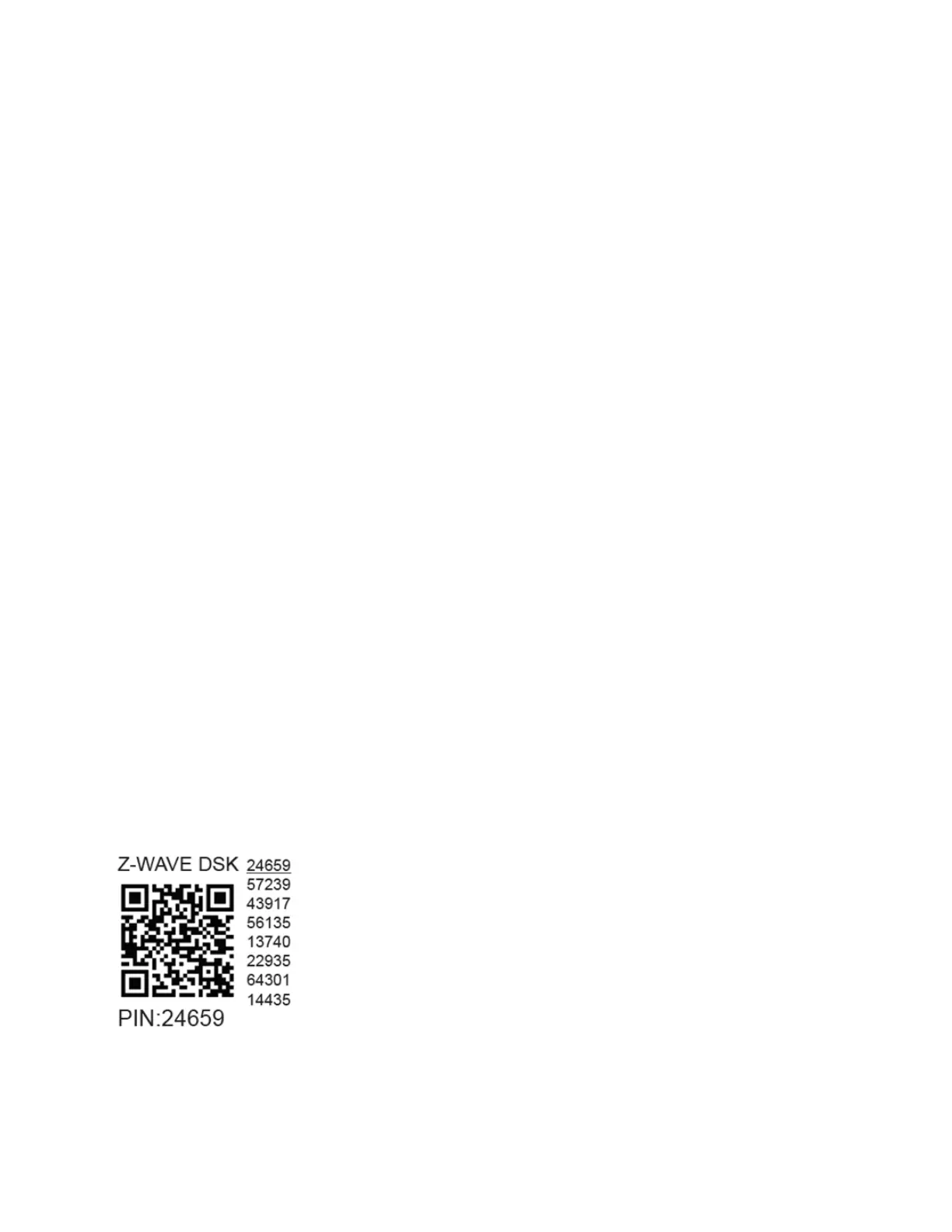
the PIN Code of the Z-Wave Device Specific Key (DSK) is required. You can find it on the label on
the side of the Device and a copy is inserted in the packaging, which must not be lost. Do not
remove the Z-Wave DSK label from the Device. As a backup measure, use the label in the
packaging.


 To Next Page