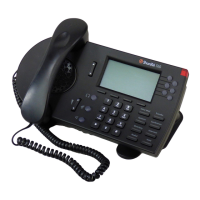
26 User Guide ShoreTel IP Phone 230/230g
ShoreTel IP Phone 230/230g Changing the Agent State
1
Press the custom button that you would like to program.
Scroll through the list of functions until you find the function that you would like to apply to this
button.
When you have highlighted the desired function, press the Next soft key.
Enter an extension or external number. Then, press the Next soft key.
Press the soft key to shift the key pad between numeric and alphabet mode, and enter a
descriptive label no longer than five characters that will remind you of the new function of the
custom button.
Press the Done soft key.
Press the Done soft key again to store your changes.
Changing the Agent State
If you are a member of a workgroup and you need to log in to the workgroup at the start of your day, or
log out to take a break, you can change your agent state via the interface.
Note that the Agent State option is only available if your PCM client type is one of the following:
Workgroup Agent, Workgroup Supervisor, or Operator.
To change the agent state on your phone, follow the procedure below:
Press the Options button , followed by your password and then .
Scroll through the available functions until you reach
5. Agent State, or press 5 on your keypad to highlight this option, and then press the Edit soft key.
Note
Your choices are limited to just Call Appearance and Dial Number (i.e. Speed Dial) when programming
the buttons via the interface. To program one of the other functions to your custom buttons, please
contact your system administrator, as all other functions must be programmed via ShoreWare
Director.
Note
When in alphabet mode, press the appropriate key on the dial pad multiple times to scroll through the
alphabet letters associated with that key. Example: For the letter ‘C’ you would press the #2 digit three
times on the dial pad.
Note
If the option is not available and you need access, contact your system administrator to request a
change to your client type.


 To Next Page