Shure Incorporated
34/59
1.
2.
3.
4.
5.
6.
•
•
Important: When components are connected through the Shure MXW Audio Network Interface, their firmware must be updat
ed on one device at a time prior to updating the MXW Audio Network Interface firmware. Attempting to update all devices at
once will cause the interface to reboot after its firmware is updated, and the connection to other networked components will be
lost.
Perform the following steps to update the firmware:
CAUTION! Ensure the device has a stable network connection during the update. Do not turn off the device until the update is complete.
Connect the device and computer to the same network (set to the same subnet).
Download Shure Update Utility app and install it.
Open the application.
Click Check For Updates... button to view new firmware versions available for download.
Select the desired firmware and press Downloadto download it to the Firmware Library.
From the Update Devices tab, select the new firmware and press Send Updates... to begin the firmware update, which
overwrites the existing firmware on the device.
Note: After updating, you may need to clear your browser's cache to display updates to the device's web application.
Firmware Release Requirements
All devices comprise a network with multiple communications protocols that work together to ensure proper operation. The rec
ommended best practice is that all devices are on an identical release. To view the firmware version of each device on the net
work, open the component user interface, and look under Settings > About.
The format for Shure device’s firmware is MAJOR.MINOR.PATCH. (Ex. 1.6.2 where 1 is the Major firmware level, 6 is the Mi
nor firmware level, and 2 is the Patch firmware level.) At minimum, devices that operate on the same subnet should have iden
tical MAJOR and MINOR release numbers.
Devices of different MAJOR releases are not compatible.
Differences in the PATCH firmware release level may introduce undesired inconsistencies.
Microphone Configuration
Software Overview
Designer allows administrators and technicians to control:
Coverage: Adjust lobe width and location, select templates, save or load presets, customize light bar settings, and run auto
matic setup.
Channels: Adjust and monitor channel levels, mute channels or channel groups, configure automix settings, and adjust equal
izer settings.
Settings: Control network IP settings, device name, passwords, languages, firmware identification, and device reset.
Software Workflow Basics
Think of each lobe as an individual microphone. If there were 8 microphones on the table, each one could be physically moved
according to seating arrangements, and would be plugged into a mixer with independent gain and channel controls. With the
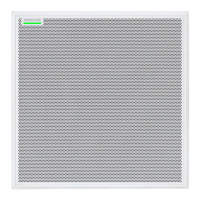
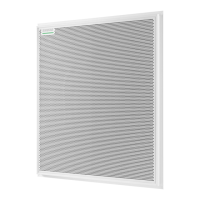
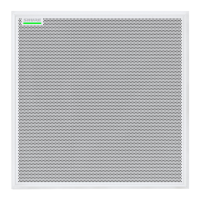
Microflex Advance Ceiling Array Microphone, Designer delivers control over the physical coverage and audio channel settings,
with user presets to quickly switch between configurations. Each lobe is moved according to seating arrangements, with three
width settings to change the size of the coverage area. Independent mixer channels control the level and audio properties for
each lobe.


 To Next Page
 Loading...