Shure Incorporated
9/59
1.
2.
3.
◦
4.
5.
◦
◦
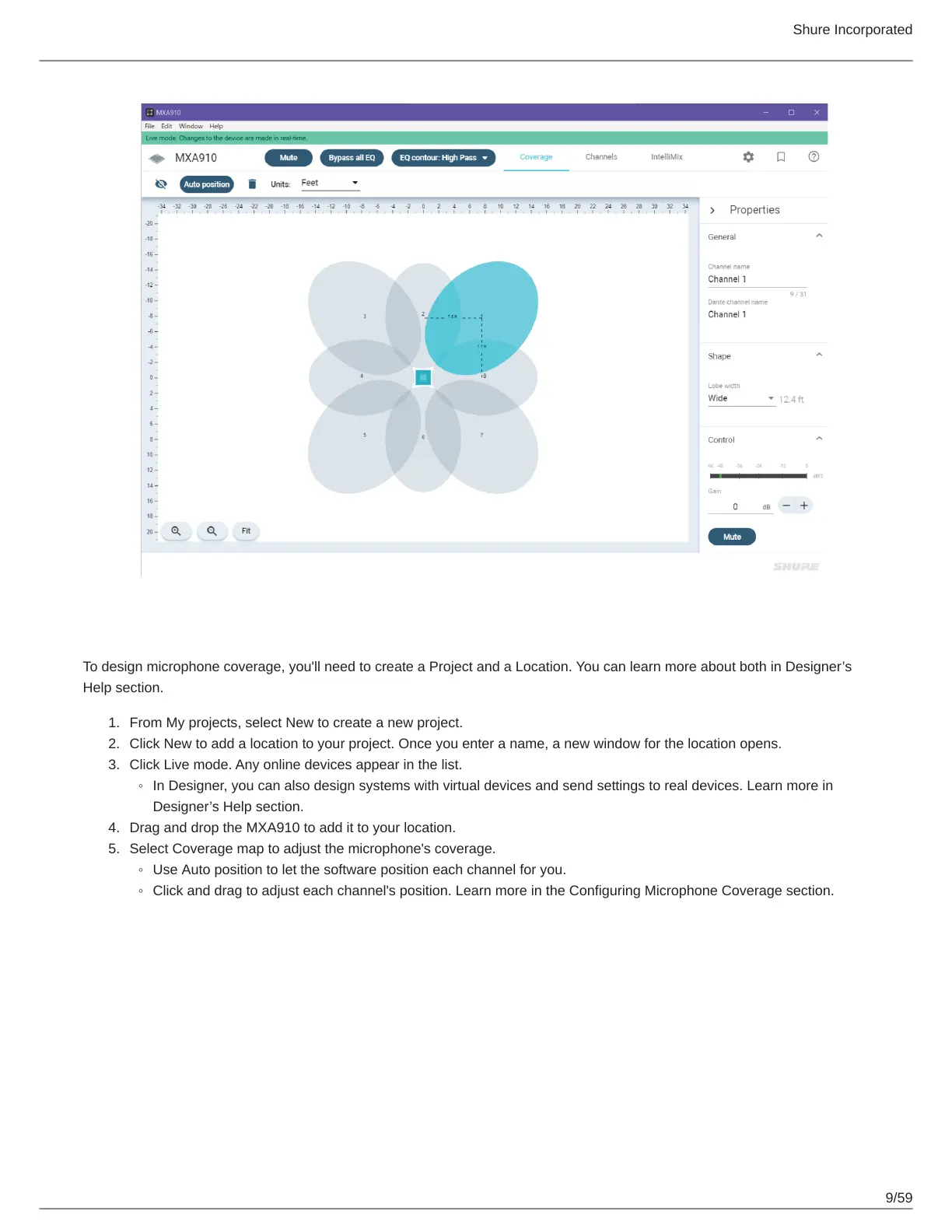
Step 3: Adjust Microphone Coverage
To design microphone coverage, you'll need to create a Project and a Location. You can learn more about both in Designer’s
Help section.
From My projects, select New to create a new project.
Click New to add a location to your project. Once you enter a name, a new window for the location opens.
Click Live mode. Any online devices appear in the list.
In Designer, you can also design systems with virtual devices and send settings to real devices. Learn more in
Designer’s Help section.
Drag and drop the MXA910 to add it to your location.
Select Coverage map to adjust the microphone's coverage.
Use Auto position to let the software position each channel for you.
Click and drag to adjust each channel's position. Learn more in the Configuring Microphone Coverage section.



 To Next Page