NOTE
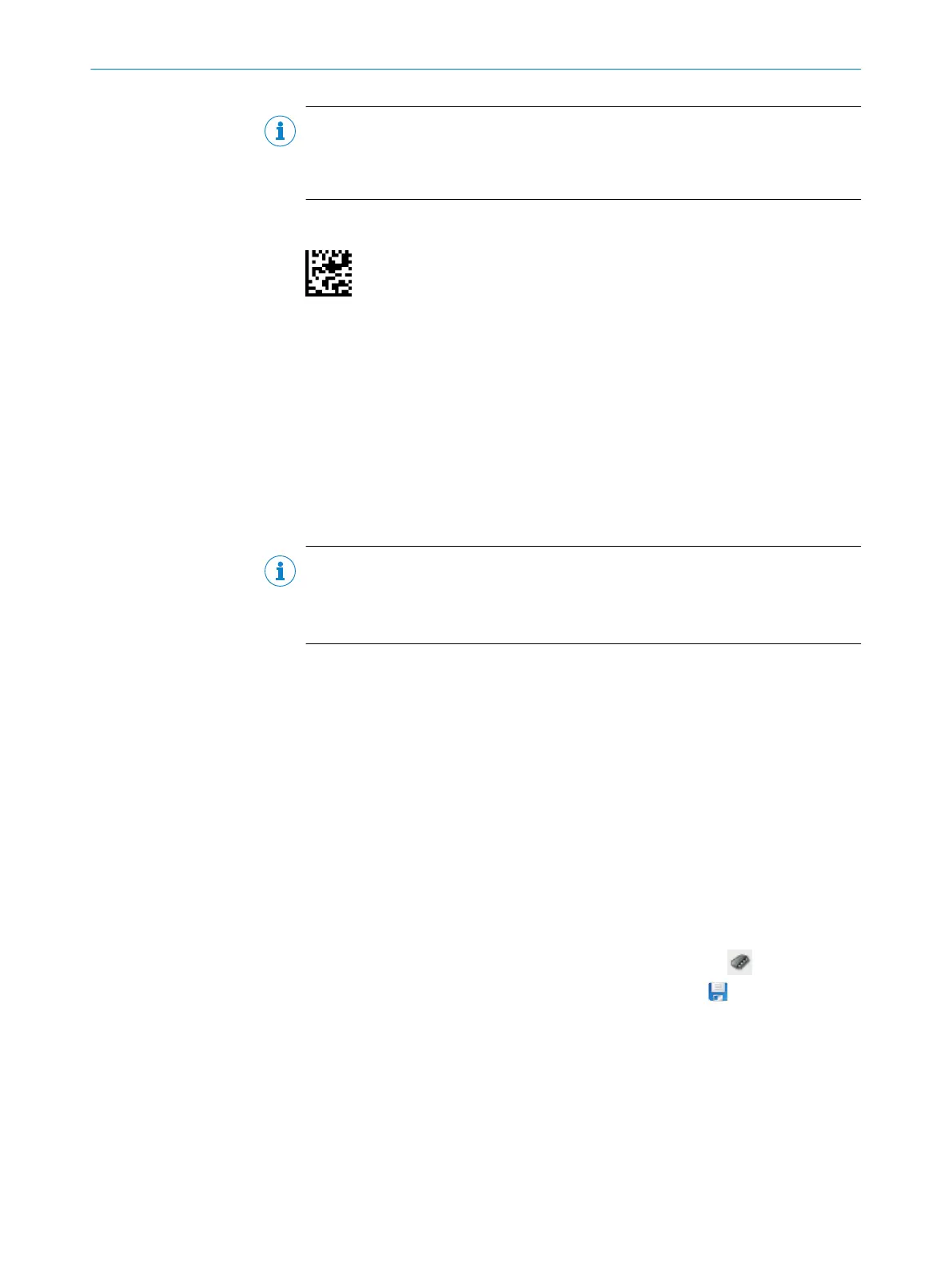
The calibration code must correspond exactly to the 10 mm x 10 mm dimensions.
Remeasure the calibration code after printing. If the dimensions deviate, contact
SICK service and request a new calibration code.
6. Open the Camera and illumination window.
7. Adjust the Shutter time and Brightness parameters to the working distance of the
device, see "Typical reference values during operation", page 56.
8. Only relevant if QR codes are being used: Set frame rate to 33 Hz.
9. To set the Reading distance parameter, click on the Auto button.
✓
The Auto-Setup window appears.
10. Follow the instructions in SOPAS ET.
11. Ensure that the calibration code is in the field of view of the device and click the
Calibration button.
✓
If calibration was successful, the indicator light lights up green.
NOTE
After the device has been successfully calibrated using SOPAS ET, do not change
the working distance of the device and the reading distance set in SOPAS ET.
If these settings are changed, the device must be recalibrated.
12. Only relevant if the multicode label is not being used: Open the Code Config window
and deactivate the Multicode label parameter.
13. Relevant if individual Data Matrix codes are being used:
°
Set Minimum module size to “Code resolution - 0.2 mm”.
°
Set Maximum module size to “Code resolution + 0.2 mm”.
°
For example: With a code resolution of 0.5.mm, the Minimum module size must
be set to 0.3 mm and the Maximum module size to 0.7 mm.
14. Relevant if individual QR codes are being used:
°
Set Code size to medium (> 48/48.px).
15. Make settings for additional functions during planned operation such as trigger,
data processing, data interface, etc.
16. Open the Online image window. Click on the Operation button to change back to the
operating mode.
Completing the configuration
1.
To permanently save the parameter set in the device: Click the button.
2.
To permanently save the parameter set on the PC: Click the button.
7.2 Initial commissioning
The device is configured for the particular application situation on site using the
SOPAS ET configuration software on a computer. The default factory settings of the
device are the starting point for this. The default parameter values (configuration data)
in the working memory of the device can be modified for optimization purposes. To
COMMISSIONING 7
8024289/19E9/2020-10-21 | SICK O P E R A T I N G I N S T R U C T I O N S | GLS621
41
Subject to change without notice


 To Next Page