In this example, we only have two devices to address. It does not matter what
numbers you pick, as long as they all are smaller than 256.
7. Click OK and Close to complete the settings.
NOTE
If you use the same Ethernet port on your computer for connecting to your home,
factory, or office network you have to remember to change back to your original settings
in order for that to work when you are done connecting to the device. For that reason,
it is usually a good idea to pick IP addresses that are compatible with that network in
case you forget.
4.3.2 Setting an IP address on the device
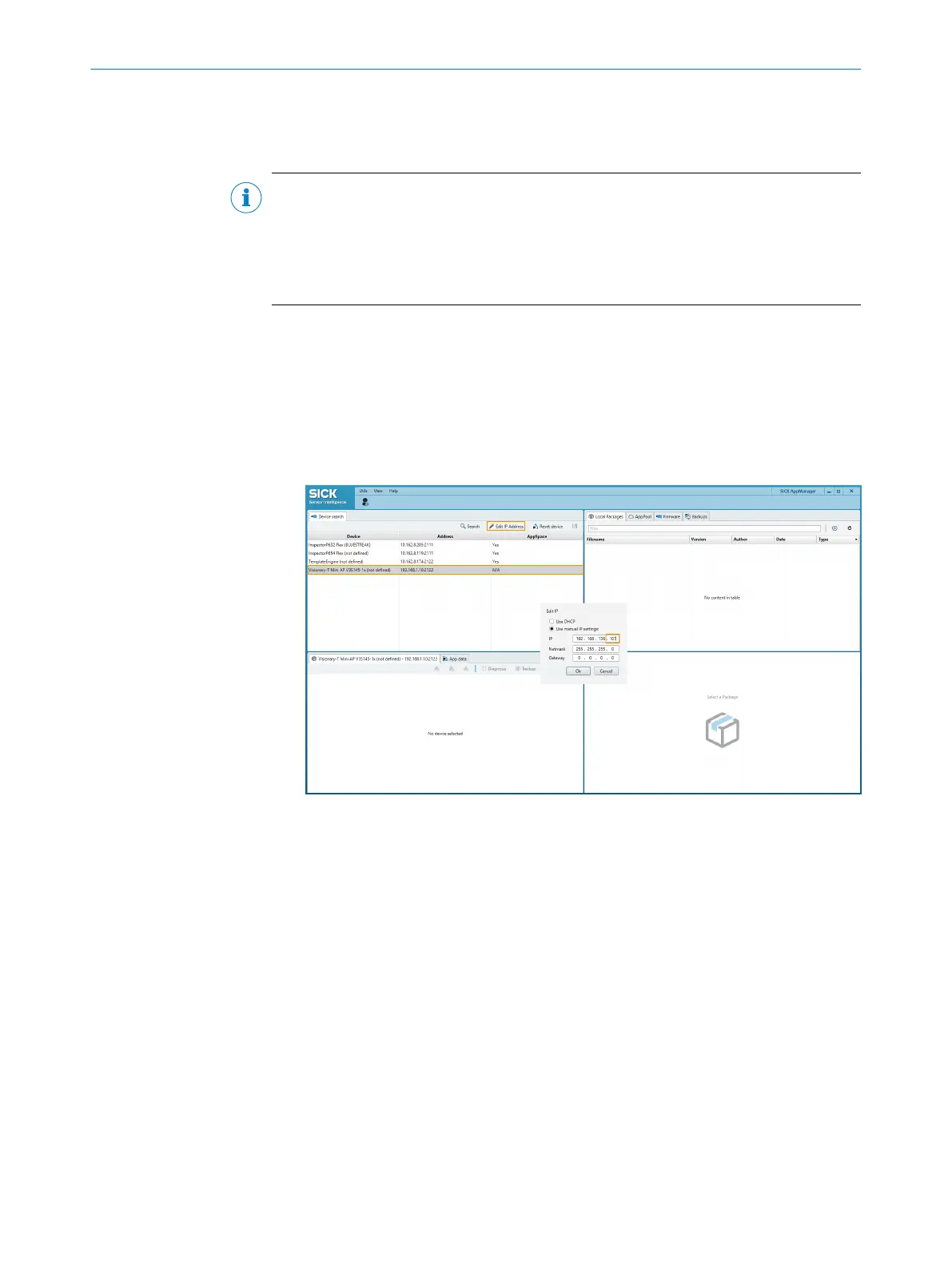
Use the SICK AppManager to find connected devices on the local network, and change
the settings on your device. If your device is powered up and connected to the computer
when you start SICK AppManager, the device will show up as one or two lines in the
Device search tab.
1. Open the SICK AppManager on the computer.
2. Select the line representing the desired device.
3. Click on Edit IP Address.
4. Set the Netmask. Enter the same subnet mask as the computer has.
5. Set the IP. Use the same IP address as the computer for the first three sections.
The last section in the IP address must be different.
6. Click OK.
4.4
Setting up the USB interface
The device comes with a USB interface that supports the same functionality as the
Ethernet interface. The USB interface is a service interface meant for temporary use.
The interface can be used for commissioning the product. The interface is not intended
for permanent connections in operational use.
The USB interface uses a virtual Ethernet link with the static IP address 169.254.0.1
on the device-side. This IP address cannot be changed. The device has a DHCP-server
for the USB interface that automatically assigns IP addresses to connected computers.
After connecting a computer to the device via USB, Windows will by default automati‐
cally assign an IP address to the associated network adapter. The device can be used
directly by connecting to it via the IP address 169.254.0.1.
GETTING STARTED 4
8029044/1MYO/2024-04 | SICK O P E R A T I N G I N S T R U C T I O N S | Inspector83x
25
Subject to change without notice


 To Next Page