Service and maintenance
8.4 Factory settings
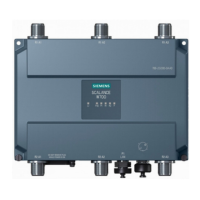
SIMATIC RF360R
98 Configuration Manual, 03/2022, C79000-G8976-C629-02
8.4.4 Restoring the factory settings for the hardware
Requirement
The reader has been disconnected from the power supply.
Procedure
Proceed as follows to restore all settings to factory defaults using the power supply interface:
1. Make a voltage supply cable with open ends by stripping the cable ends/core ends (power
supply end).
2. Connect the power supply cable to the reader.
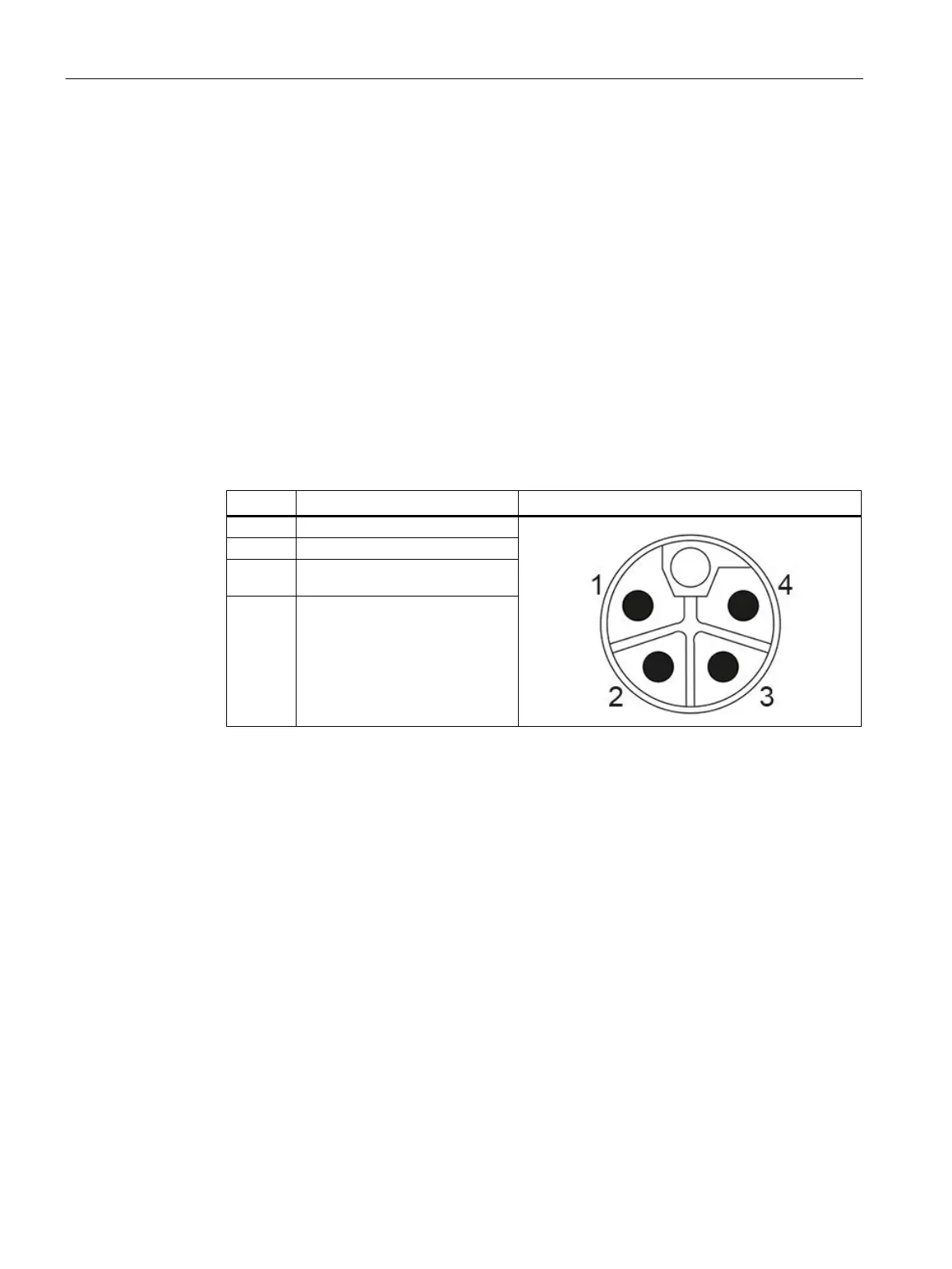
3. Connect the wire ends of pins 3 (0 V DC) and 4 (Reset To Factory) using a terminal block and
connect them to 0 V DC of the power supply.
View of the power supply interface
Functional earth / shield (0 V DC,
blue)
4. Connect pin 1 (24 V DC) to the positive pole of the power supply.
5. Wait until the "R/S" LED is continuously lit in green.
6. Remove the power supply cable with open cable ends.
7. Reconnect the reader to the power supply using a regular power supply cable.
Result: The reader was reset to its original factory settings.
Note that restoring the factory settings also resets the IP address of the reader. With the
factory settings, the IP address is obtained via a DHCP server.
After restarting the reader, you may need to assign a new IP address or a new device name to
the reader.




 To Next Page