D10
22
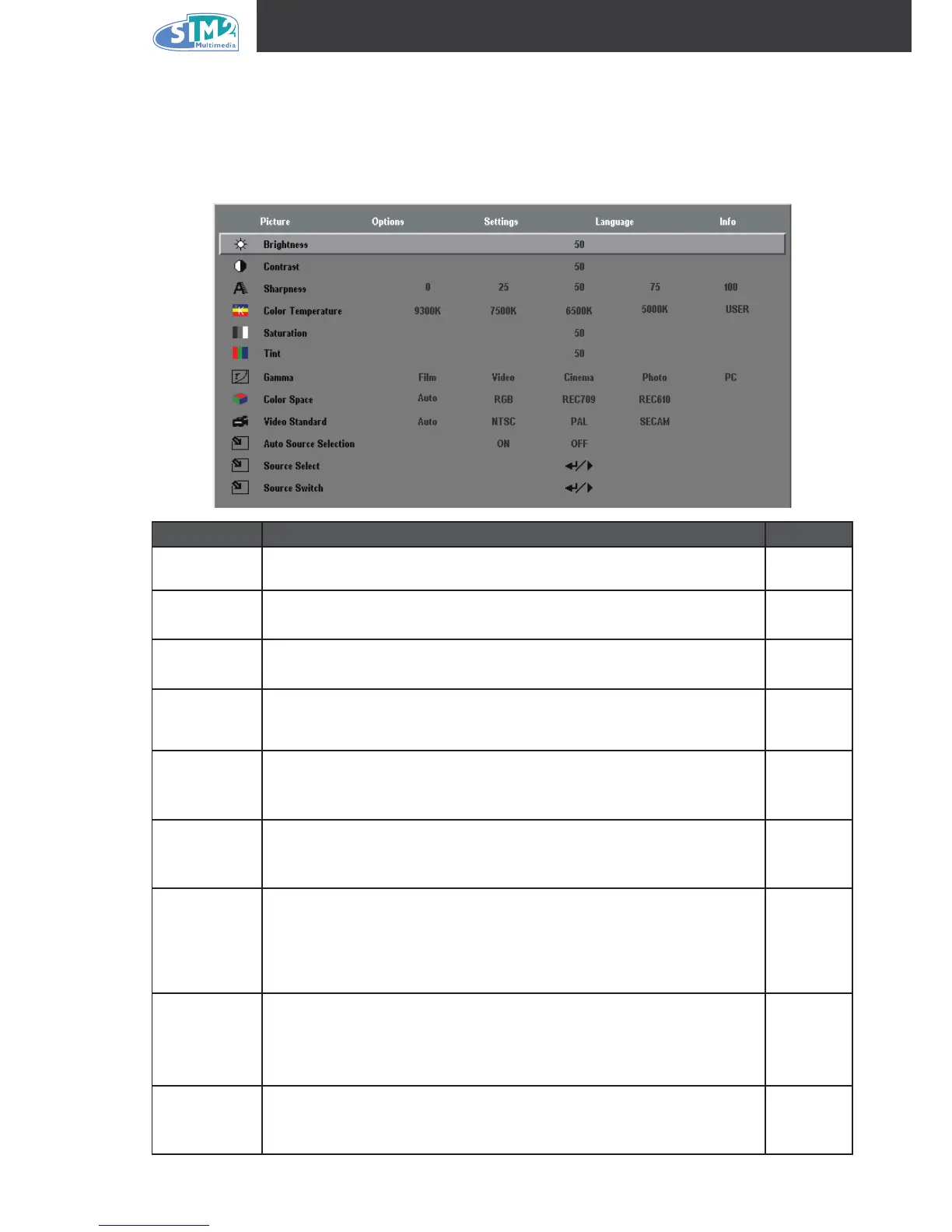
Image Menu
Press the Menu button to open the OSD menu. Press the cursor ◄ ► button to move to the
Image menu. Press the cursor ▲▼ button to move up and down in the Image menu. Press ◄ ►
to change values for settings, and then press Enter to conrm the new setting.
iteM deScriptiOn default
Brightness
Press the cursor ◄ ► button to adjust the brightness.
(Range: 0 – 100)
50
Contrast
Press the cursor ◄ ► button to adjust the contrast.
(Range: 0 – 100)
50
Sharpness
Press the cursor ◄ ► button to adjust the display sharpness
(Range: 0-100)
50
Color
temperature
Press the cursor ◄ ► button to adjust the video tint/hue.
(Options: 9300K, 7500K, 6500K, 5000K, USER)
See “User Color Menu” on page 29
6500K
Saturation
Press the cursor ◄ ► button to adjust the video saturation.
(Range: 0 – 100)
Note: Color saturation is available for Video and S-Video modes only.
50
Tint
Press the cursor ◄ ► button to adjust the video tint.
(Range: 0 – 100)
Note: Color tint is available for Video and S-Video modes only.
50
Gamma
Press the cursor ◄ ► button to adjust the gamma correction of the
display.
(Options: Film, Video, Cinema, Photo, PC)
PC [VGA]
Video [DVI,
HDMI,
Component,
Video,
S-Video,
and RGBs]
Color space
Press the cursor ◄ ► button to adjust the color space.
(Options: Auto – RGB – REC709 (YPbPr) – REC610 (YCbCr))
Note: Color space is available for component, PC, HDMI, and DVI
modes only.
Auto
Video
standard
Press the cursor ◄ ► button to adjust the Video Standard.
(Options: Auto, NTSC, PAL, SECAM)
Note: Video standard is available for Video and S-Video modes only.
Auto


 To Next Page