3. Click the button Config files .
9 Windows folder search opens.
4. Make sure that your CommNode directory (CommNodeSvr_X_X) is se-
lected.
5. Click on the OK button.
9 Windows folder search closes.
9 The window "LockSysMgr" opens.
6. Click on the button No .
9 The "LockSysMgr" window closes.
9 The window "LockSysMgr" opens.
7. Click on the OK button.
9 The "LockSysMgr" window closes.
8. Click on the button Transmit .
9 Data is transmitted to the communication node.
9. The window "Programming" opens.
10. Click on the OK button.
11. The "Programming" window closes.
9 Task is transferred to the communication node.
Display battery
warnings
However, you must add the locking devices to be monitored yourself. You
can check and set the display of battery warnings:
ü LSM open.
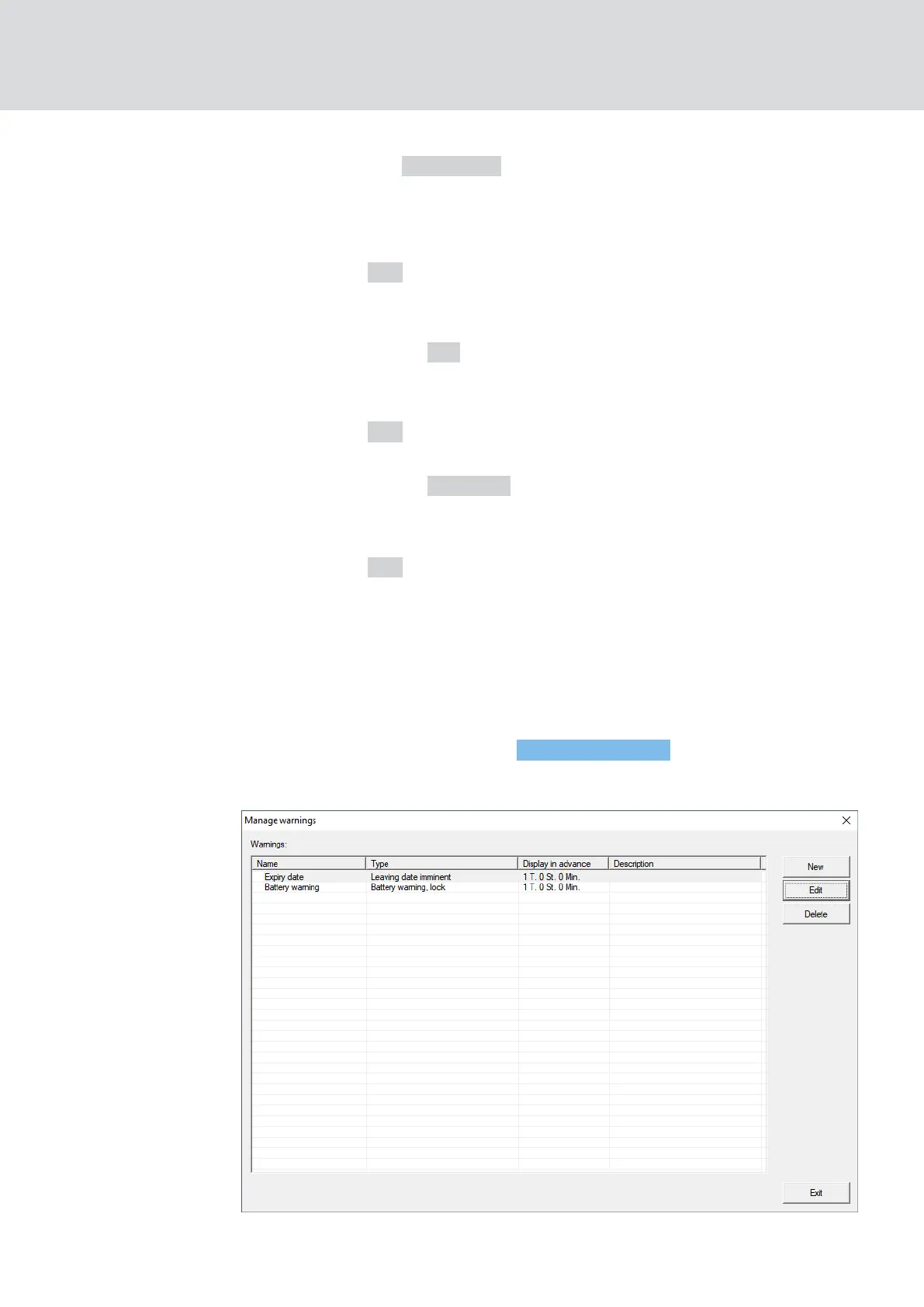
1. Via |Reports| select the entry Manage warnings .
9 The window "Manage warnings" opens.
2. Mark the battery warning entry.
WaveNet (Manual)
6. Battery management
188 / 210


 To Next Page