CGM User Guide
73 Attachment C Take Care of Your CGM
Here is the recommended mobile device setting for your iPhone and
Android mobile device.
Screen Time
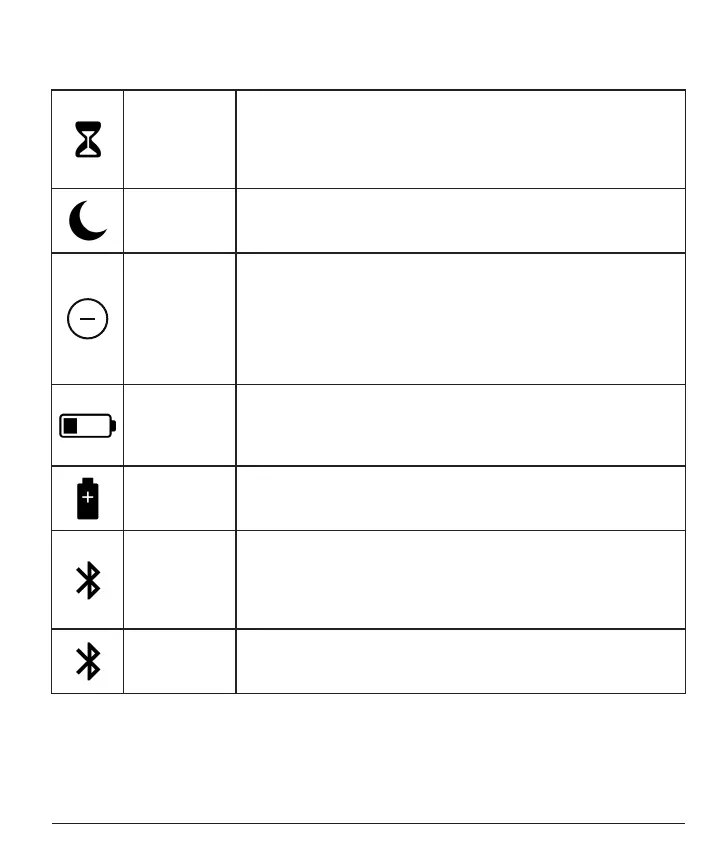
Screen Time's Downtime and APP Limits can temporarily disable
apps.
You can:
- Turn o Downtime and APP Limits or
- Add CGM APP to the Always Allowed APP list
Do Not Disturb
Do Not Disturb silences all alerts except for the Urgent Low alert.
For iOS, you can
• Go to Settings, tap on Do Not Disturb, and turn it o
Do Not Disturb
Permission
You must allow Do Not Disturb Permission for the CGM APP to work.
The Do Not Disturb Permission ensures you always get the Urgent
Low alert and important iCan alerts even when you put your phone in
the most restrictive Do Not Disturb setting.
For Android, you can:
• Follow in APP instructions, or go to Settings, nd DND Permission
or DND Access, choose CGM APP, tap Allow DND, and tap Allow.
Low Power
Mode
Low Power Mode may prevent the CGM APP from running in the
background.
For iOS, you can
• Go to Settings, tap Battery, and turn Low Power Mode o.
Battery Saver
Mode
For Android, you can:
• Go to Settings, and turn Battery Saver Mode o, or choose the
highest battery performance on certain phones.
Device
Bluetooth
Your CGM APP uses Bluetooth to connect with your transmitter. You
must keep your phone Bluetooth turned on to get alerts and sensor
results.
You can:
• Go to Settings, nd Bluetooth, and turn it on.
App Bluetooth
Permission
Apple requires you to give the CGM APP permission to use Bluetooth.
You must keep Bluetooth Permission turned on for the CGM APP to
work.


 To Next Page