Pair with your phone and FitPro App
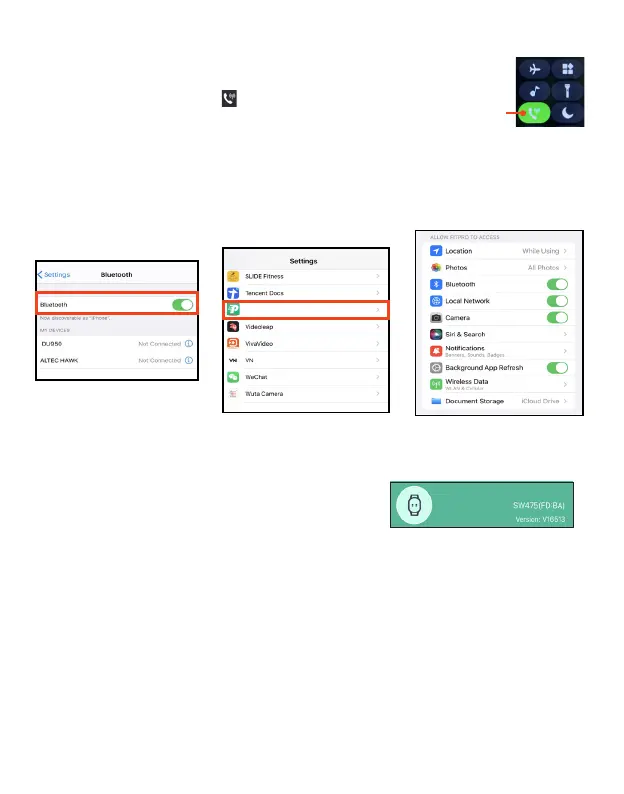
2. Phone Settings: Turn your phone's Bluetooth on, and turn on all permissions and
notifications (In your phone's settings, swipe up and down to select FitPro to enable Bluetooth
and Notifications). This may be necessary for the app to function as intended. Search for
"SW475-Phone" , then tap to connect.
1. Smart Watch Settings: Swipe up on the watch face screen to
display shortcut menu, then tap in the shortcut menu to turn your
Smart Watch's Bluetooth call on.
2. Launch the FitPro app on your phone, tap Settings > Bind device to experience more features >
"SW475" > Done to pair.
When the Smart Watch is successfully paired, tap Device
in the FitPro app, and the Smart Watch name and firmware
version will be shown at the top of the screen.
Note: FitPro will automatically be paired with your last successfully connected device the next
time it is started.
Bluetooth
call
FitPro
EN 11 EN 12
Disconnect the Smartwatch with your phone and FitPro App
The Smart Watch can only be used with one phone ID. If you want to use it with another phone,
you should remove and reset it by following steps:
1.
Open the FitPro app, tap Settings tab at the bottom of screen , to show the settings screen.
2.
Tap Remove > Confirm to unlink from your phone.
3. After successfully removing the Smart Watch from FitPro app, go to your phone's Bluetooth
settings, disconnect the SW475 and SW475 Phone by tapping "Forget This Device", the Smart
Watch is now reset and ready to be paired to a new Apple/iOS device.


 To Next Page