Chapter 2
Installing and securing your interactive whiteboard
smarttech.com/kb/001414 19
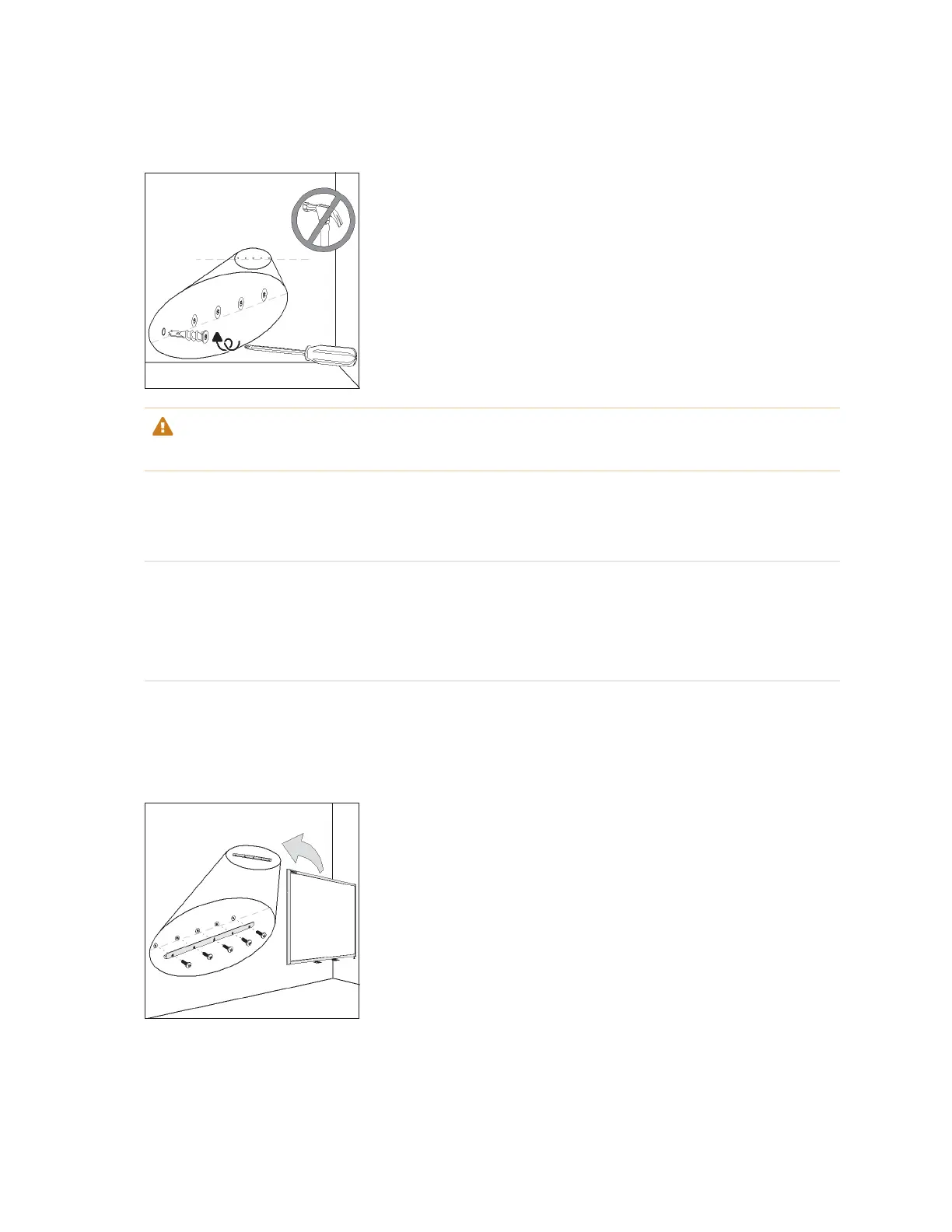
3. Use the Phillips No. 2 screwdriver to secure an included self-tapping wall anchor at each mark.
CAUTION
Do not use a hammer to secure these anchors.
If you’re unable to screw an anchor flush to the wall, you might have encountered a stud. If this is the
case, you don’t need to use an anchor in this location. The stud will provide adequate support for the
screw that secures the bracket to the wall.
NOTES
o
For a concrete wall, drill holes at the marks, and then insert concrete anchors (not included) into
the holes.
o
If necessary, stand on a stepladder so that you can secure these wall anchors flush to the wall.
4. Using the screwdriver, secure the wall-mount bracket to the self-tapping wall anchors with the
included screws.
5. With the help of another person, temporarily hang your interactive whiteboard on the center of its wall-
mounting bracket.


 To Next Page