EasyManua.ls Logo

Smartoptics Activity 885 - Figure 41: Data Set before Matching; Figure 42: Rescan Button

Smartoptics Activity 885
57 pages
Print Icon
To Next Page IconTo Next Page
To Previous Page IconTo Previous Page
Loading...
Scanning procedure
42
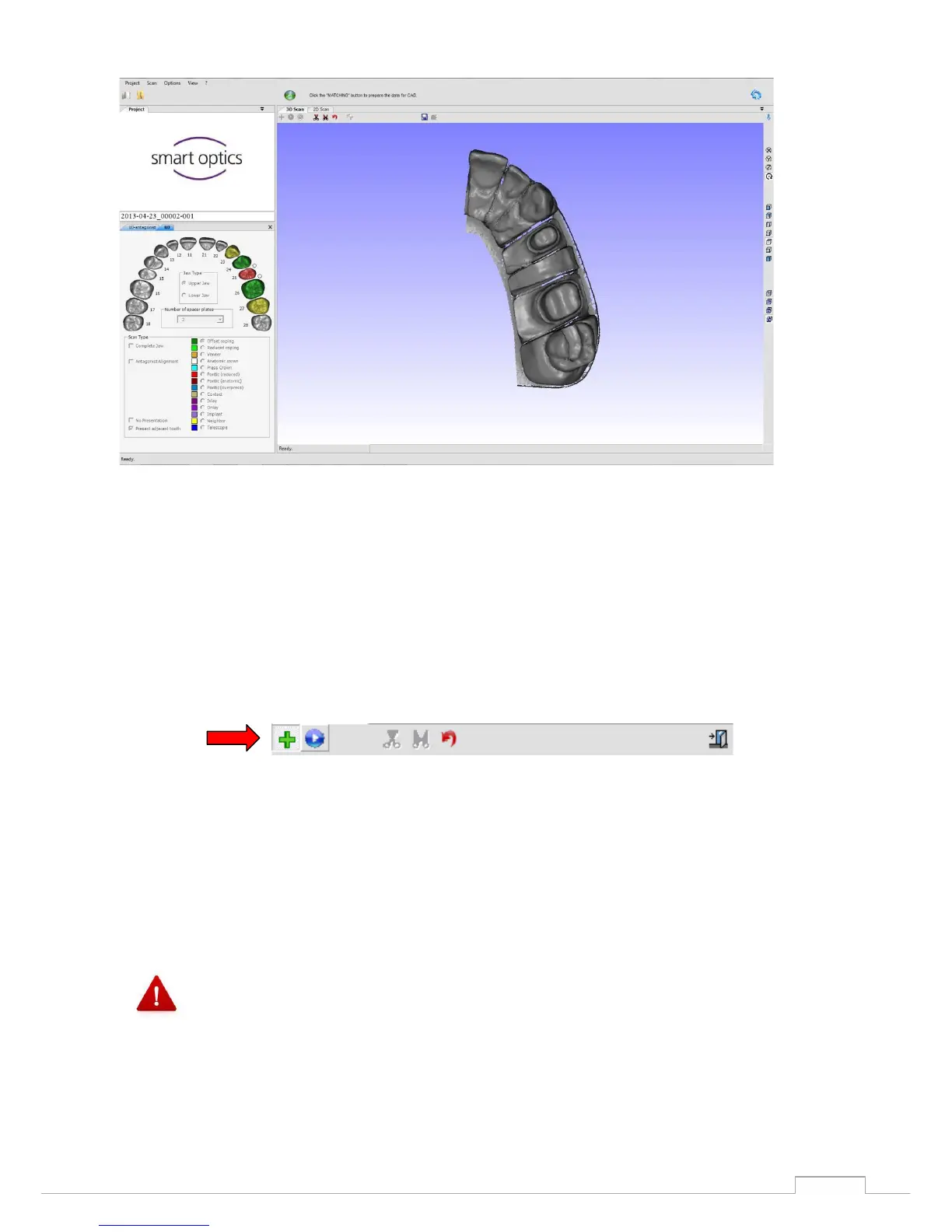
Figure 41: Data set before matching
If the model scan exhibits holes or blurred areas, you can correct these with the rescan function.
A green cross is located at the top of the 3D viewer, which can be used to start the "Rescan Mode".
(See figure. 43)
Figure 42: Rescan button
If "Rescan Mode" is enabled, this green cross will be shown in the centre of the 3D viewer (see above).
Now the edge of the data hole must be positioned below the cross using the familiar mouse options
(left mouse button rotate, right mouse button move and scroll wheel zoom).
If the centre of a hole is positioned directly below the cross, the scanner will move to an
incorrect rescan position and possibly a recording at another point.

Table of Contents